

Once the report card template is configured by the school or support team, the report card publishing process can be completed in two main steps:
- Add Result
- Publish the Report Card
Step 1: Add Result
In this step, you create an entry for an annual, term-wise, or assessment-wise result, which is later used to generate the report card. This is a one-time process for the entire academic year. Once a result is added for a specific class, term, or assessment, there is no need to repeat this step for the same combination again.
- Navigate to Student > Examination > Report Card Publish.
- Click Create and choose one of the following:
- Annual Report Card – to generate the final report card including all terms
- Term Report Card – to generate a term-specific report card (most commonly used)
- Assessment Report Card – to generate a report card for a specific assessment(e.g., PT1, PT2, SA1)
- Select the Class and Section, and Term or Assessment based on your chosen report card type.
The Template Mapped field displays the report card template name linked to the selected term or assessment. - Set the Parent Access Dates :
This defines the period during which parents can view and download the report card.- To Enable Permanent Access : Enter Start date & keep End date blank.
- To Enable Limited Access : Enter Start and End date both.
- To Avoid Access : Do not enter any dates.
- Click Submit to save and add the entry to the Report Card Publish page.
Step 2: Publish the Report Card
After the result is added, you can generate the report card in PDF format. This process can be repeated any number of times for the same class, term, or assessment—especially if any updates or corrections are made.
- Once the result is added, the report card status will appear as Pending.
- Click the upward arrow to generate the report card.
- The status changes from:
- To Be Published > Scheduled > Published
(generation may take a few minutes).
- To Be Published > Scheduled > Published
- After publishing, you can:
- Preview the report card using eye icon
- Download the report card using downward arrow
- You can download student-wise or for the entire class/section at once
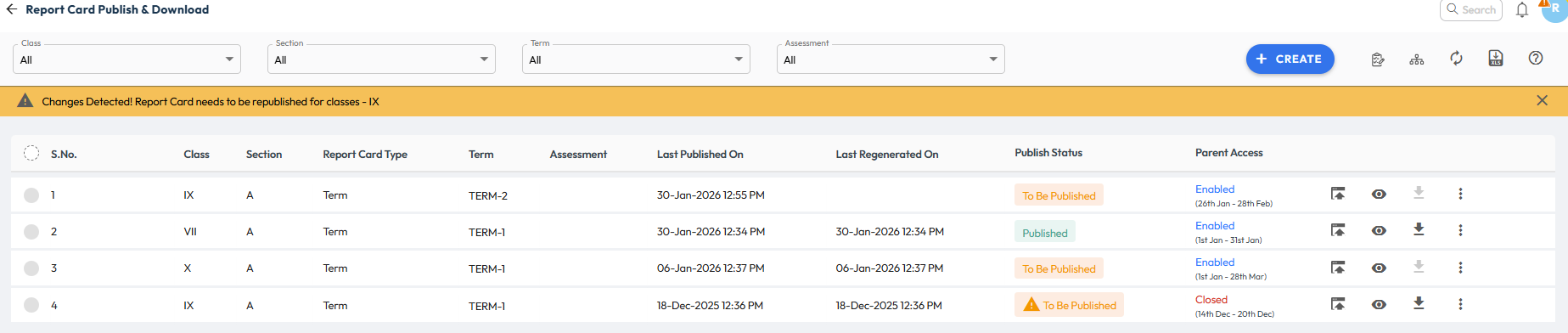
Tip: To display the report card in the parent account, you must enable the Parent Access Start Date and End Date by editing the result using the three dots (⋮) option.
Understand the Status
- If there are minor changes in marks or configurations after generation, the status will show an orange exclamation mark with “To Be Published”, indicating the report card must be re-published.
- If a result is added for first time, the status will appear as “To Be Published.”
- If any existing result shows the status “To Be Published,” ensure you publish the report card using the Publish icon.
- If the status shows “Published” in green, the report card is final, up to date, and ready for download with no pending changes.
- If changes are in multiple classes, a banner notification will appear at the top, listing the affected class names for quick identification.