

If the student name appears incorrectly on a fee receipt, it could be due to incorrect data saved in the student record or an error in the fee receipt template. Here’s how to identify and fix the issue:
Step 1: Verify the Student Name in the Student List
- Navigate to Transaction > Student > Student List.
- Search for the student whose name is displayed incorrectly.
- Verify if the name is saved correctly in the student record.
- If the name is incorrect: Edit the student record and update the name.
Step 2: Check the Fee Receipt Template
- Navigate to Settings > Finance > Fee > Fee Receipt Template.
- Open the relevant fee receipt template.
- Click the three-dot menu and select Edit Template.
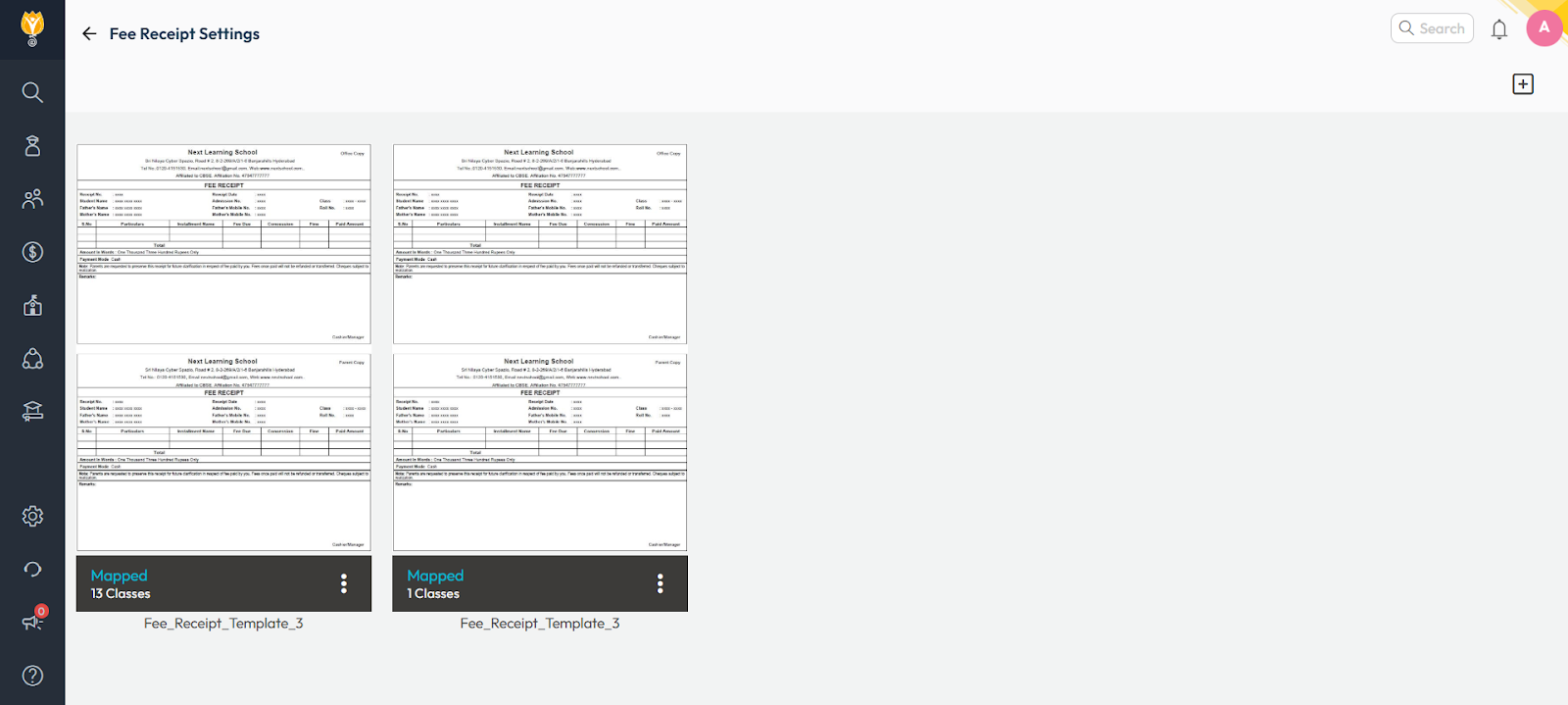
Step 3: Verify and Correct the Student Name Placeholder
⚠️ Important:
Editing a Fee Receipt Template should only be done if you are familiar with the Visual/HTML Editor. Incorrect modifications may break the layout or disrupt data mapping.
- In the template editor, locate the placeholder used for displaying the student’s name.
- Ensure the correct placeholder is used:
- Correct Keyword: ${student.fullName}
- This keyword dynamically fetches the student’s full name from the database.
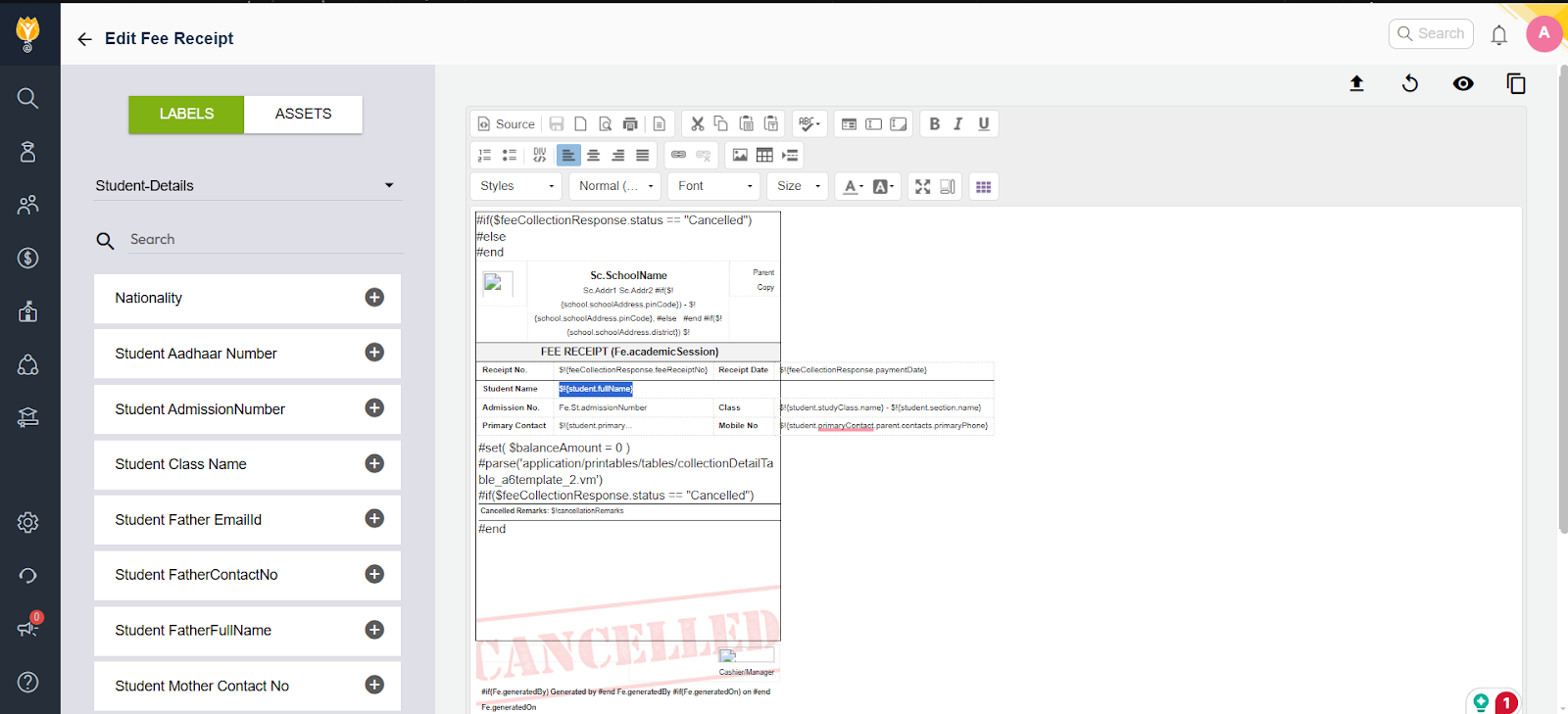
- If the keyword is incorrect, replace it with the correct placeholder ${student.fullName}.
Step 4: Save and Test the Changes
- Save the updated template.
- Generate a new fee receipt for the student and verify that the correct name is displayed.
Example Scenario
Problem:
- A fee receipt shows the student’s name as “John D.” instead of “John Doe.”
Investigation:
- Checked the student list and found the full name was saved as “John D.” in the database.
- Updated the student name to “John Doe” in the student list.
- Verified the fee receipt template and ensured the correct keyword ${student.fullName} was used.
Resolution:
- After saving the changes, a new receipt was generated with the correct name, “John Doe.”
By following these steps, you can ensure that the correct student name appears on all fee receipts.
Video Tutorial :
Was this article helpful to you?
Yes0
No0