

Step 1 – Click on settings
Step 2 – Click on Finance
Step 3 – Click on Fee
Step 4 – Click on Fee type
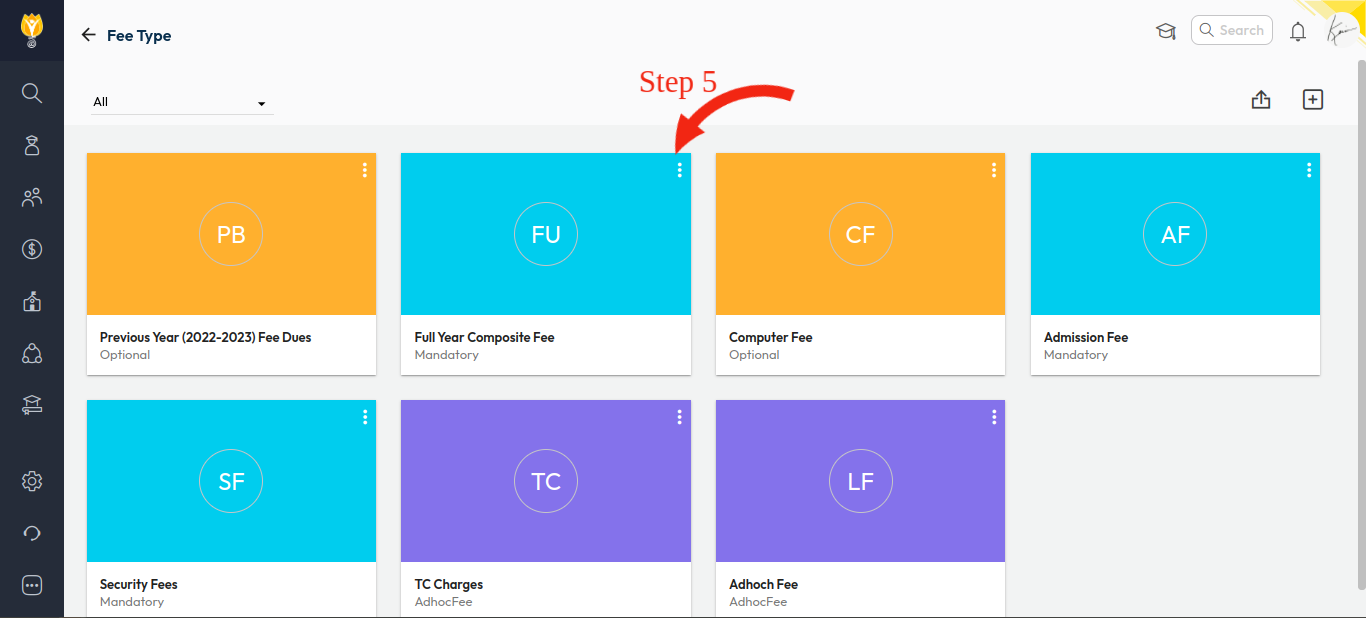
Step 5 – Select a fee type for which you want to change the name & click on three dots of it.
For Example – You can see the below screenshot. I want to change the name of “Full year Composite fee” to only “Composite fee”.
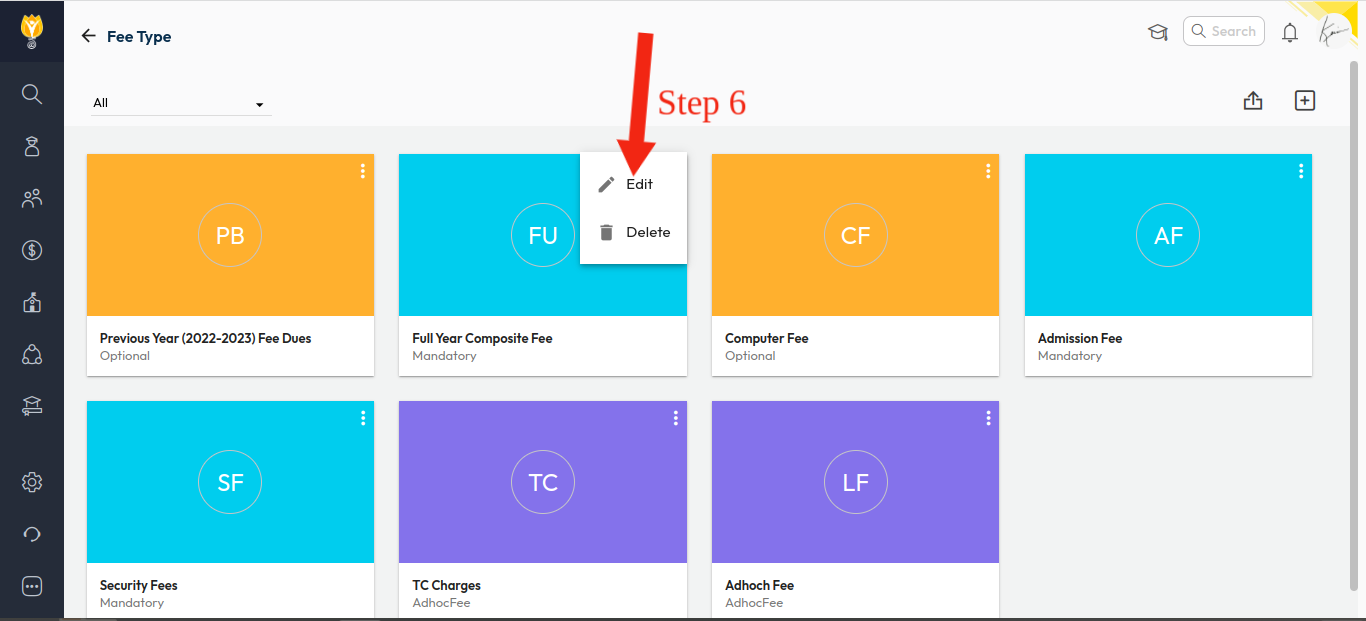
Step 6 – Now Click on Edit
Step 7 – Change the name of the fee head under the “Fee Type Name” heading.
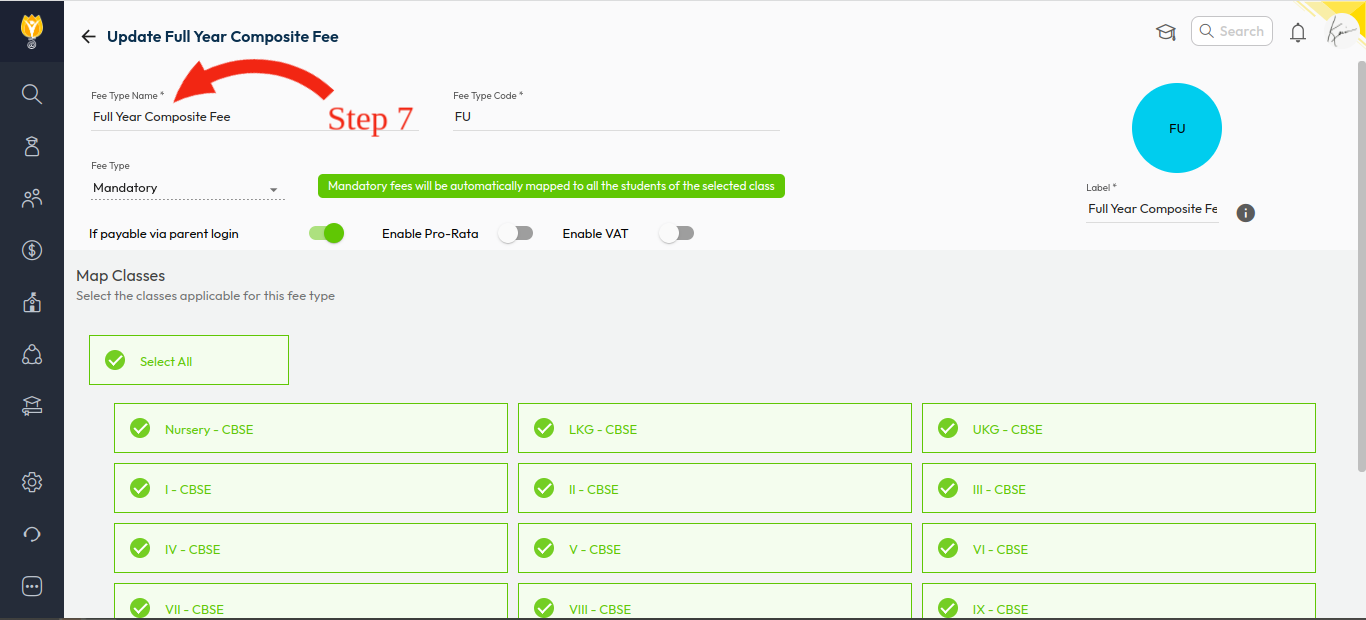
Step 8 – After changing the fee head name, click on the “Save” icon. Now the Fee type name has changed successfully from ”Fully Year Composite” Fee to “Composite Fee”.

Note – Fee head name can be changed anytime, even after collecting the fee for a students
Note:
- Receipts that have already been collected will remain unchanged unless they are cancelled.
- The updated fee head will only apply to new receipts created after this change.
Video Tutorial :
Was this article helpful to you?
Yes0
No0