

You can integrate biometric devices in NextOS by setting attendance mode to Automatic, adding the device, and mapping users (students/staff) to the device.
Step 1: Set Attendance Mode
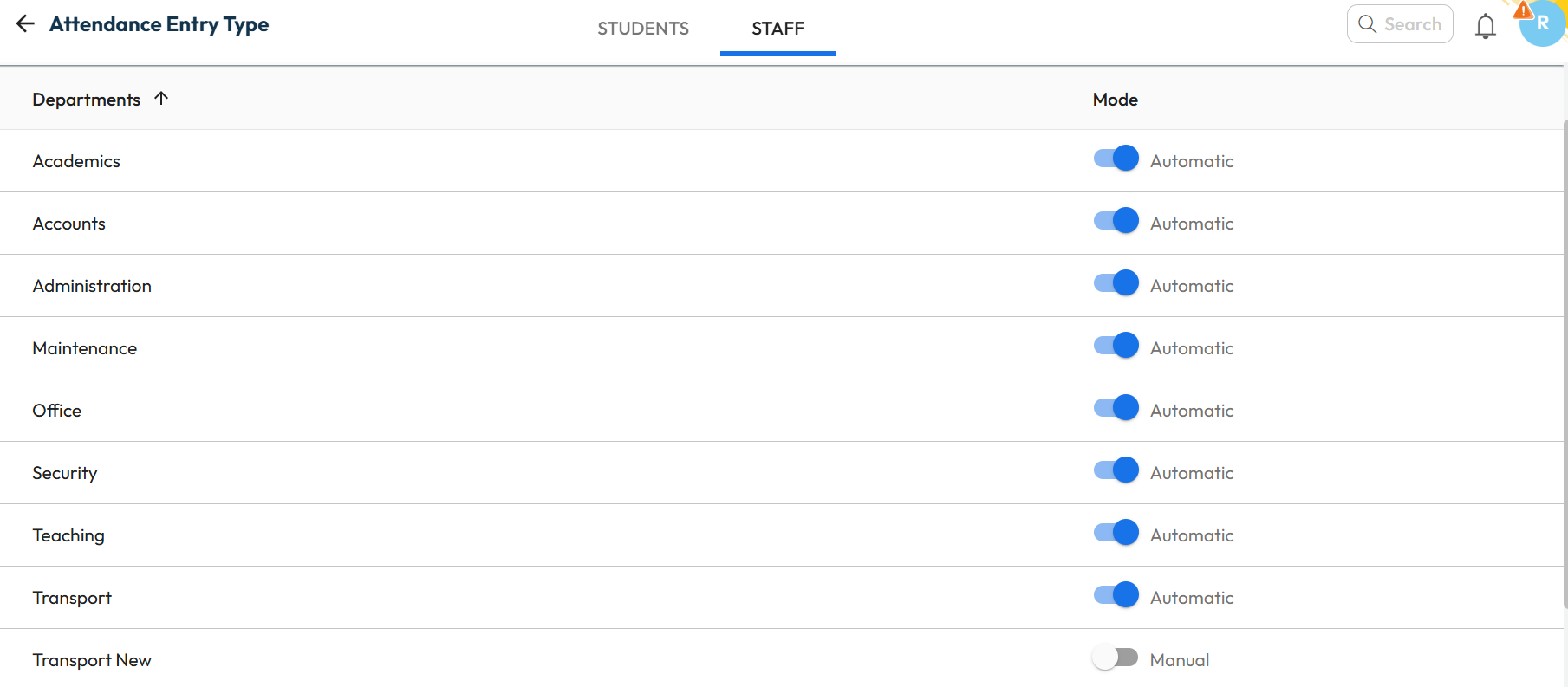
- Navigate to Settings > Staff > Attendance > Attendance Mode.
- Set the Mode to Automatic for the required departments (staff) or class sections (students) whose attendance will be marked via biometric devices.
- Only users with Automatic mode enabled will appear in Map User Groups.
Step 2: Add the Biometric Device
- Navigate to Settings > Staff > Attendance > Biometric Devices.
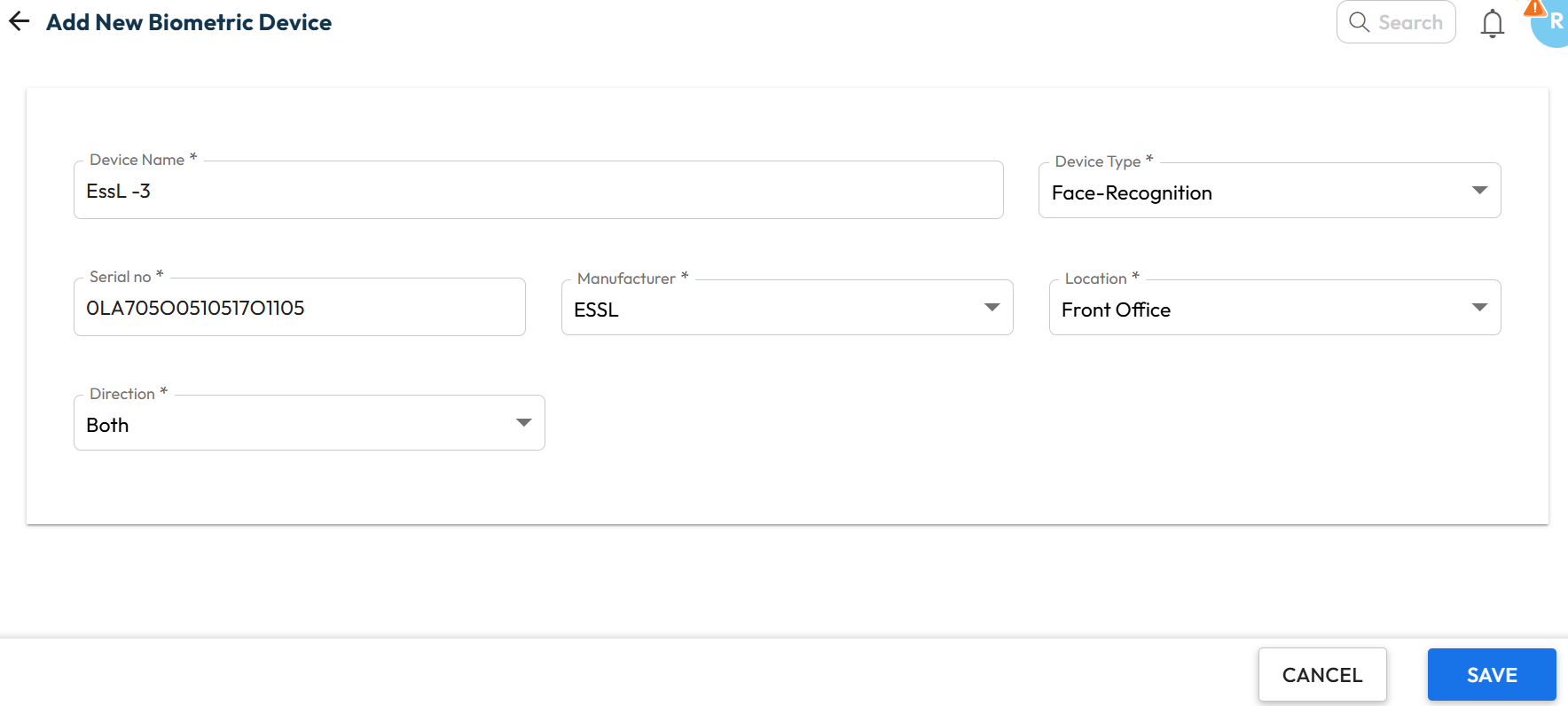
- Click Add (top-right corner) and enter the following details:
- Device Name – Any identifiable name (preferably location/department-based).
- Device Type –Select the supported type (Biometric + RFID / Bio + RFID + Face).
- Serial Number – Enter exactly as printed on the device (must be accurate).
- Manufacturer – Select eSSL (recommended) or Others
- Location – Where the device is installed and being used.
- Direction – Select IN or OUT or BOTH as applicable.
- Click Add to save the device.
Step 2: Verify Biometric Status
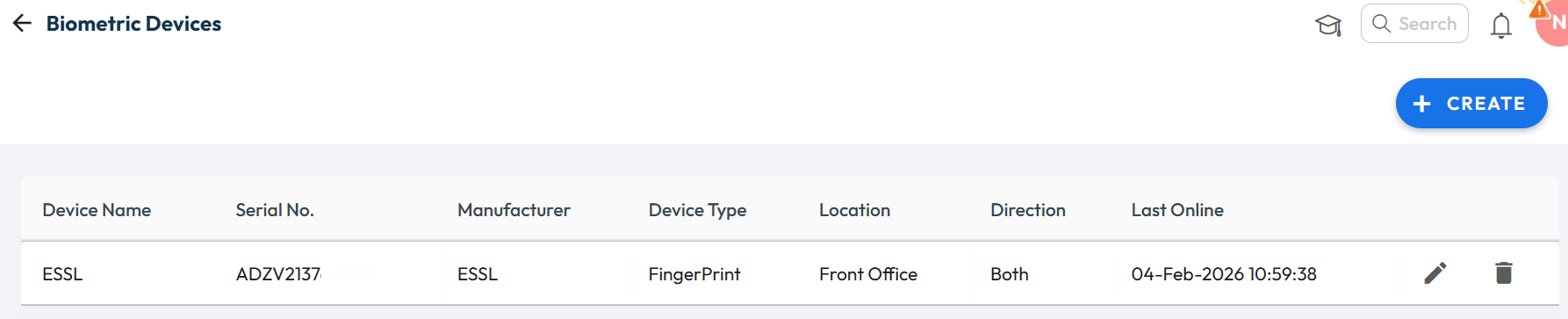
Once the biometric device is successfully configured and connected to the NextOS server, it will start showing as Online in the system. You can verify it from –
- Navigate to Settings > Attendance > Biometric Devices
- Check the Last Online column status next to the device name.
- Ensure the status shows Online along with the latest timestamp, confirming the device is properly connected and communicating with NextOS.
Step 4: Map Users to the Device
You do not need to manually add students or staff to the biometric device. Once the device is successfully connected to the NextOS server, NextOS will automatically push all mapped users to the biometric device, and attendance codes will be created automatically.
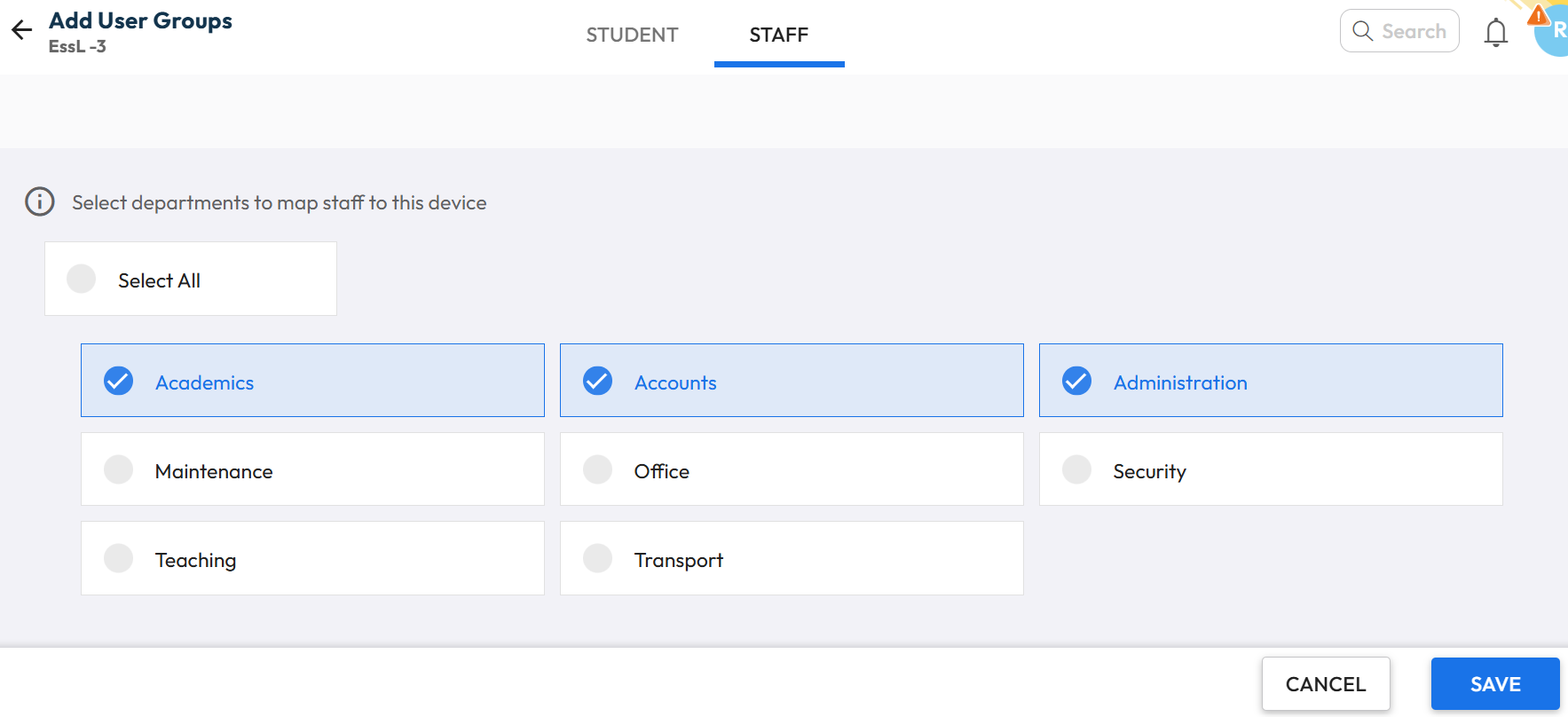
- Go to Map User Groups and click on the required biometric device.
- Under the STUDENT tab, select the classes to link and click Save.
- Switch to the STAFF tab, select the departments to link and click Save.
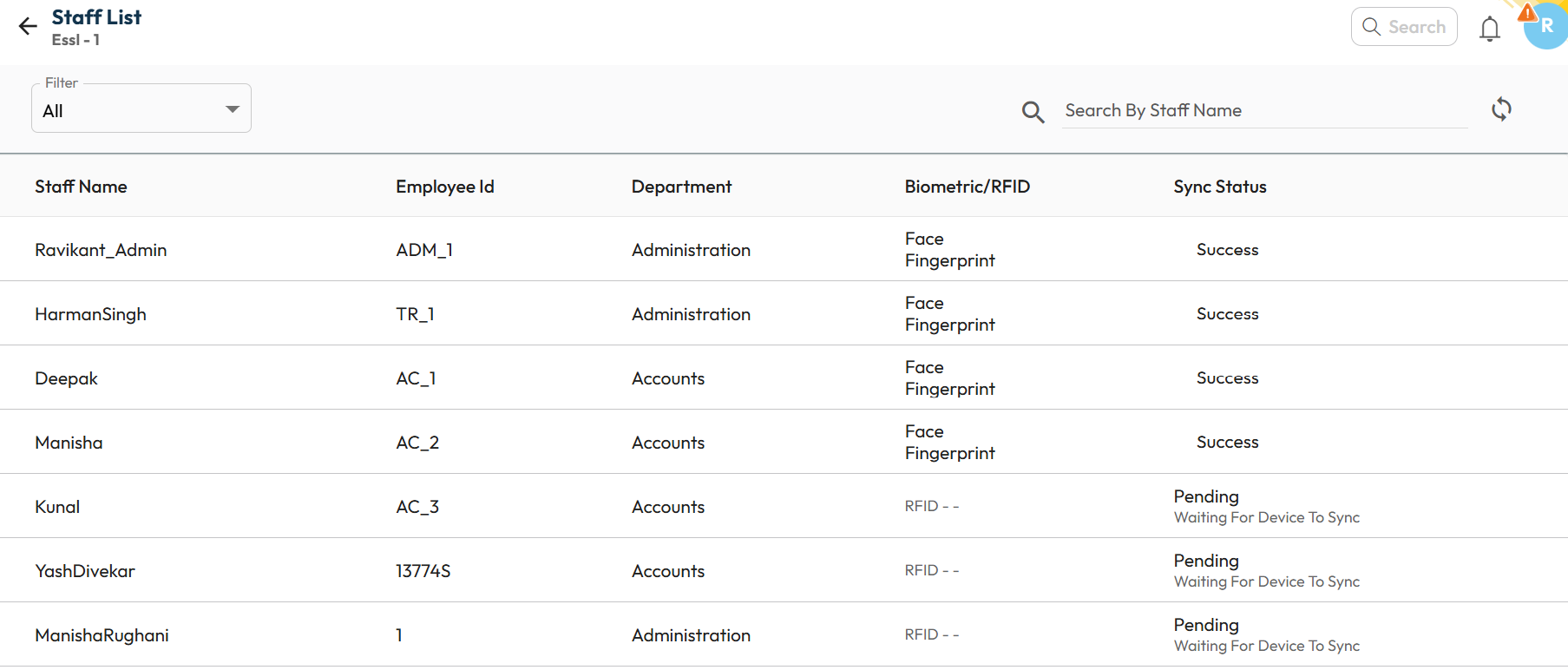
Step 5: Verify Users Sync Status
- Select the biometric device in Map User Groups to view sync statuses.
- Click View All to see the list of synced students and staff.
- Pending status indicates the device is not syncing—ensure it’s configured, online, and connected to the internet.
This setup enables automatic attendance recording through bio-metric devices for students and staff.
Additional Guide
How can I set up the Essl X990c biometric device?
How can I set up the Essl UFace 302 or UFace 602 biometric device?