

If you encounter invalid entry errors while uploading marks, follow the steps below to resolve them:
- Navigate to Student > Examination > Mark Entry.
- Click the Excel option.
- Select the appropriate filters from the dropdown.
- Upload the mark entry Excel file.
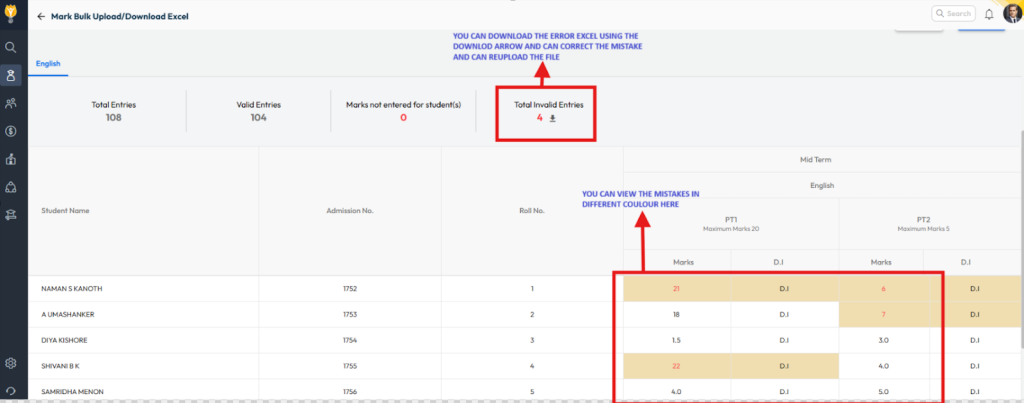
- If errors are found, the system will highlight the incorrect cells in red and allow you to download the Error Excel File.
- Open the downloaded error file and correct only the Marks or Grade fields.
Do not edit the student name, admission number, roll number, or any other fields. - While re-uploading, ensure the same filters are selected as those used during the initial download the excel template.
- Re-upload the corrected Excel file.
Note:
- Only marks or grades should be edited in the Excel file.
- Maintaining the same filter selection during re-upload is mandatory to avoid further validation issues.
Was this article helpful to you?
Yes0
No0