

To display student ranks on the report card, you must complete two configurations: set up class ranking and update the report card template.
Configure Class Ranking
- Navigate to Settings > Student > Examination > Rank Configuration.
- Select the desired Class.
- Configure ranking for Assessment/Term/Yearly Ranking by selecting Rank Based On (marks or percentage).
- Click Save to apply the ranking settings.
Report Card Template Setup:
- Navigate to Settings > Student > Examination > Report Card Builder.
- Select the appropriate report card template and click on View.
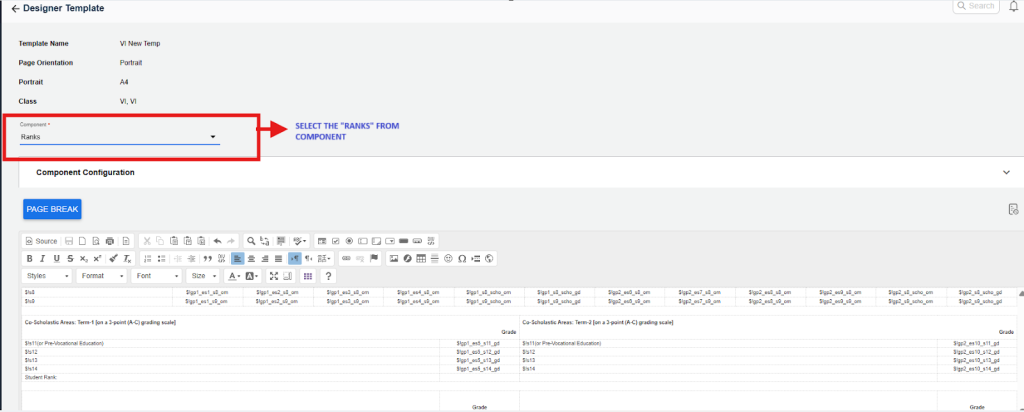
- From the Component section, choose the “Rank” option.
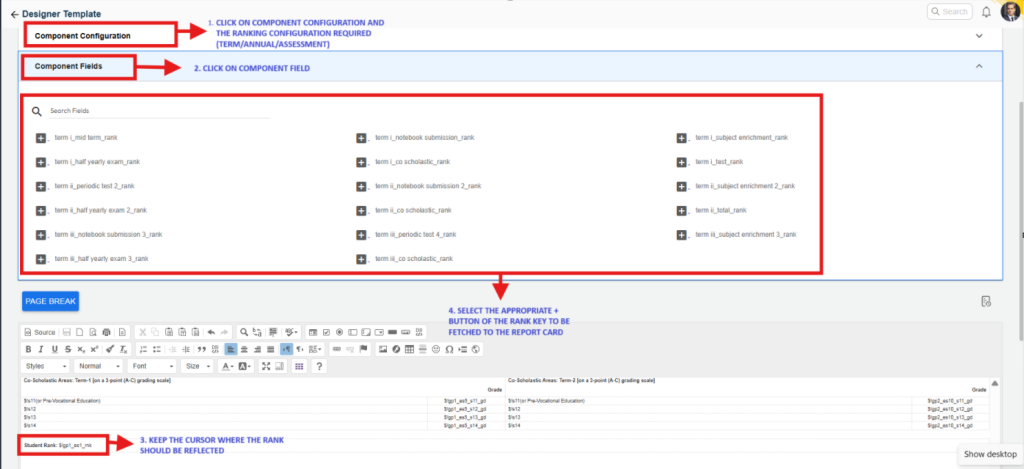
- Place the cursor in the desired position within the template where the rank should appear.
- Select the appropriate Rank Key from the component field to insert it into the template.
- Click Submit to update the template.
After completing both steps, republish the report card to automatically display student ranks in the report card.
Was this article helpful to you?
Yes0
No0