

⚠️ Important:
Editing the Report Card Template should not be done without prior understanding of the Html / Visual Editor tool. Incorrect changes may affect the layout or missing information in the final output.
- Navigate to: Settings > Student > Examination > Report Card Builder
- Select the Report Card Template
- Choose the template you want to edit or customize.
- Click the three-dot menu next to the template and select Edit.
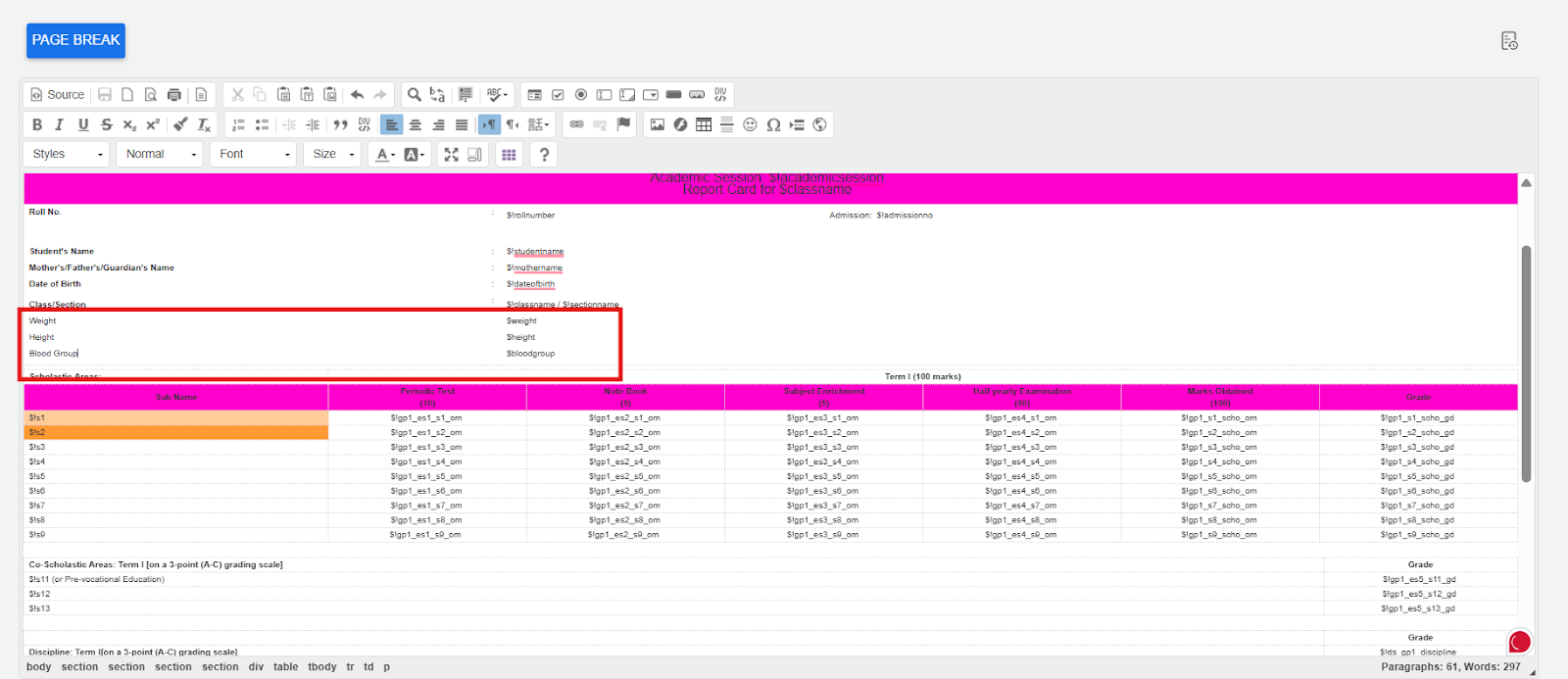
- Insert Health Keywords.
- In the text editor section of the template (usually where the student details are shown), add the following placeholders where needed:
- $height
- $weight
- $bloodgroup
- In the text editor section of the template (usually where the student details are shown), add the following placeholders where needed:
- Use Health Status Component (Optional)
- Inside the builder, look for the “Components” panel.
- Select “Health Status” from the components.
- It will show options like Height, Weight, and Blood Group.
- You can click to insert the fields directly if using a block-style layout.
- Save the Template
- Once added, click Save to apply the changes.
- Preview and Generate Report
- When generating the report card for a student, the system will automatically pull the health data from the student’s profile and display it using the keywords.
Note:
- Make sure the student’s health details are entered in their profile under:
- Student > Student Health Details
- Otherwise, the placeholders will appear blank on the report card.
Video Tutorial:
Was this article helpful to you?
Yes0
No0