

You can control this in two ways:
- Reassign a new role to the staff member (a role that does not include examination configuration access), or
- Update the permissions in their currently assigned role.
Note:
If you remove permissions from a role, the change applies to all staff members assigned to that role.
Option 1: Reassign a New Role
- Navigate to Staff > Staff List & Reports > Staff List.
- Search for the staff member.
- Go to the Employment section and click Edit.
- Locate the Roles field and assign a different role (e.g., Teacher or any role without exam configuration access).
- Click Save to apply the changes.
Option 2: Update Access Through Roles & Permissions
- Go to Settings > Administration > School Setup > Roles & Permissions.
- Select the role of the staff whose exam-related access needs to be restricted.
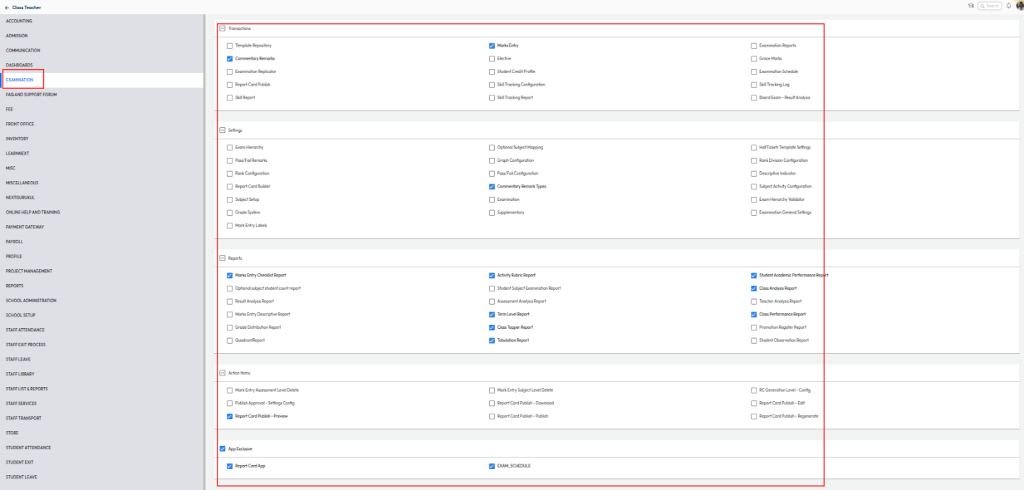
- Under the Examination module:
- Enable the permissions you want to allow.
- Disable the permissions you want to restrict.
- Tip: Changes are auto-saved as soon as you select or deselect a permission.
Contact Live Support
If the above steps do not solve your purpose, feel free to contact our support team:
📧 Email: support@nexteducation.in
📞 Toll-free: 1800 200 5566
💬 WhatsApp: 7337554528
Was this article helpful to you?
Yes0
No0