

This article provides a step-by-step guide on configuring a Completion Certificate in the NextOS. This can be configured in two parts.
Part 1: Configure Autonumbering
- Go to Settings > Student > Student
- Click on Auto numbering settings.
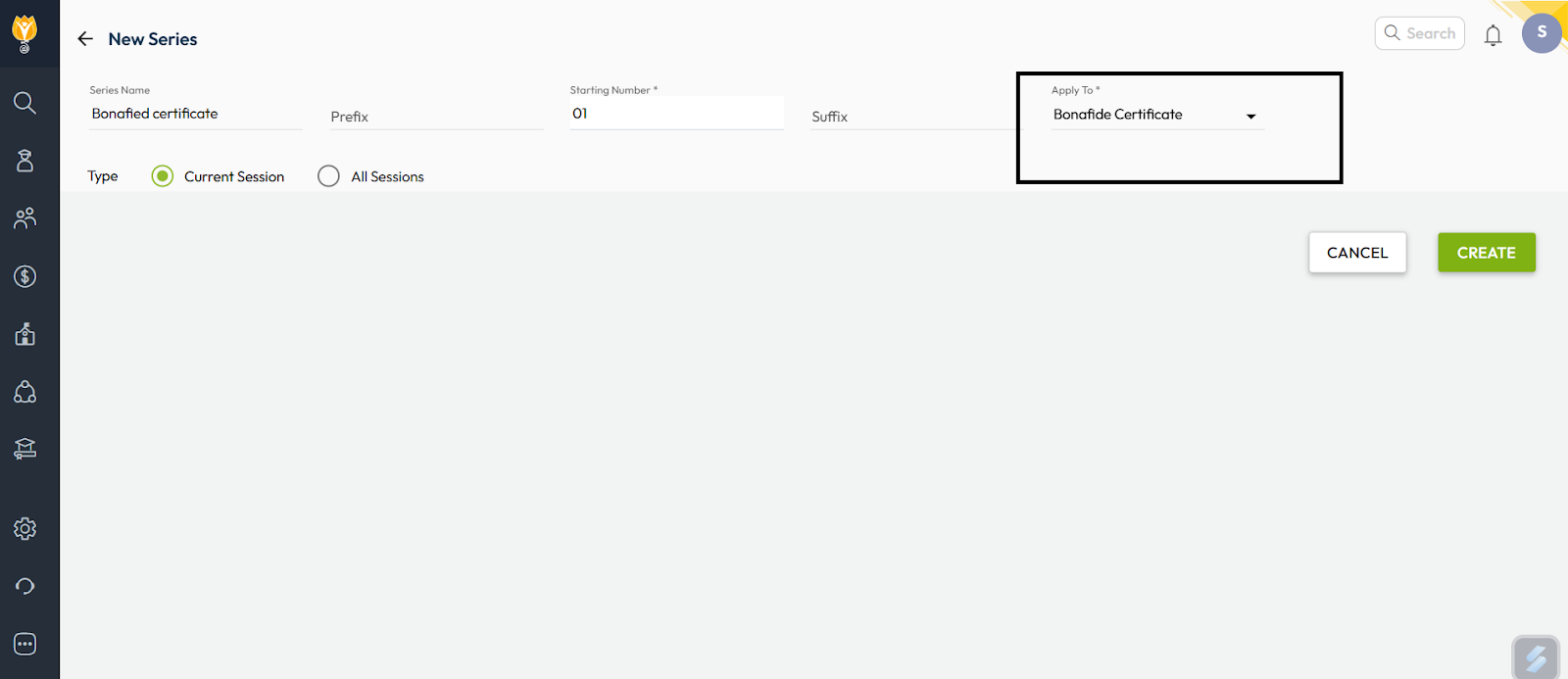
- Click on + symbol which is visible on the right side, Enter Series Name, Perfix. Starting No.(It will be incremental), and Suffix if required.
- Select Completion Certificate in Apply to section.
- Click Create to save autonumbering settings.
Part 2: Template Configuration
- Navigate to Settings > Student > Student
- Select Letter Generation Settings.
- Use the Filter option to locate the Completion Certificate.
- Click the Add (+) symbol at the top-right corner to configure a new template.
- Select the appropriate template for the Completion Certificate and click Next.
- On the next screen, choose the class or classes where the template will be applicable, and Click Next.
- Choose the sequence created earlier in the Auto-Numbering settings for this certificate.
- Once done, click Done to complete the configuration.
Video Tutorial :
Was this article helpful to you?
Yes0
No0