

If a student’s fee category is changed after fee collection, you can manage the receipts using Reallocate or Refund options based on the requirement.
Step 1: Reallocate the Fee Category
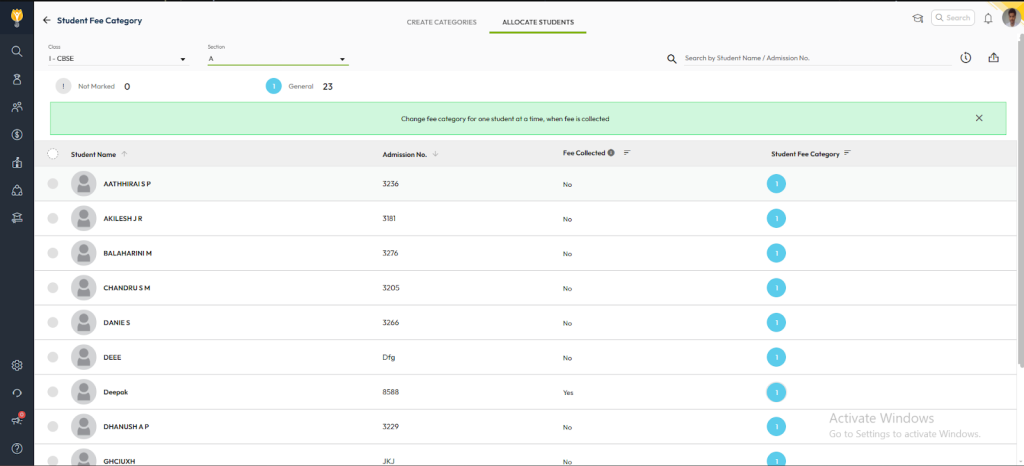
- Navigate to Settings > Finance > Fee > Student Fee Category > Assign Category.
- Search and select the student.
- Change the fee category and click OK to proceed.
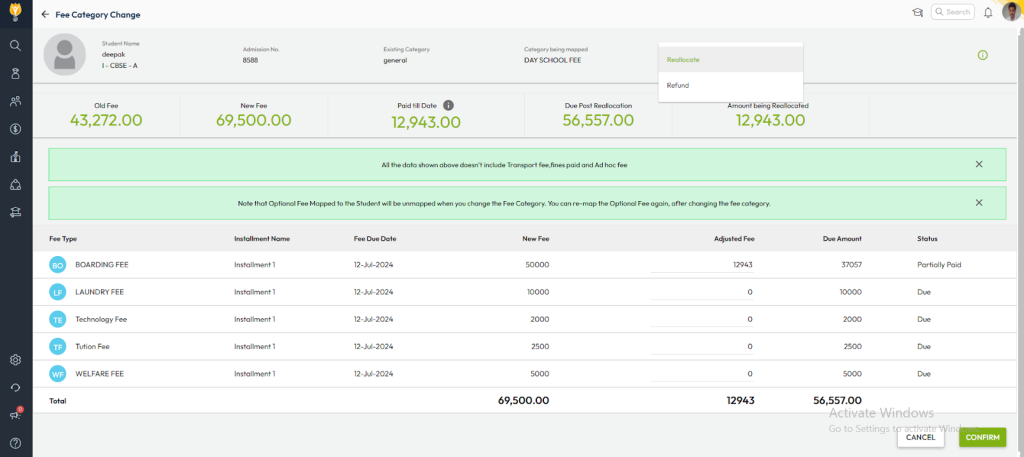
The system will show two options:
- Reallocate Fees — adjusts the collected fee to the new category
- Refund Fees — refunds the previously collected amount
Step 2: Choose Action Based on Requirement
If you select Reallocate Fees:
- The system will automatically adjust the collected fee to the new category.
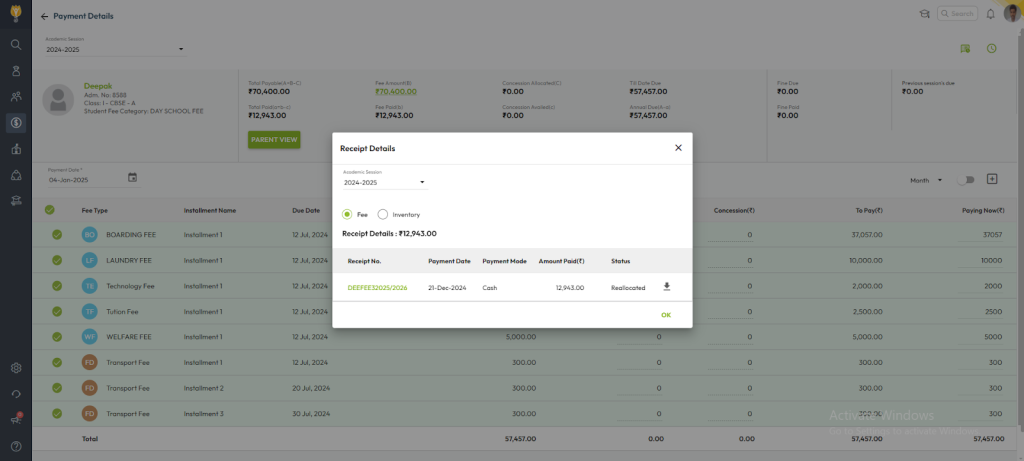
- A new adjusted receipt will be generated and stored.
If you select Refund Fees:
- The collected amount will be refunded.
- You can reassign the correct fee category and then collect fees again as required.
Step 3: Verify Updated Receipts
- Go to Transactions > Finance > Fee > Fee Collection.
- Search the student and open the record.
- Download the latest (reallocated/refunded) receipt if needed.
Important Notes
- Choose the correct option:
- Use Reallocate when the fee should be shifted to the new structure.
- Use Refund when the previously collected fee must be returned.
- System updates automatically:
Fee calculations and receipts are adjusted automatically. - Audit trail maintained:
All operations are logged for transparency.
Important Notes:
- Reallocation vs. Refund: Choose the option based on whether the collected fee should be reused or refunded.
- Automatic Updates: The system will handle the reallocation and ensure the updated fee structure is reflected in the receipt.
- Audit Trail: All changes and actions will be logged in the system for compliance and transparency.
Video Tutorial :
Was this article helpful to you?
Yes0
No0