

You can build custom reports to analyze fee dues and defaulters across academic sessions, fee types, and students using the Custom Report feature.
Step 1: Create a Custom Fee Dues Report
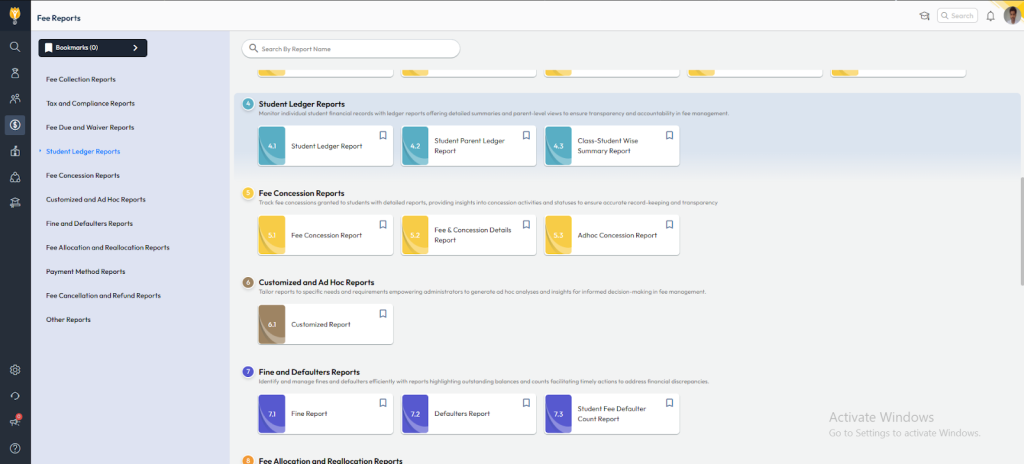
- Navigate to Finance > Fee > Fee Reports.
- Select Custom Report and click Create.
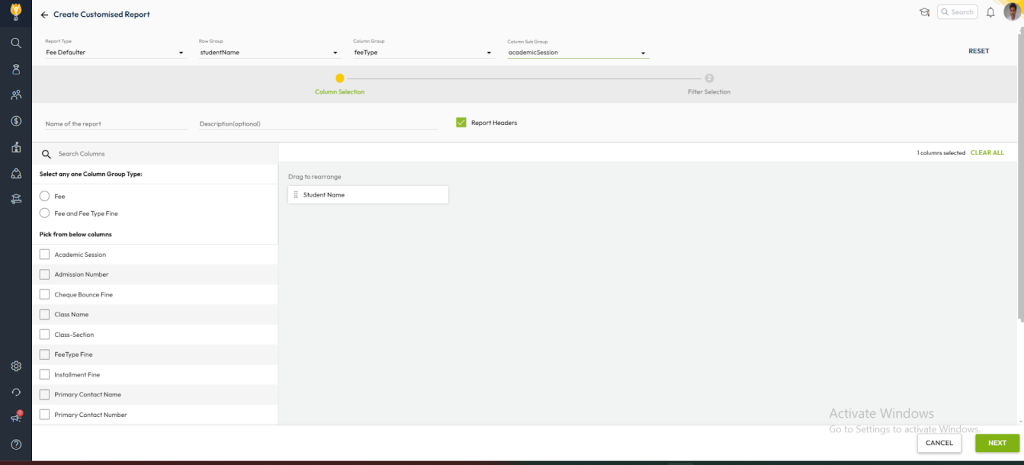
- Set the following configurations:
- Report Type: Fee Dues
- Row Group: studentName (to group data student-wise)
- Column Group: feeType (e.g., Tuition, Transport, etc.)
- Column Sub Group: academicSession (to break down data by session)
- Enter a unique Report Name (e.g., Fee Dues Report).
- Click Save to finalize.
Step 2: Create a Custom Fee Defaulters Report
Repeat the same steps followed above, with only one change:
- Report Type: Fee Defaulters
Groupings should remain the same: - Row Group: studentName
Give it a unique name such as Fee Defaulters Report and click Save.
Step 3: Generate & View Reports
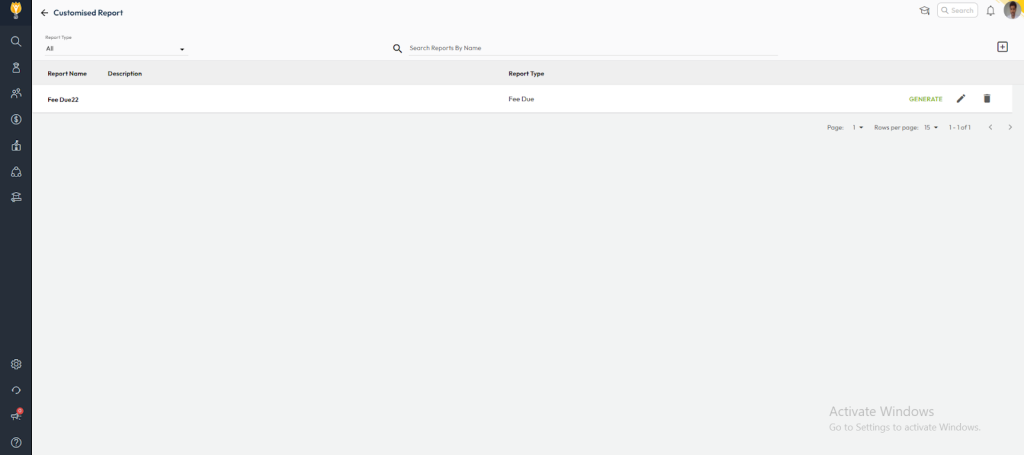
- Go back to the Fee Report section.
- Select the newly created custom report (Fee Dues or Fee Defaulters).
- Apply filters such as Class or Academic Session as needed.
- Click Generate to view the results.
Key Output Features
The custom reports will be structured as:
- Row Group (studentName): Lists one student per row
- Column Group (feeType): Displays fee types across columns
- Column Sub Group (academicSession): Breaks dues/defaulters data by session
This approach provides clear analysis of fee dues and defaulters over time and across multiple fee components.
Was this article helpful to you?
Yes0
No0