

This is the most user-friendly method for marks entry. If you are using a desktop or laptop, we recommend proceeding with marks entry using the Google Chrome browser.
NextOS supports marks entry on the web browser in two ways:
- Individual Entry
- Bulk Upload
Individual Entry
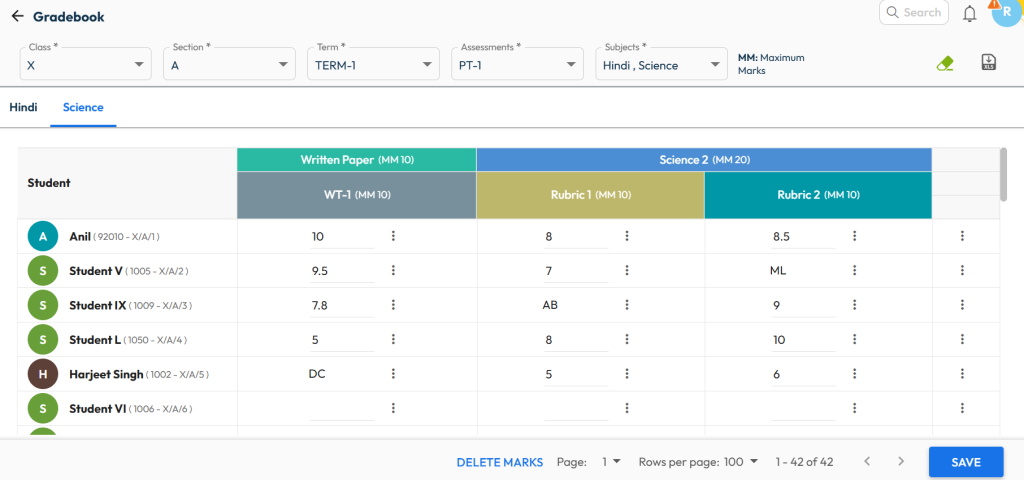
- Navigate to Student > Examination > Marks Entry.
- Select the Class, Section, Term, Assessment, and Subject.
Note: Subjects will be displayed based on subject mapping and teacher role. - Student names with roll numbers appear on the left, and Subject Activities/Rubrics appear on the right.
- Enter marks/grade one by one for for each applicable activity/rubric.
- Click the three dots to mark:
- AB – Absent
- DC – Don’t Consider
- ML – Medical Leave
- Click the three dots to mark:
- Click Save, then Proceed once the entry is complete.
Bulk Upload
Step 1: Download the Excel Template
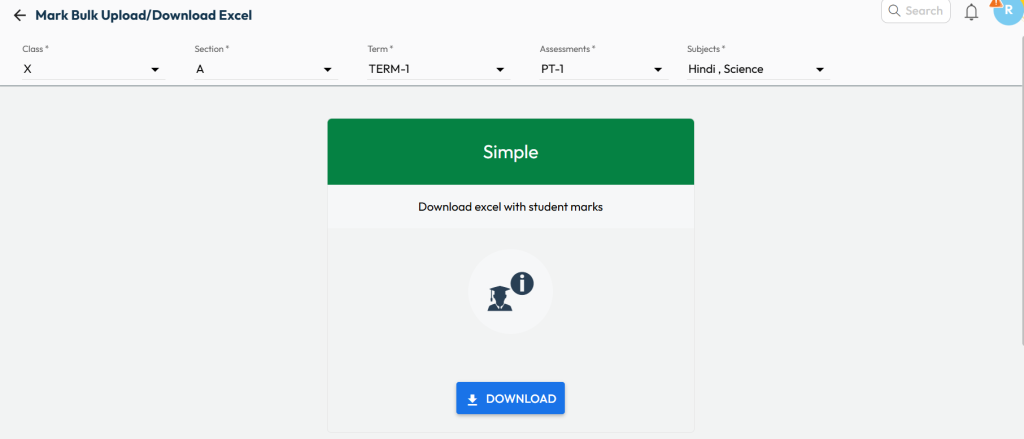
- Navigate to Student > Examination > Marks Entry.
- Click the
 icon at the top-right of the screen to proceed for download the predefined excel format.
 - Select the Class, Section, Term, Assessment, and Subject.
- Click Download (top-right corner).
- A predefined Excel file will be downloaded to your device
Step 2: Fill the marks/grades in excel
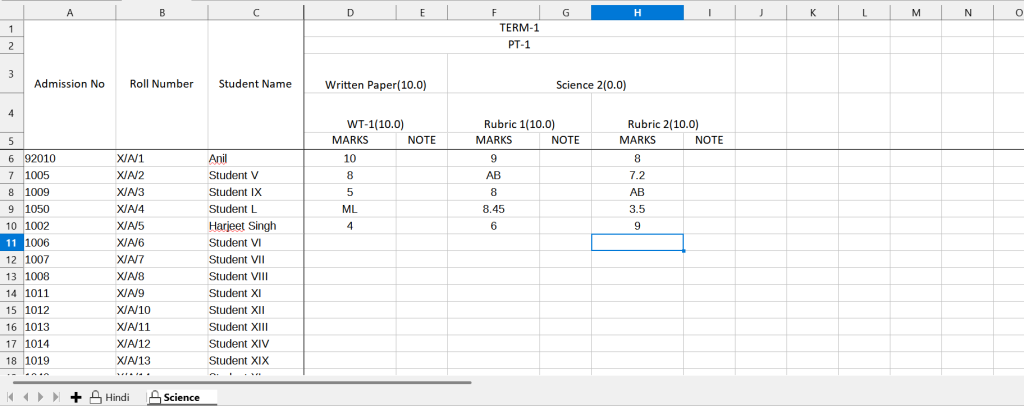
- Understand the Excel Template
The downloaded Excel template is designed to make marks entry easy and accurate.- It contains Admission Number, Roll Number, and Student Name for easy identification.
- It includes multiple subject-wise sheets based on the configured exam hierarchy.
- You can enter marks or grades for subjects, activities, and rubrics.
Note:- Marks/grades must be within the configured maximum marks limits.
- You may enter AB (Absent), DC (Don’t Consider), or ML (Medical Leave) where applicable.
- Enter Marks / Grades in the Excel File
- Open the downloaded Excel file.
- Select the required subject sheet.
- Navigate to the Term and Assessment columns (these may span or be merged across multiple columns).
- Identify the activity or rubric for which marks need to be recorded.
- Enter the marks or grade in the MARKS / GRADE column for that activity.
- The NOTE column beside MARKS can be used for descriptive indicators (if applicable).
- Marks can be entered with or without decimal values.
- The system will automatically round off values based on configuration.
- Once all entries are completed, save the Excel file and proceed to upload it.
Step 3: Upload the Filled Excel File
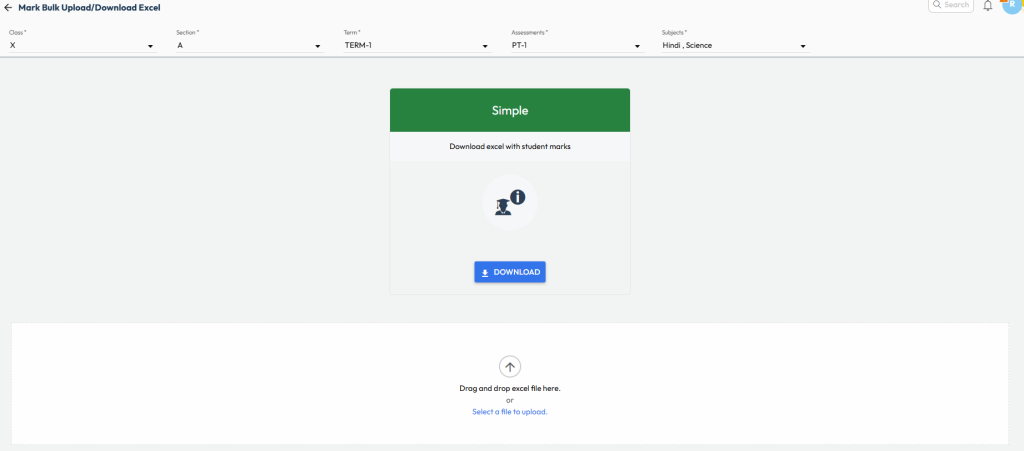
- Navigate again to Student > Examination > Marks Entry.
- Select the same Class, Section, Term, Assessment, and Subject used during download.
- Go to the Upload section and browse or drag & drop the completed Excel file.
- The system validates all entries:
- If valid – upload is allowed
- If invalid – errors are highlighted in red with cell references
- Download the error file, correct the entries, and re-upload.
- Once uploaded successfully, marks will appear against each student in the Marks Entry page.
Was this article helpful to you?
Yes4
No0