

Counselling in NextOS is where staff log one-on-one counselling sessions with a student and schedule a follow-up if the situation needs to be revisited — alongside Incident and Rewards, as part of Behaviour Management. Available on Web only — not on the Mobile App.
Where to find it
Go to Student > Behaviour Management > Counselling.
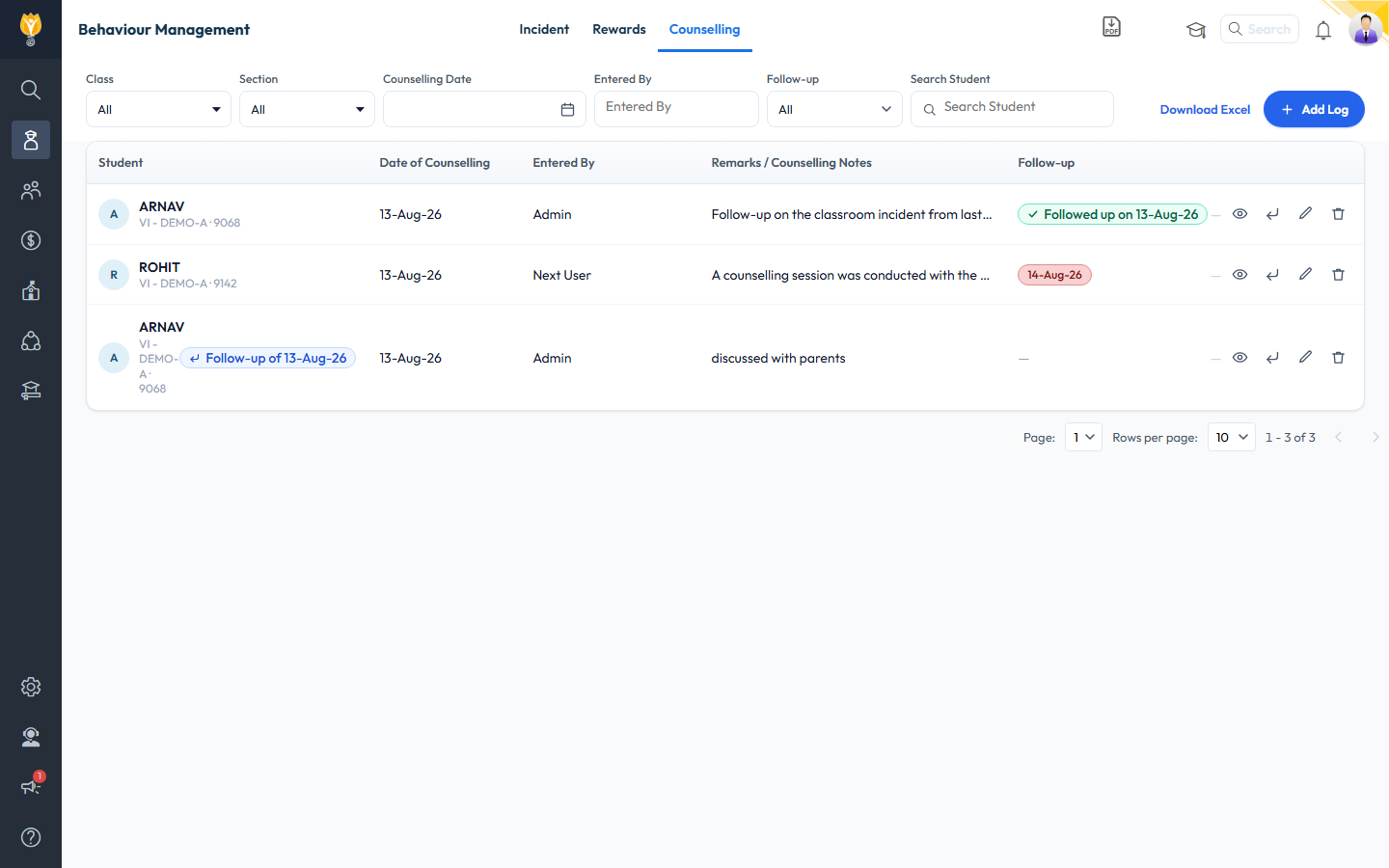
The Counselling list — a followed-up entry (green), a pending follow-up (date pill), and a follow-up entry (tagged “Follow-up of…”)
Contents
- What you can do in Counselling
- How to add a counselling log
- How to add a follow-up
- How to filter or search counselling records
- How to download the counselling report
What you can do in Counselling
- Add a log — Record a counselling session against a student, with remarks and an optional recommended action
- Add a follow-up — Log the actual follow-up conversation against an existing entry; the student and original session details carry over automatically
- Filter and search — Narrow the list by Class, Section, Counselling Date, Entered By, or follow-up status, or search for a student
- Download report — Export the list to Excel
How to add a counselling log
- Go to Student > Behaviour Management > Counselling.
- Click + Add Log (top right). This opens a dedicated Add Log page.
- Student (required) — search for and select the student.
- Date of Counselling (required) — defaults to today.
- Follow-up Date (optional) — leave blank if no follow-up is needed.
- Remarks / Counselling Notes (required, up to 1500 characters) — what was discussed, observed behaviour, the student’s response, and any context from teachers or parents.
- Action Required / Recommended (optional) — type recommended next steps, or click one of the quick-select chips (Parent meeting scheduled, Weekly check-in with class teacher, Mentor assigned, Referred to external counsellor, No action needed — monitor) to fill it in. Tick Save this note for quick reuse next time to add whatever you typed as a new chip for future logs.
- Click Save.
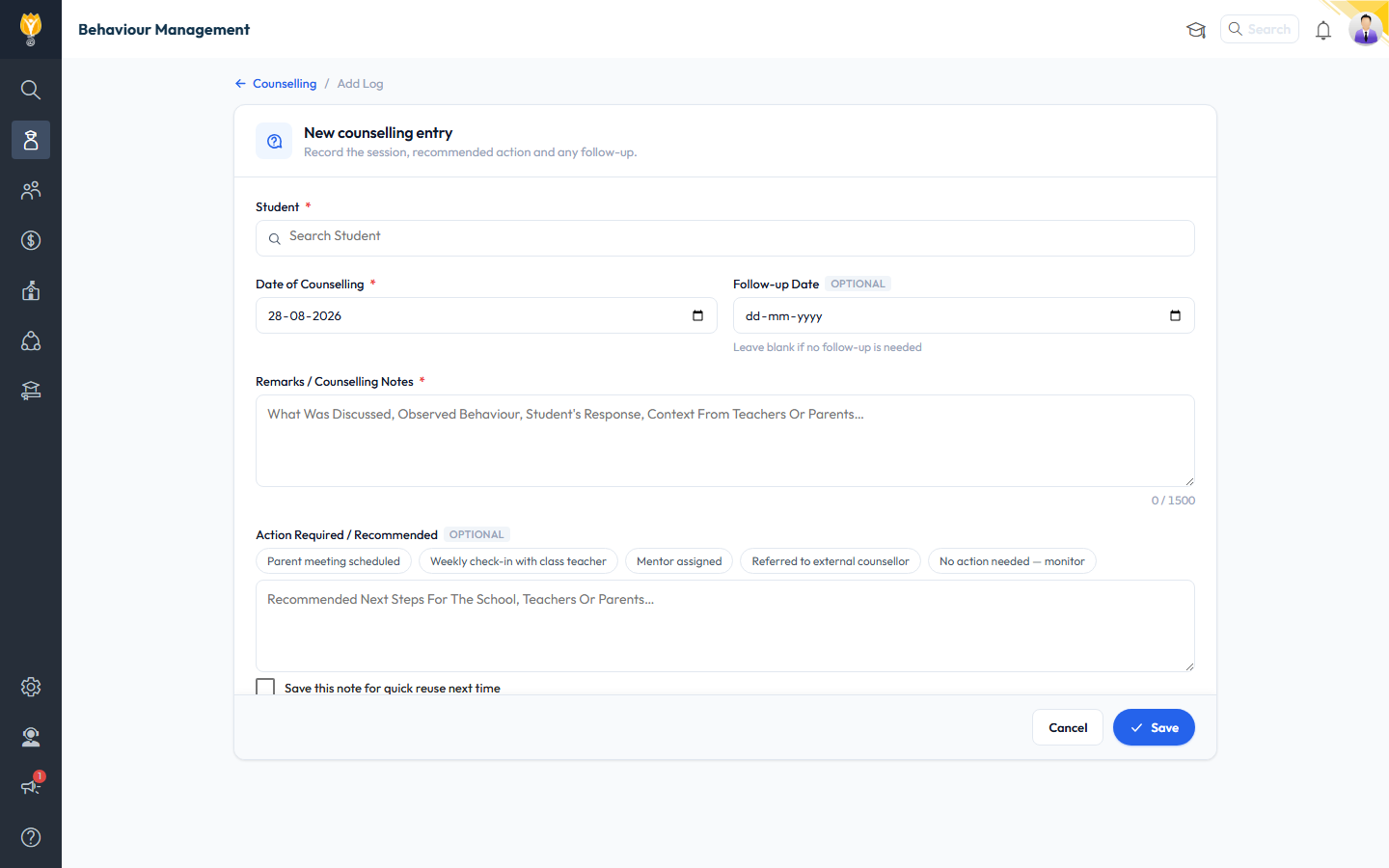
The Add Log page
How to add a follow-up
A log’s Follow-up Date shows as a badge in the Follow-up column: a coloured pill with just the date if it hasn’t been actioned yet, or a green ✓ Followed up on [date] pill once it has. Each entry can have only one follow-up recorded against it.
- On the Counselling list, find the entry with a pending follow-up (or filter by Follow-up status).
- Click the Add Follow-up icon in that row (or the date pill itself — both open the same page).
- The Add Follow-up page opens with the student and a summary of the original session (who logged it and their remarks) shown on the right, plus any past follow-up sessions. The student can’t be changed — it’s carried over from the original entry.
- Fill in Date of Counselling (defaults to today), an optional new Follow-up Date if another round is needed, Remarks / Counselling Notes, and an optional Action Required / Recommended note, same as adding a log.
- Click Save. The new entry appears in the list tagged ↪ Follow-up of [original date], and the original entry’s badge switches to Followed up on [date].
Note: the counsellor gets an automatic alert the day before a Follow-up Date is due. Once the follow-up is filed, the reminder stops.
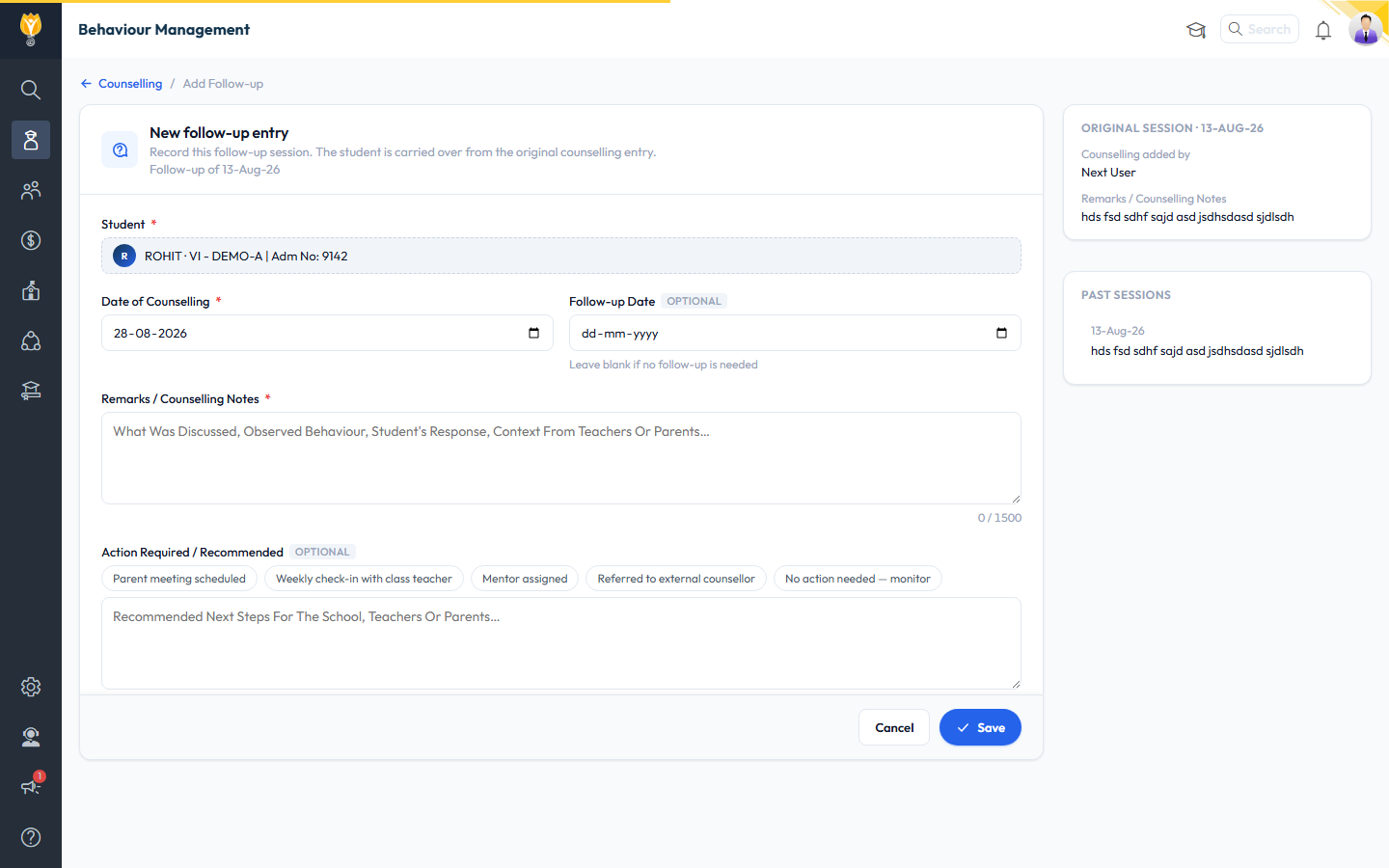
The Add Follow-up page, with the original session’s details alongside
How to filter or search counselling records
- Class / Section — narrow by class
- Counselling Date — filter by date range
- Entered By — filter by counsellor
- Follow-up — All, None, Pending, Overdue, or Followed Up
- Search Student — find a specific student by name
How to download the counselling report
- (Optional) Apply filters — Class, Section, Counselling Date, Entered By, or Follow-up status — to narrow the list first.
- Click Download Excel.