

Marks are converted into grades based on the configured grading scale, and the display of grades on the report card depends on the template configuration and correct key mapping.
How Marks Convert to Grades (Grading Scale)
Grade conversion happens automatically using the grading scale mapped to the activity or subject.
To verify the configured grading scale:
- Navigate to Settings > Student > Examination > Grade System.
- Review the grading scale currently applied to ensure the ranges and grade points are correct.
How Grades Display on the Report Card (Template Mapping)
⚠️ Important:
Editing a Report Card Template should only be done if you are familiar with the Visual/HTML Editor. Incorrect modifications may break the layout or disrupt data mapping.
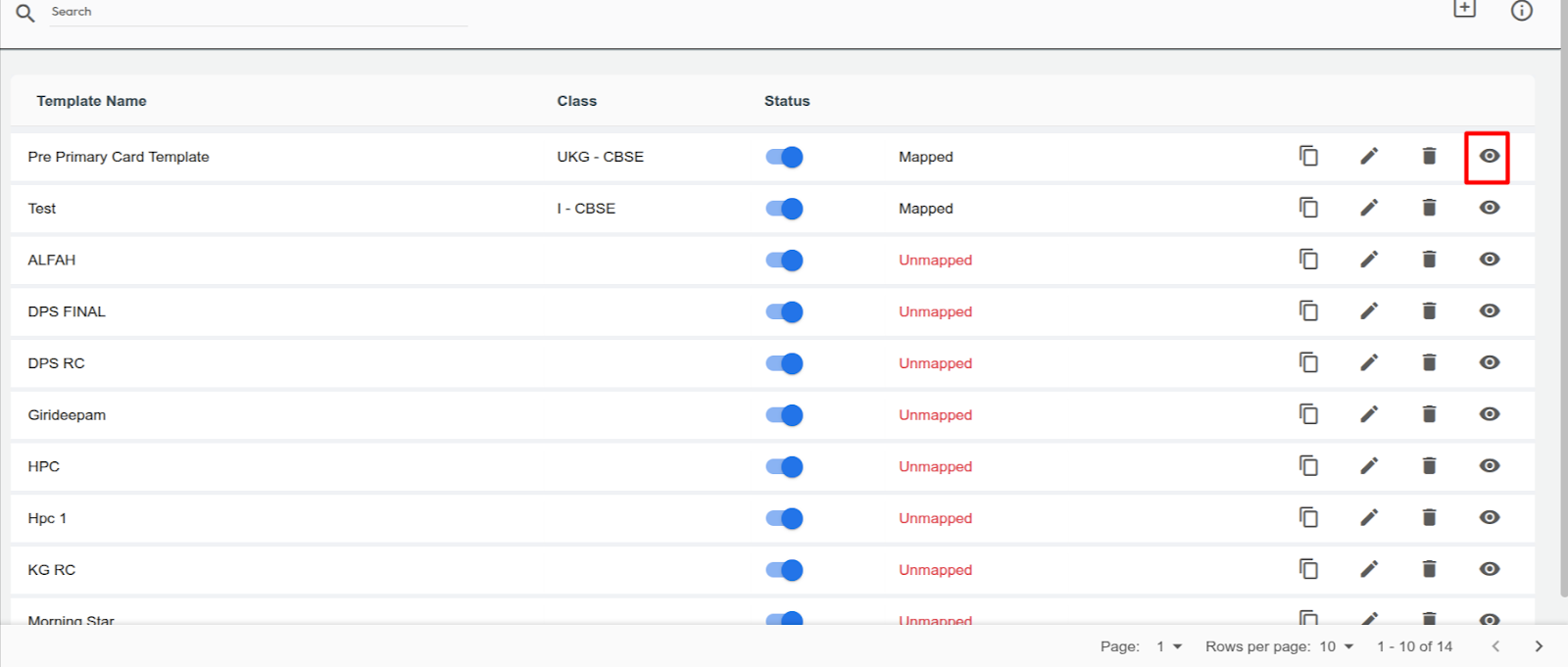
- Go to Settings > Student > Examination > Report Card Builder.
- Select the report card template where you want grades to appear.
- Check the component fields used in the template:
- If the key is set as gd, the system will display Grades instead of marks based on the mapped grading scale.
- After verifying or updating the configuration, click Submit and then Proceed to save the changes.
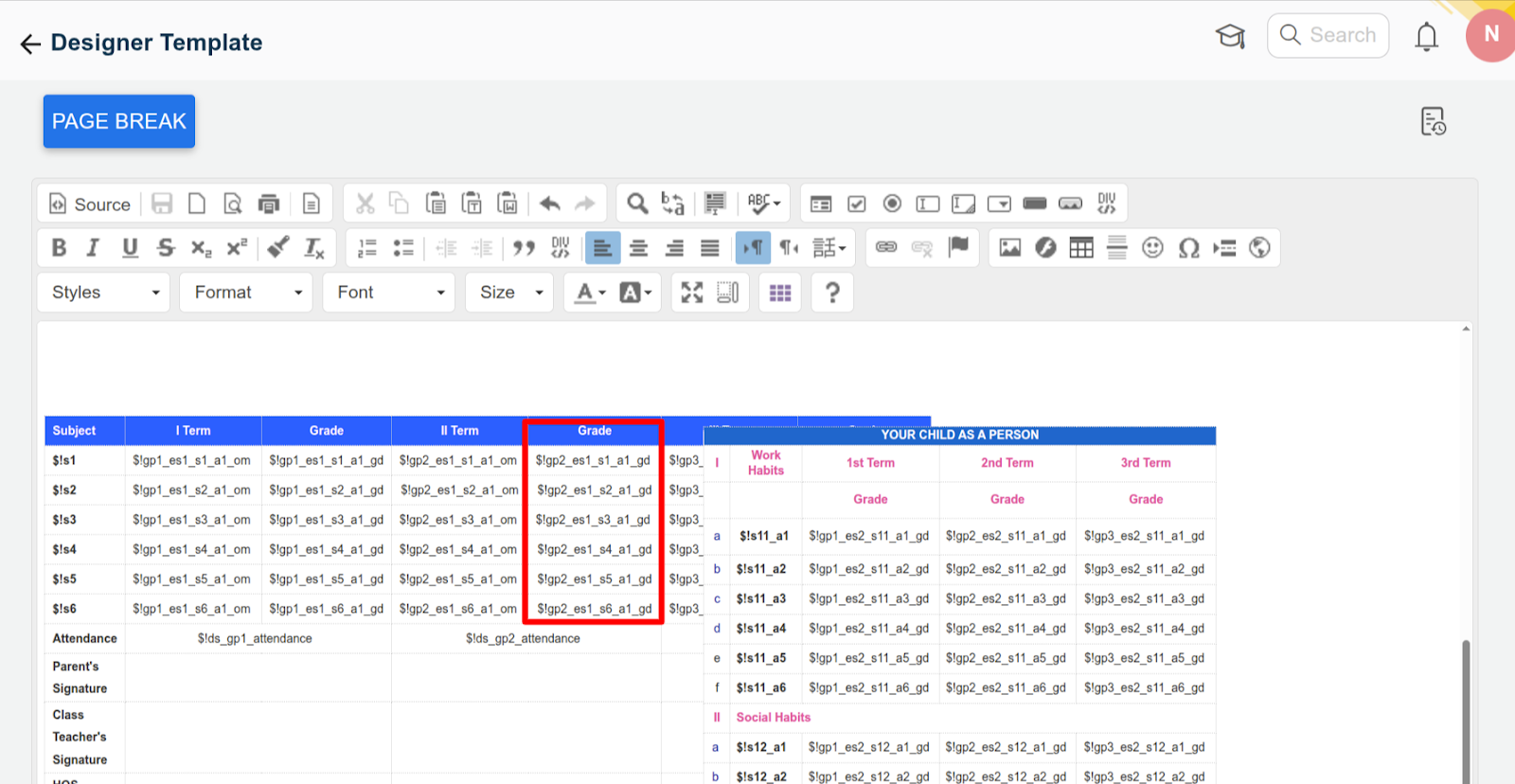
“om” can be replaced with “gd”. In this mentioned screenshot context:
- gp1 represents Term 1
- es1 represents Assessment 1
- s1 stands for Subject 1
- a1 refers to Activity 1
- om indicates the Obtained Mark
By replacing “om” with “gd”, the marks entered for the activity will be automatically converted into grades based on the Grade System configuration.
If you are calculating the weightage-based grade, then replace “wm” with “wgd”.
Contact Support Team
You can contact the NextOS Customer Support team via :
📧 Email: support@nexteducation.in
📞 Toll-free: 1800 200 5566
💬 WhatsApp: 7337554528