

You can view or download report cards from an earlier academic year by switching the academic session. Follow these steps:
Switch the Academic Session:
- Go to the top-left of the screen and click the Search icon.
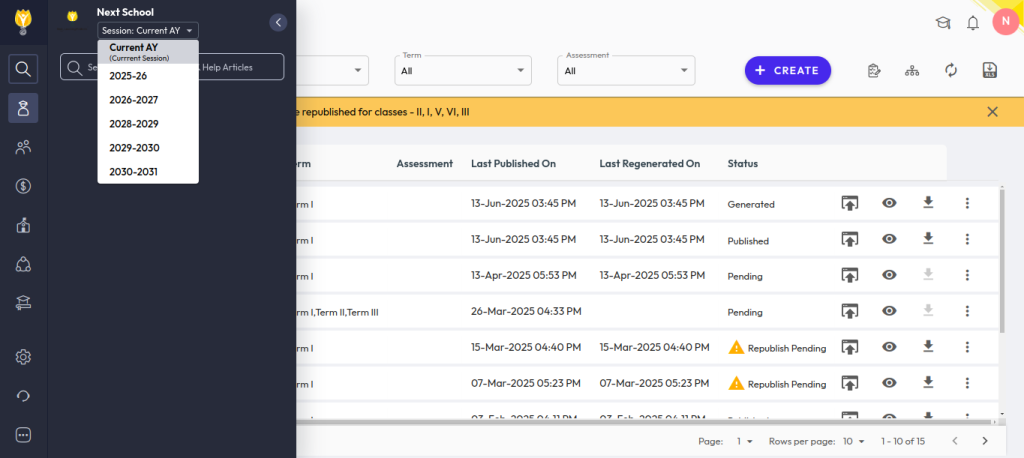
- Locate the Academic Session option and click it.
- From the dropdown, select the academic year for which you want to view report cards.
- Navigate to Student > Examination > Report Card Publish.
- You will see all report cards published in the selected academic session.
- Click the Eye (Preview) icon to view the report card.
- Click the Download (↓) icon to download the report card.
Note:
Using this method, you can only view or download report cards. You cannot modify marks or grades.
To make changes, you must either activate the respective academic session or enable write access for staff..
Was this article helpful to you?
Yes1
No0