

You can view results from earlier academic sessions using either the Academic Performance Report or by Switching Session. Choose the method that best suits your requirement.
Method 1: Using Academic Performance Report
- Navigate to Student > Examination > Examination Report.
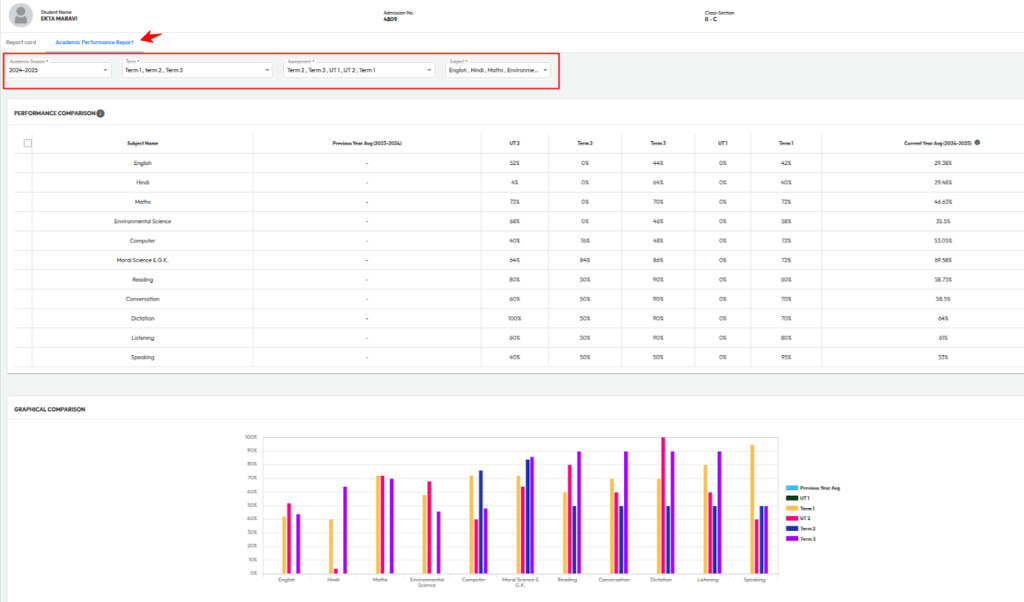
- Open the Academic Performance Report.
- Select the previous academic session.
- Choose the required Term(s), Assessment(s), and Subject(s).
- View the results along with graphical analysis.
Method 2: Switch Session to Access Report Card
- Go to the top-left of the screen and click the Search icon.
- Locate the Academic Session option and click it.
- From the dropdown, select the academic year for which you want to view report cards.
- Navigate to Student > Examination > Report Card Publish.
- You will see all report cards published in the selected academic session.
- Click the Eye (Preview) icon to view the report card.
- Click the Download (↓) icon to download the report card.
Was this article helpful to you?
Yes0
No1