

You can follow the steps given below for configuring bonafide with standard available templates. In case you have already performed these steps and looking a custom design then – contact our support team.
Contact Live Support
Our support team is available from 8:00 am to 6:00 pm (IST), Monday through Saturday.
📧 Email: support@nexteducation.in
📞 Toll-free: 1800 200 5566
💬 WhatsApp: 7337554528
Standard template configuration can be completed in two parts.
Part 1: Configure Auto-Numbering
- Go to Settings > Student > Student.
- Click Auto Number Setting.
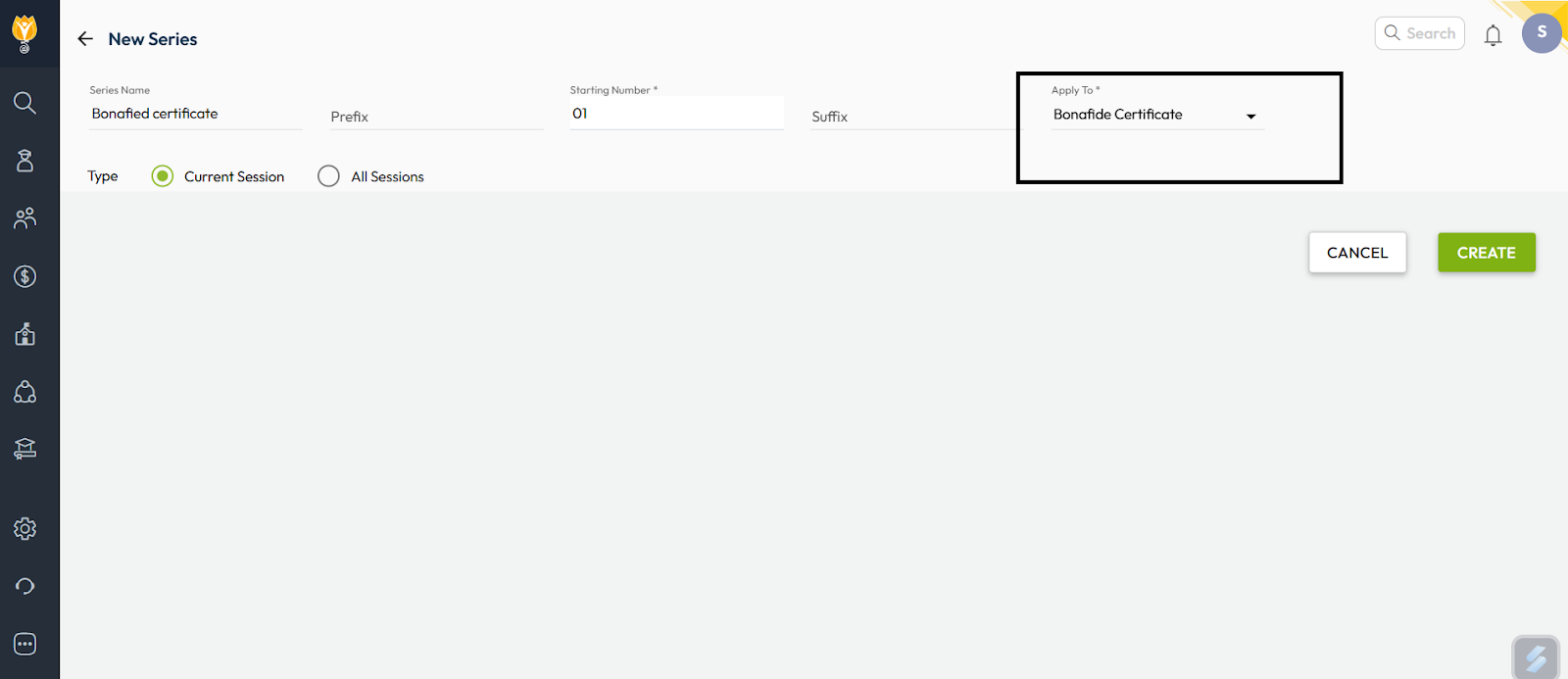
- Click the + icon on the top-right, and enter the required details:
- Series Name (e.g., Bonafide Certificate-)
- Prefix (optional – e.g., BFC-)
- Starting No. (e.g., 1, 101,1001 etc. – This will be incremental)
- Suffix (optional – e.g., -2025)
- Apply to: Select Bonafide Certificate
- Session: Choose the mapping session from Current or All Session
Tip : If All session is selected then same series will be automaticlly mapped in every session and work in sync.
- Click Create to save the numbering series.
Step 2: Template Configuration
- Navigate to Settings > Student > Student
- Click on Letter Generation Settings.
- Click on Letter Type and select Bonafide Certificate.
- Click the ( + ) icon to add a new template.
- Select a template (A4 or A5 size).
Note: There are around 15 different A4 templates, with or without student photos, and with different Bonafide Certificate headings. - Select the Classes and click Next.
- Choose the Sequence (the autonumbering sequence created in Part 1).
- Click Done to complete the configuration.
Was this article helpful to you?
Yes0
No0