For configuring the fee receipts for an opening balance fee type please follow the below-mentioned steps.
Step 1- Click on settings.
Step 2- Go to finance.
Step 3- From the list click on Fee.
Step 4- Now from the list find Fee Autonumbering Sequence and enter into it.
Step 5- Click on the plus icon (+).
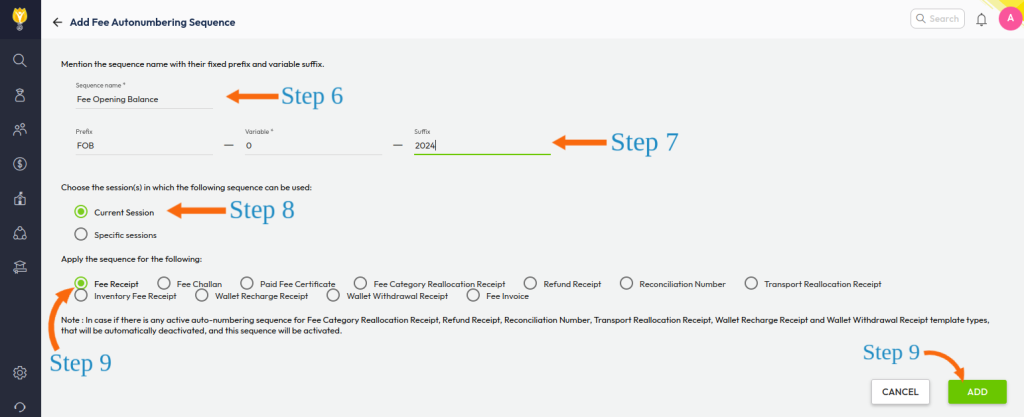
Step 6- Now write the sequence name as per your feasibility like the Fee Opening balance.
Step 7- Now write prefix, variable & suffix according to your feasibility. The variable that you will mention here will start from the next variable, which will start in fee receipt.
For example, if you have mentioned 0 then in the fee opening balance it will start from 1.
a) Prefix: A constant part before the variable number, for example: FOB (Fee Opening Balance).
b) Variable: The number that will increment with each new receipt.
c) Suffix: A constant part after the variable number, for example: 2024.
Example:
- Prefix: FOB
- Variable: 0
- Suffix: 2024
This will result in the first fee opening balance receipt: FOB1-2024.
Step 8- Select check-circle against a current session or specific session and while selecting the specific session select the desired session/sessions.
Step 9- In Sequence select the fee receipt and click on ADD.
Step 10- Now again follow steps 1, 2 & 3 and from the list find the Fee Receipt Template and enter it.
Step 11- Click on Create New or Plus icon (+) and out of 3 templates select any one template and click on Next.
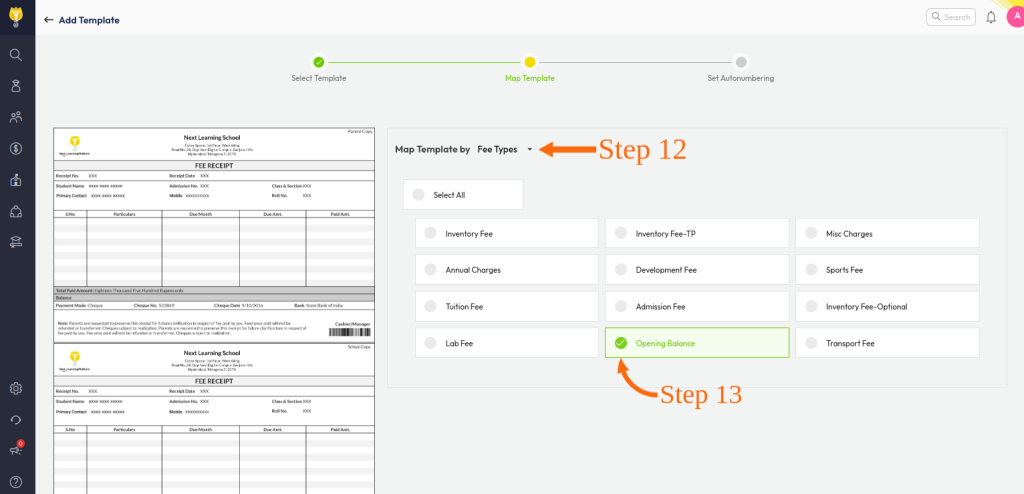
Step 12- You will enter into the second tab which is the Map Template and in the Map template on behalf of the classes you need to select Fee types.
Step 13- In Fee types select the check circle against the Opening balance and click on Next.
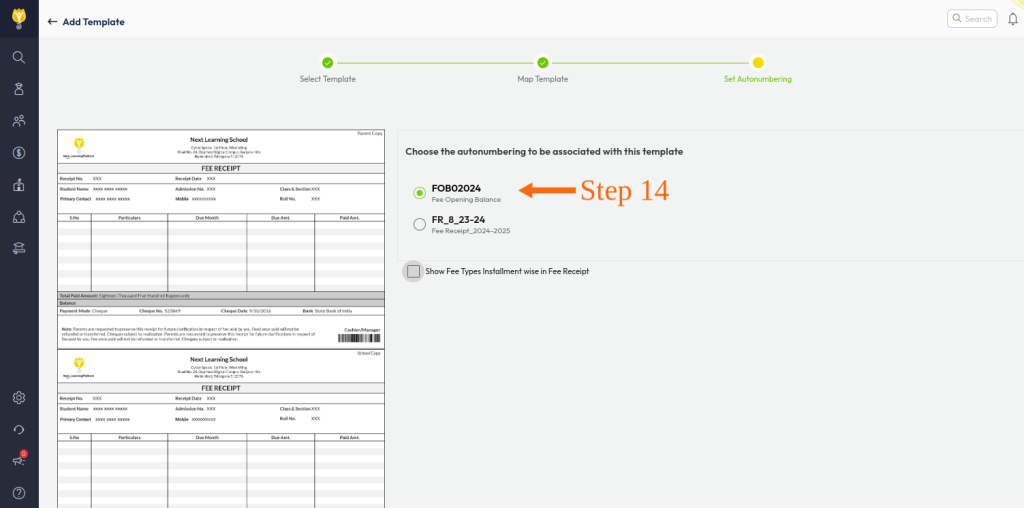
Step 14- Select the check circle against the Fee opening balance.
Step 15- Click on Done.