

You can display class teacher remarks by creating a commentary remark type, mapping it to the report card template, entering the remarks, and then publishing the report card.
Step 1: Create a New Commentary Remark Type
- Navigate to Settings > Student > Examination > Commentary Remark Type.
- Click the “+” icon.
- Add a new remark type (for example, Class Teacher Remarks) and save it.
Step 2: Map the Remark to the Report Card Template
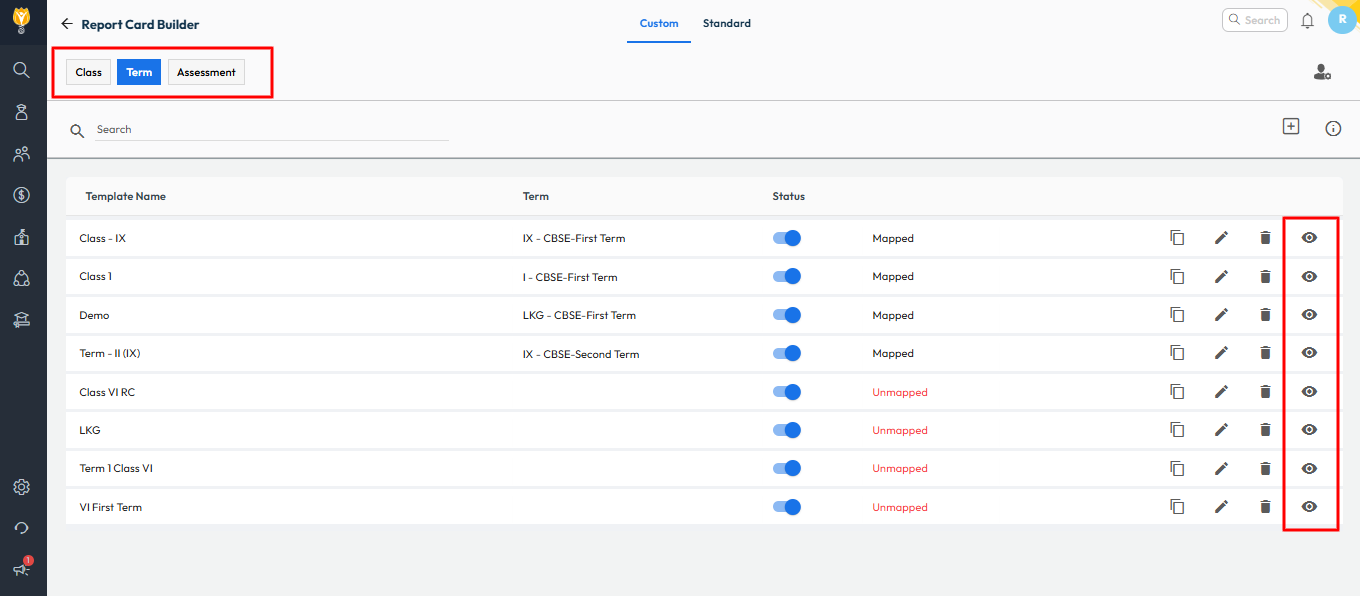
- Go to Settings > Student > Examination > Report Card Builder.
- Open the report card template where you want to display class teacher remarks.
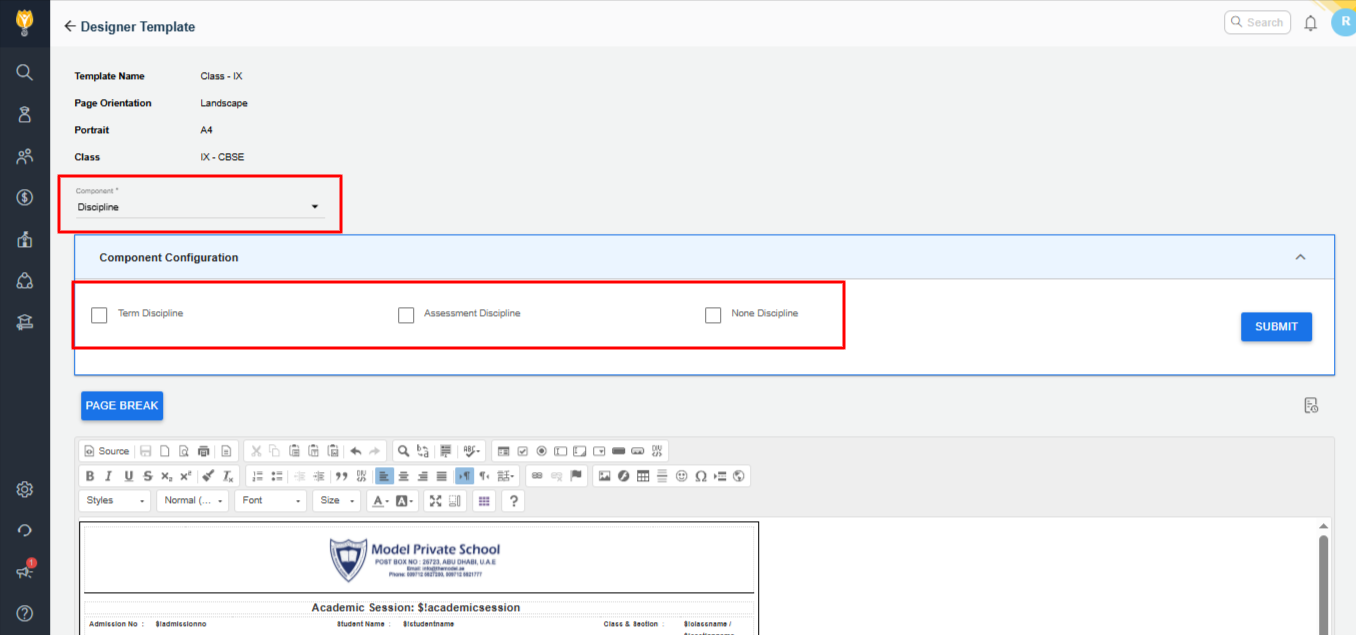
- In the Component section, select the Discipline tab.
- Choose the level at which remarks should be entered and appear:
- Term – if remarks are entered and displayed term-wise.
- Assessment – if remarks are applicable to a specific assessment.
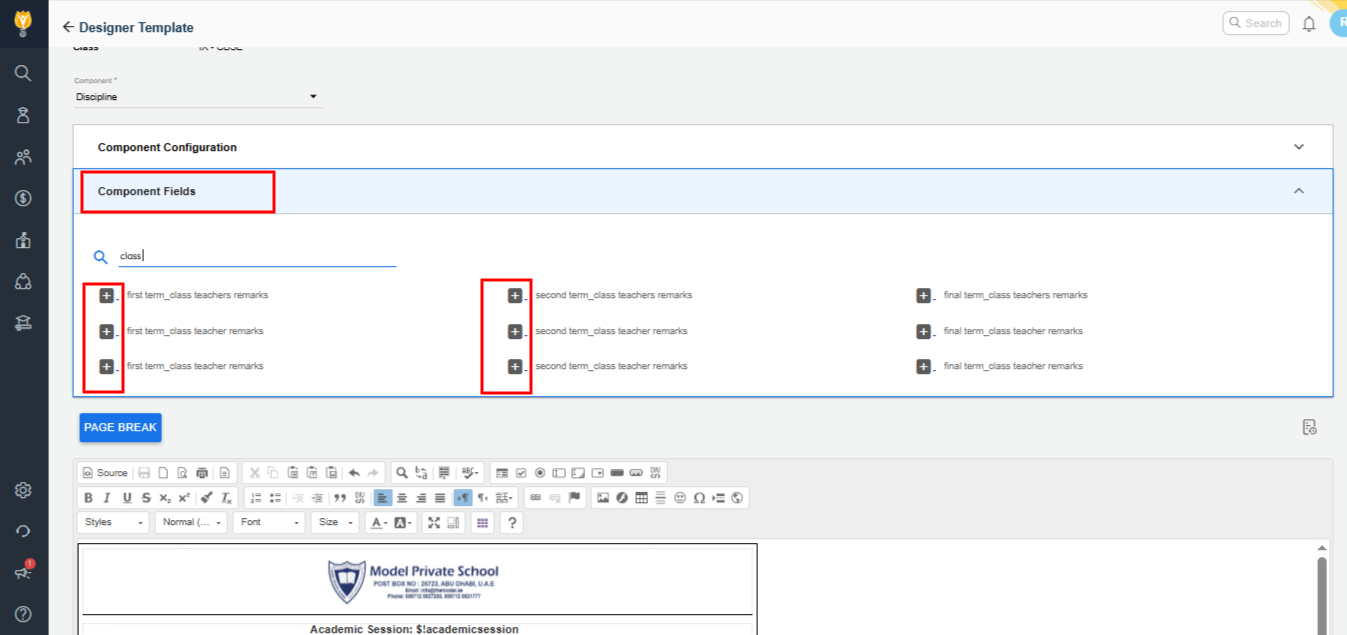
- Click the “+” icon to add the remark key to the template.
- Click Submit to update and save the template.
Step 3: Enter the Remarks
- Navigate to Student > Examination > Commentary Remarks.
- Choose whether to enter remarks student-wise or for the entire class.
- Apply the required filters based on your configuration.
- Enter the appropriate remarks and click Save.
Step 4: Publish the Report Card
- Go to Student > Examination > Report Card Publish.
- Select the required Class.
- Click the Publish (Upward Arrow) icon.
Once the report card is generated, the added class teacher remarks will be displayed, you can preview or download report card in PDF.
Tip: To ensure remarks appear correctly, verify that the appropriate placeholders (keys) are added and positioned properly in the report card template.
Contact Support Team
If the above steps do not solve your purpose, feel free to contact our support team:
📧 Email: support@nexteducation.in
📞 Toll-free: 1800 200 5566
💬 WhatsApp: 7337554528
Video Tutorial:
Was this article helpful to you?
Yes0
No0