

Video Tutorial :
- Navigate to Student > Examination > Commentary Remarks / Student Record.
- Click the Student-wise Entry tab.
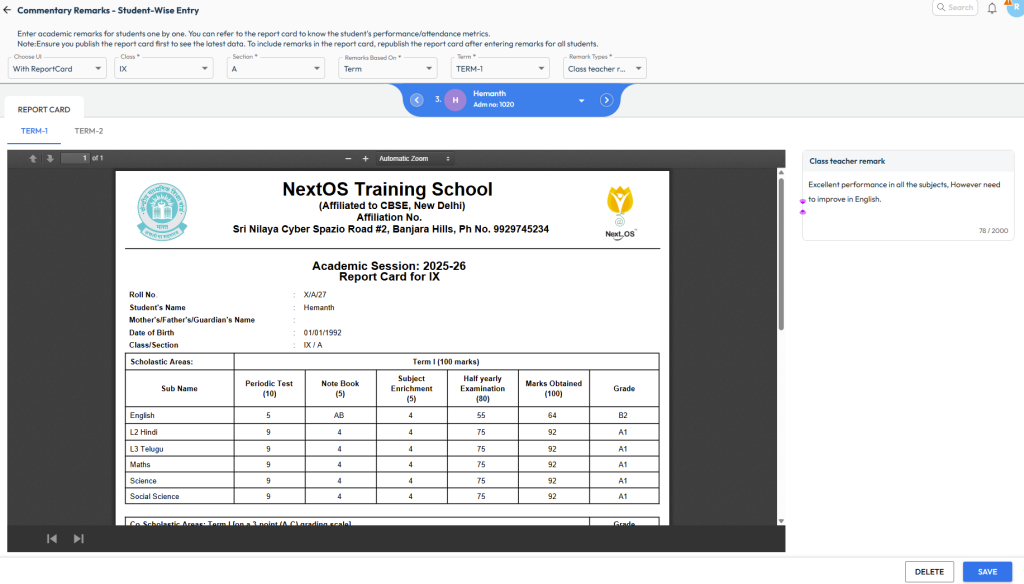
- Applying required filter :
- Choose one of the following:
- With Report Card – to enter remarks while previewing the report card
- Only Remarks – to enter remarks without report card preview
- Select the Class and Section.
- From Remarks Based On, choose where the remarks should apply:
- General – for overall performance
- Term – for term-wise remarks (e.g., Term 1, Term 2)
- Subjects – for subject-level remarks
- Assessments – for assessment-wise remarks (e.g., PT1, Half Yearly)
- Subjects with Assessment – for subject-wise remarks under a specific assessment
- Activity – for activity-level remarks (e.g., Theory, Practical)
- Select the Remarks Type from the dropdown.
- Choose one of the following:
- Entering the Remark
- The first student’s record will appear. Use the arrow buttons to switch between students.
- The report card preview is shown on the left and the remarks box on the right.
- Enter the remarks in the provided field (e.g., teacher feedback, strengths, areas of improvement).
- Click Save and repeat the process for other students.
Note: These remarks help provide personalized feedback and will appear on thereport cards or student profiles, as per template configuration.
Was this article helpful to you?
Yes0
No0