

The order of assessments in the tabulation report is controlled by the sequence numbers set in the Examination Hierarchy. Assigning the correct sequence ensures assessments appear in the intended order.
Steps to Edit Assessment Sequence
- Navigate to Settings > Student > Examination > Examination Hierarchy.
- Select the Class, choose the Session, and then select the Term.
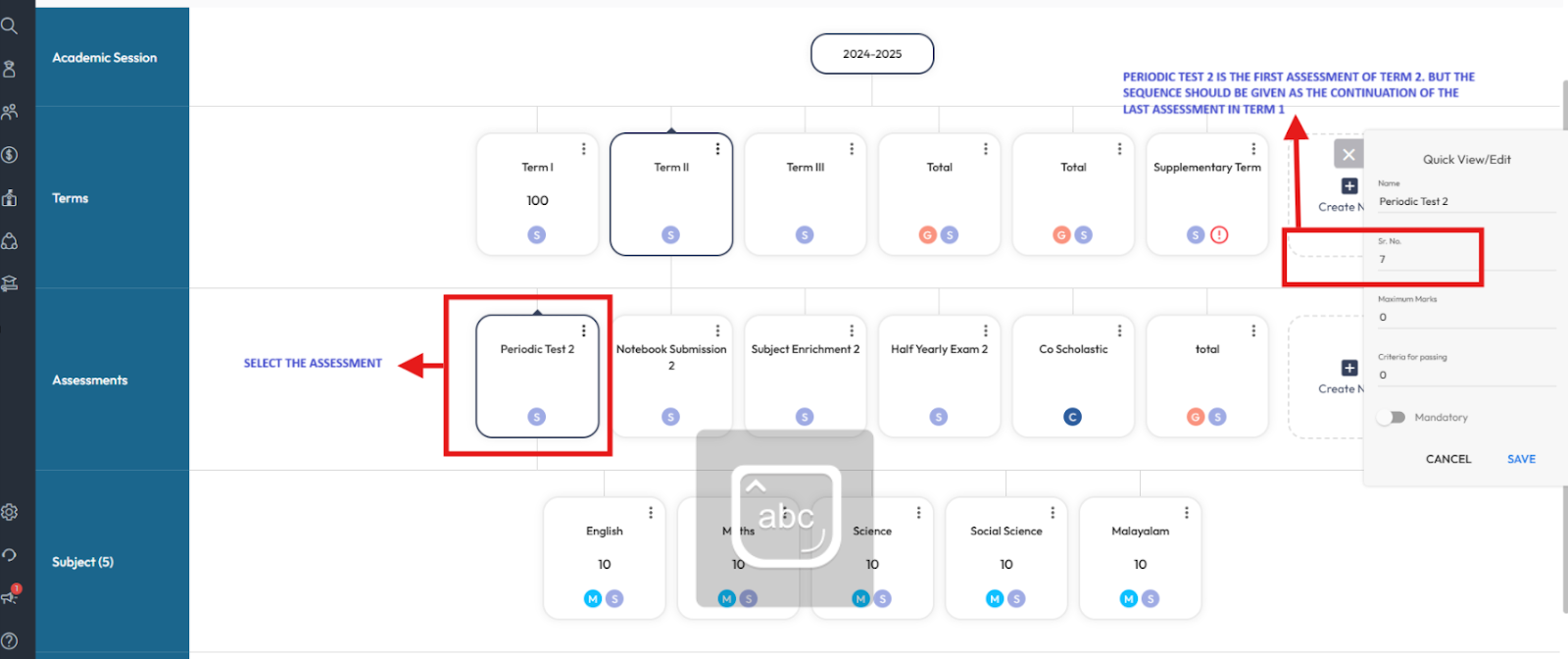
- Under Assessment, click the three dots (︙) next to the assessment and select Edit.
- Update the Sequence number as required.
- Click Finish to save the changes.
Example
If you have 2 terms with 4 assessments, assign sequences consecutively:
- Assessment 1 → Sequence 1
- Assessment 2 → Sequence 2
- Assessment 3 → Sequence 3
- Assessment 4 → Sequence 4
Once updated, the tabulation report will reflect assessments in the correct order.
Tip: When assigning sequence numbers for Term 2, continue numbering from the last assessment sequence of Term 1. This ensures the assessments follow a continuous order and appear correctly in the report.
Was this article helpful to you?
Yes2
No0