

Video Tutorial :
You can restrict report card visibility for students with pending fees in two ways—manually (for selected students) or automatically (based on fee dues).
Method 1: Manually hide the report card (student-wise)
Use this when you want to control visibility for specific students.
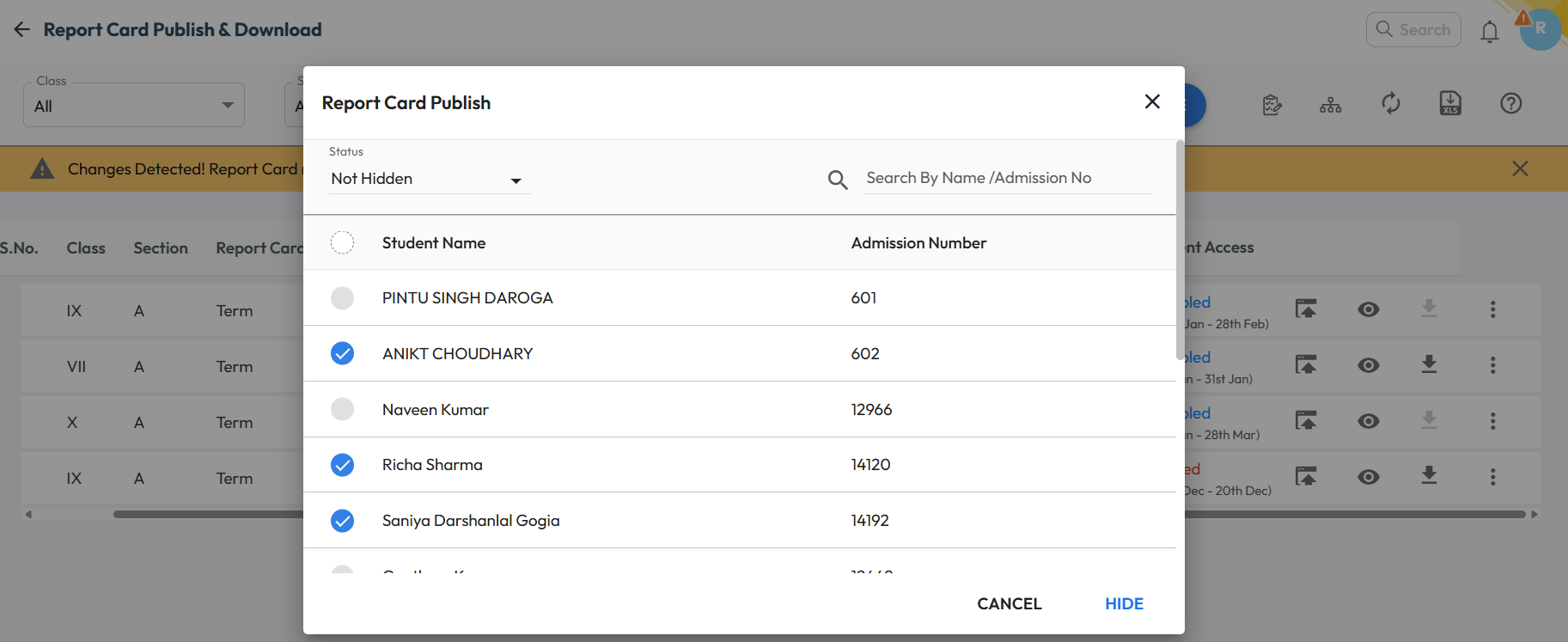
- Navigate to Student > Examination > Report Card Publish
- Filter by Class, Section, Term, or Assessment, or directly locate the report card
- Click the three dots (⋮) next to the report card
- Select Hide / Unhide
- Choose the students for whom the report card should be hidden
- Click Hide to save the changes
Method 2: Automatically hide report cards (based on fee dues)
Use this to automatically restrict access for all the students who exceed a defined overdue amount.
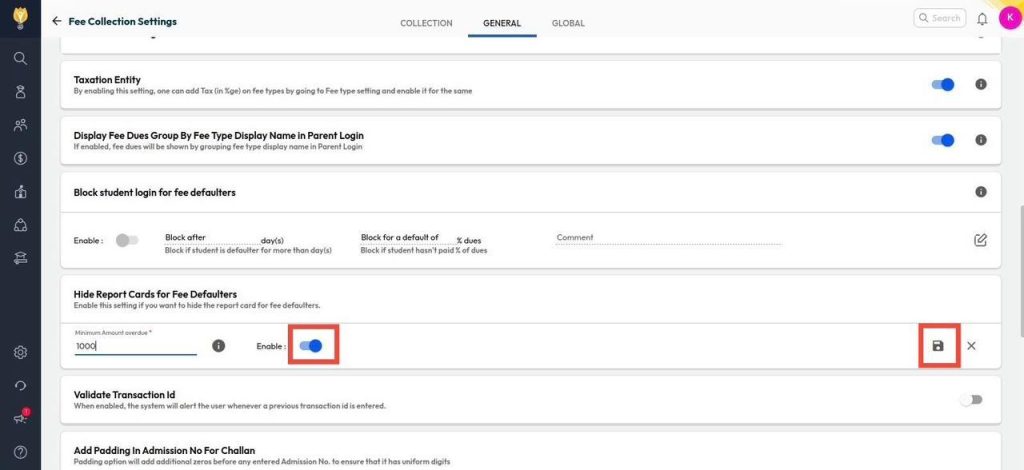
- Navigate to Settings > Finance > Fee.
- Click on Fee Collection.
- Click on General option and click on pen icon against Hide Report Cards for Fee Defaulters to edit.
- Enable the toggle and enter the Minimum Amount Overdue
- Click on Save to apply the changes.
Was this article helpful to you?
Yes0
No0