

You can display overall attendance details directly from the Report Card Builder. Follow the steps below:
⚠️ Important:
Editing a Report Card Template should only be done if you are familiar with the Visual/HTML Editor. Incorrect modifications may break the layout or disrupt data mapping.
- Navigate to Settings > Student > Examination > Report Card Builder.
- Select the required report card template and click the Eye (View/Edit) icon.
- Place the cursor at the location where you want to display attendance details.
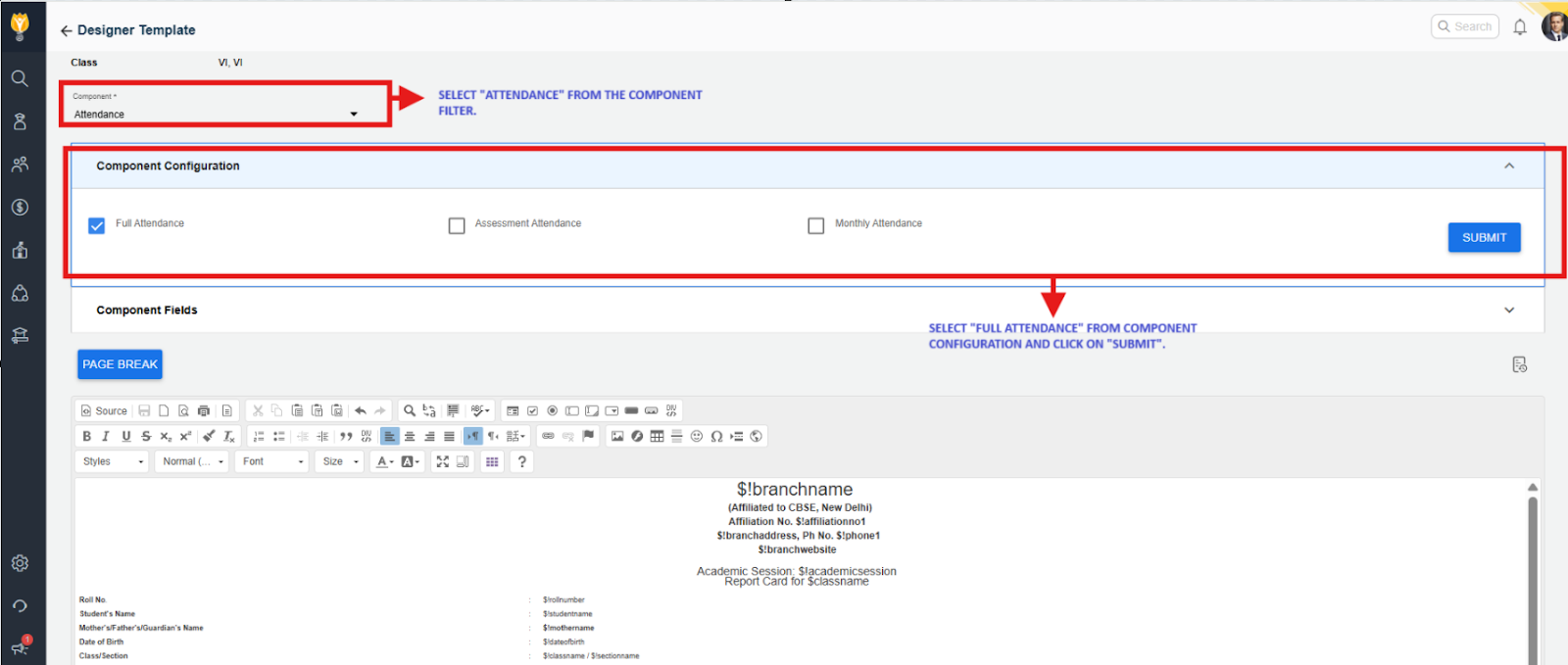
- From the component filter, select Attendance.
- In the component configuration, choose Full Attendance and click Submit.
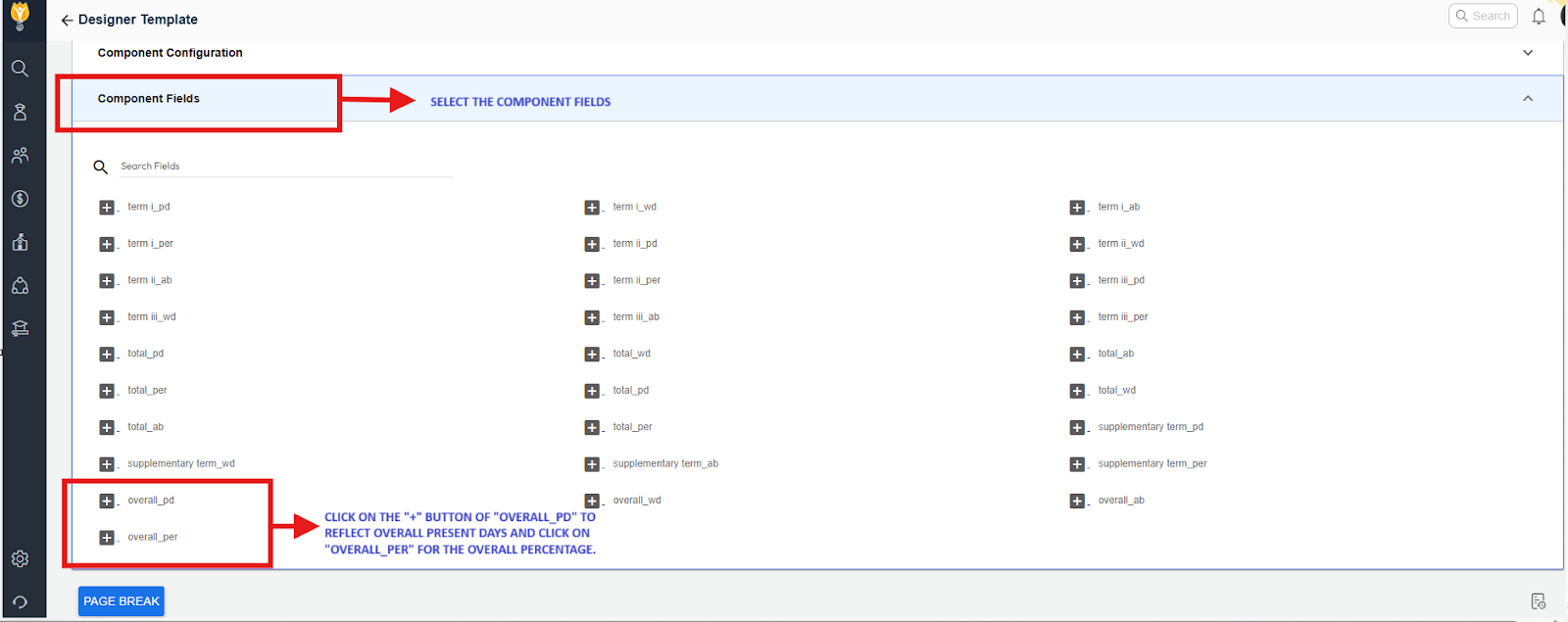
- Click the “+” button for overall_pd to display the overall present days.
- Click the “+” button for overall_per to display the overall attendance percentage.
- overall_pd represents overall present days.
- Overall_per represents overall attendance percentage.
Contact Support Team
You can contact the NextOS Customer Support team via :
📧 Email: support@nexteducation.in
📞 Toll-free: 1800 200 5566
💬 WhatsApp: 7337554528
Was this article helpful to you?
Yes0
No0