

You can make updates in two ways:
- Map a new report card template
- Modify the existing template design or values
1. Map a New Report Card Template
- Navigate to Settings > Student > Examination > Examination Settings > Report Builder.
- Go to the Standard tab and click the Class Group for which you want to change the template.
- Multiple templates will be displayed — click on the one you want to use.
- Choose the desired Term to preview, scroll down, and click Confirm.
- Enter a reference name and select the Class to map.
- Choose where to apply this template:
- Annual → for the whole year
- Term → for specific terms
- Assessment → for individual assessments within a term
- Click Create to successfully map the new template.
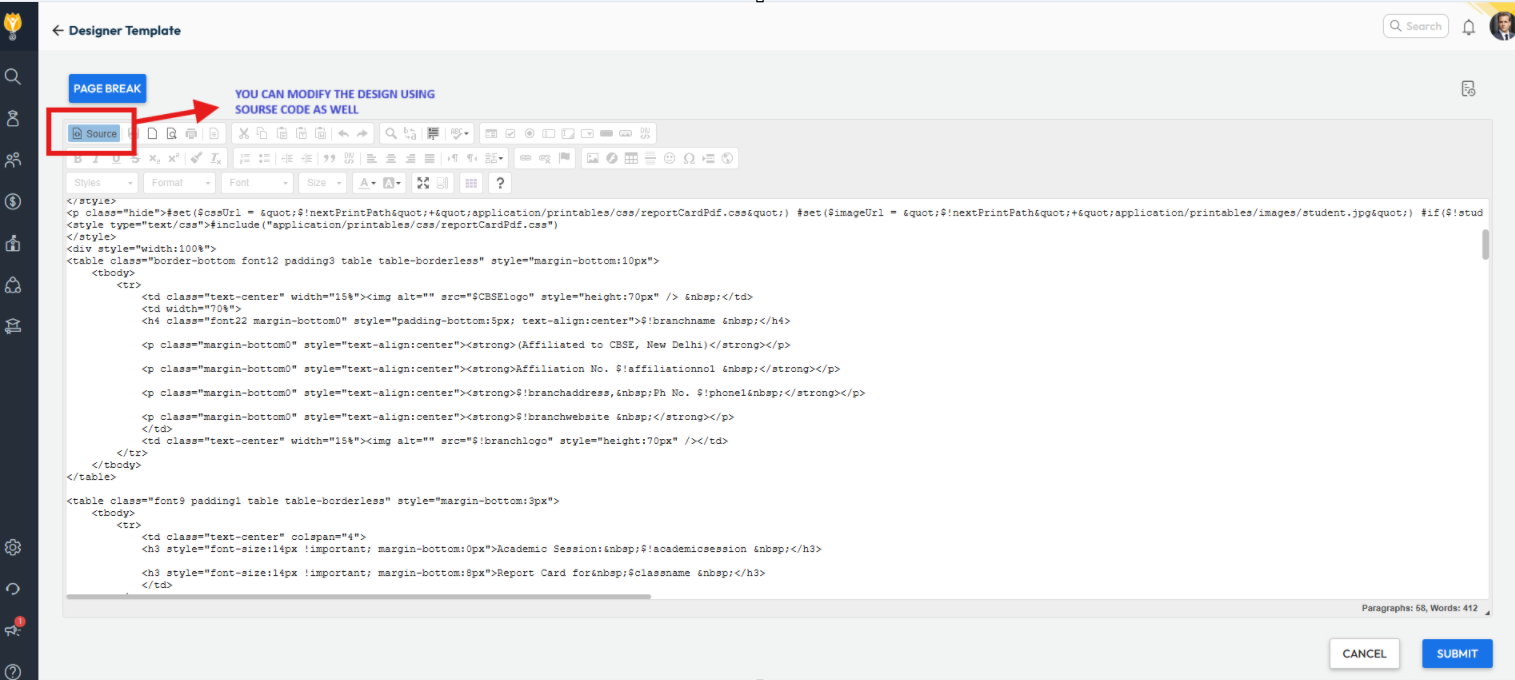
2. Modify the Existing Template Design or Values
⚠️ Important:
Editing a Report Card Template should only be done if you are familiar with the Visual/HTML Editor. Incorrect modifications may break the layout or disrupt data mapping.
- Navigate to Settings > Student > Examination > Report Card Builder.
- Click the Eye (Preview/Edit) icon for the report card template.
- Make the necessary changes in the required sections of the template.
- Click Submit to apply the updates.

Contact Support Team
If the above steps do not solve your purpose, feel free to contact our support team:
📧 Email: support@nexteducation.in
📞 Toll-free: 1800 200 5566
💬 WhatsApp: 7337554528
Was this article helpful to you?
Yes0
No1