

Check School Logo Configuration:
Step 1 – Click on Settings
Step 2 – Click on Administration
Step 3 – Click on the School Setup
Step 4 – After clicking on the School setup, click on the “Branch details”.
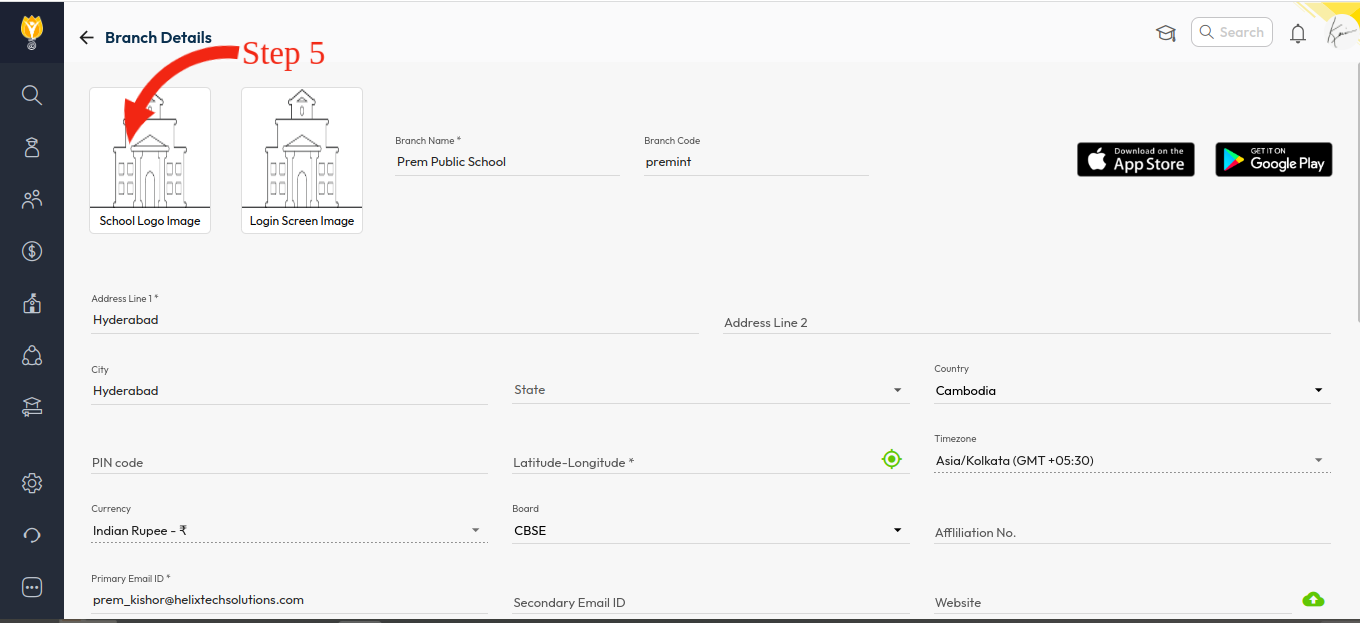
Step 5 – Upload the School logo in “School Logo image”.
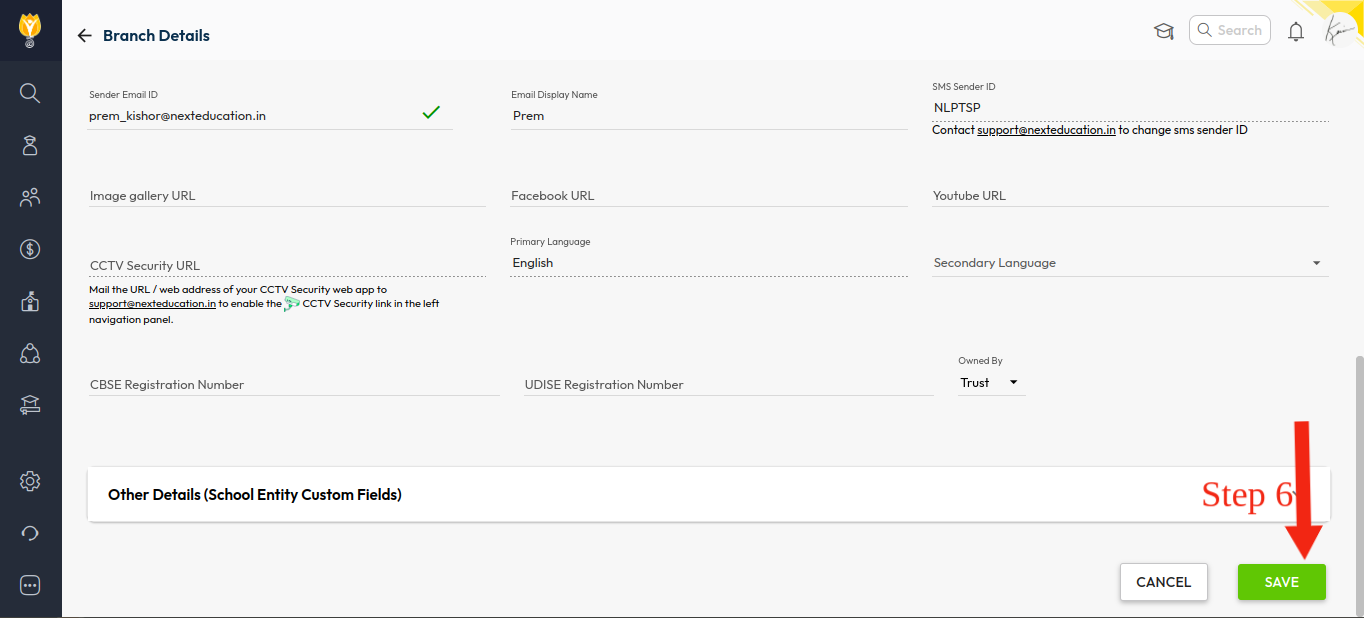
Step 6 – Click on the “Save” icon, automatically the logo will be visible in the Fee Receipt.
Verify Fee Receipt Configuration:
Make sure the fee receipt configuration is set to include the logo.
By following these steps, the logo should appear on the fee receipts.
Contact Live Support
If the above steps do not solve your purpose, feel free to contact our support team:
📧 Email: support@nexteducation.in
📞 Toll-free: 1800 200 5566
💬 WhatsApp: 7337554528.
Video Tutorial :
Was this article helpful to you?
Yes0
No0