

This issue usually occurs due to one of the following reasons:
- The transport fee is not configured for the stop, or
- The Create Transport Fee Dues option is disabled.
1. Check for Fee Configuration
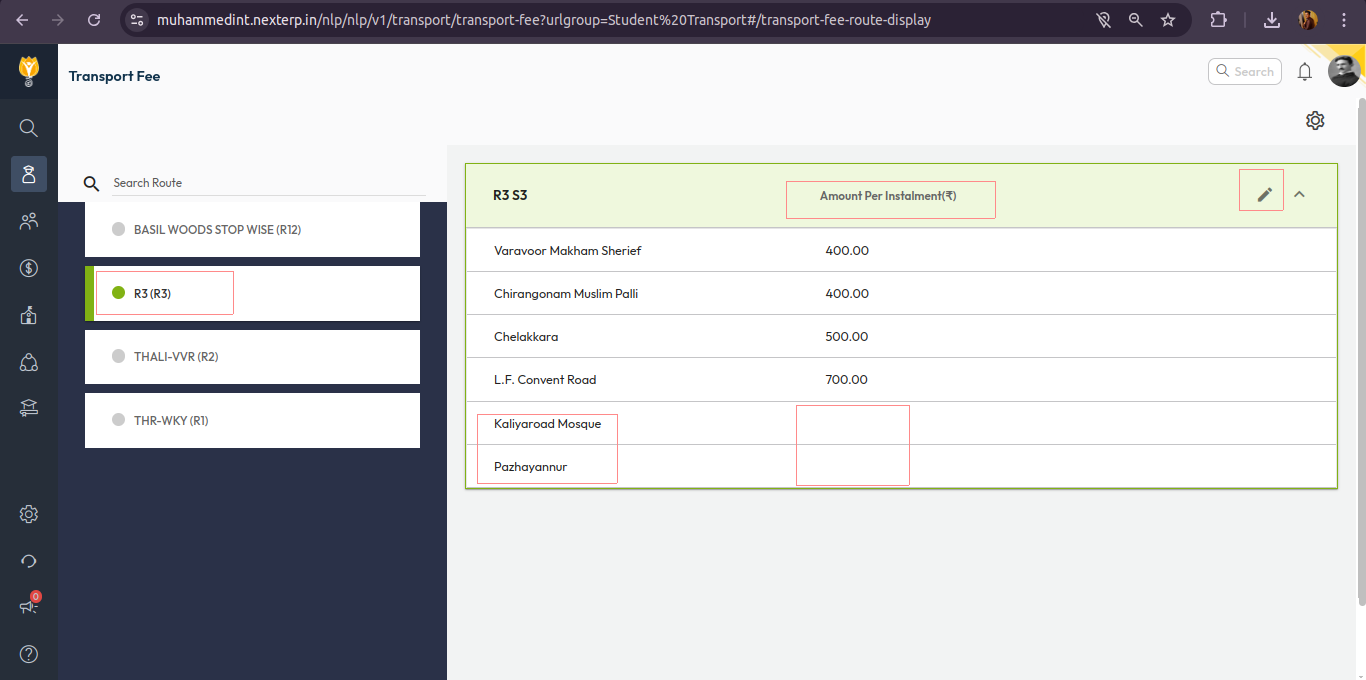
- Navigate to Student > Student Transport > Transport Fee.
- Open the relevant Route and Service where the fee is not reflecting.
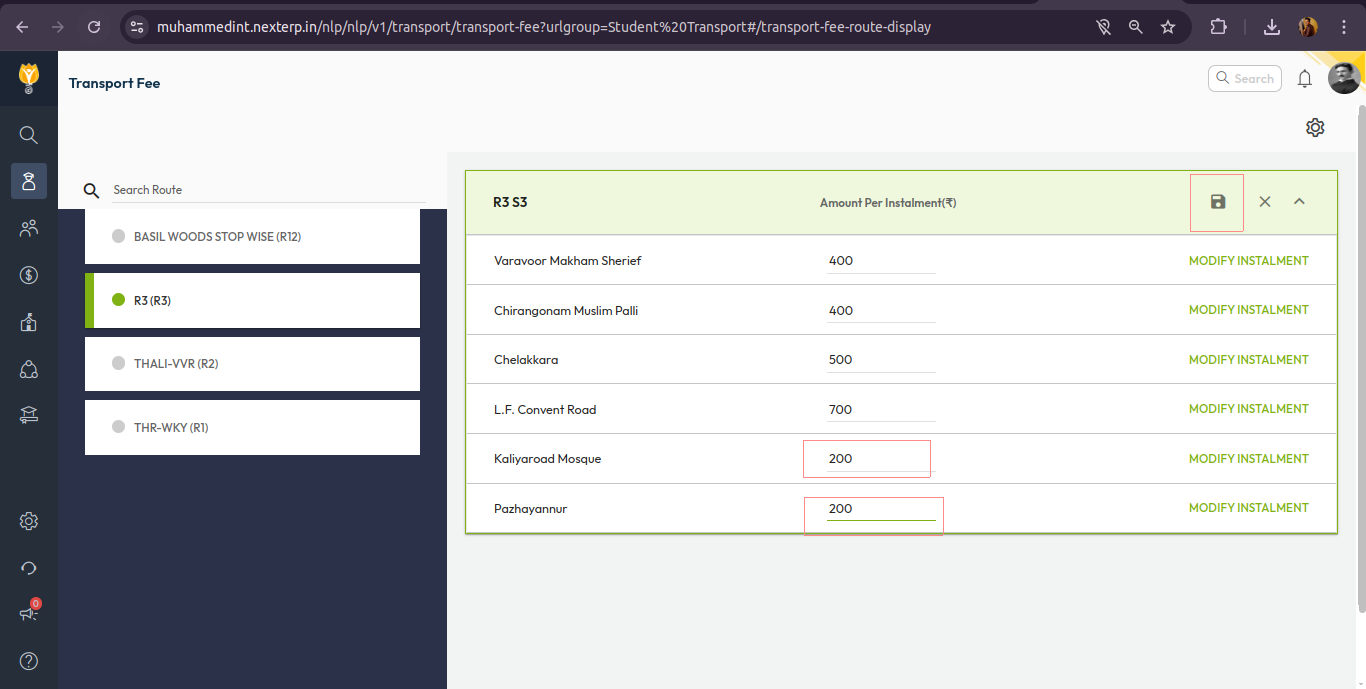
- Click Edit.
- Check whether the fee amount is added for the required Stop.
- If missing, update the amount.
- Click Save.
2. Enable Create Transport Fee Dues Setting
- Navigate to Student > Student Transport > Transport Fee.
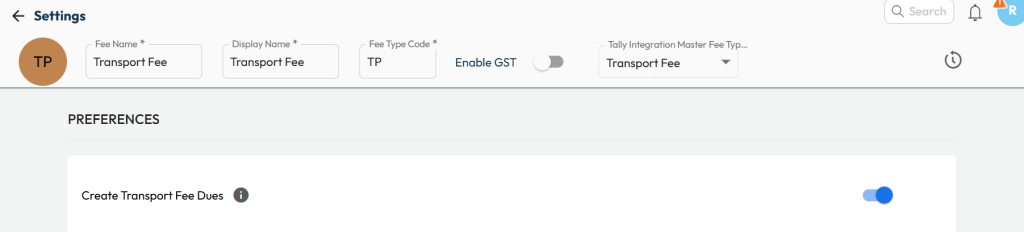
- Click Settings.
- Check whether Create Transport Fee Dues is disabled.
- If disabled, turn on the toggle to enable it.
- Click Save to apply the changes.
Video Tutorial :
Was this article helpful to you?
Yes0
No0