

To add new subjects to the report cards, follow these steps:
- Create the Subject:
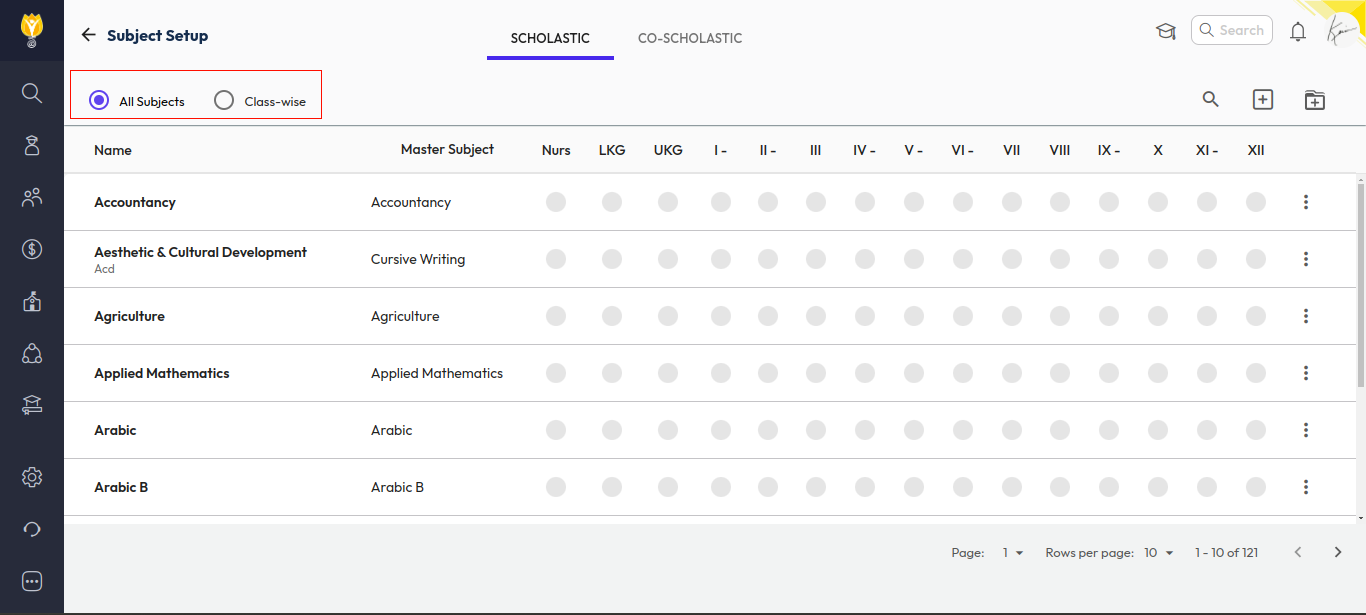
- Go to: Settings > Students > Examination > Subject Setup.
- In Subject Setup, you will see two options: All Subjects and Class Wise.
- You can add the new subject using either option.
- Give the subject name as AI or NSQF.
- Add the Subject to Exam Hierarchy:
- Go back to the Examination Settings and select Exam Hierarchy.
- Choose the class for which you want to add the subject.
- Select the Academic Session and then choose the Term (Term 1, Term 2, etc., as per school requirement).
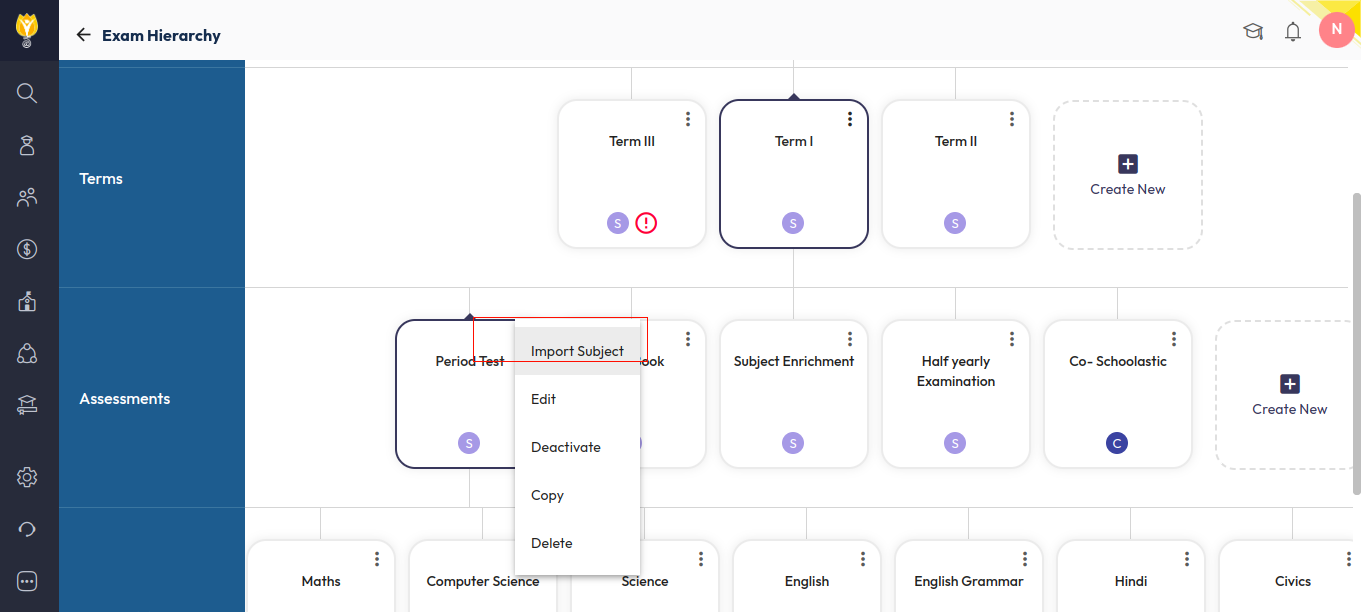
- Under the selected term, you will see various assessments (e.g., PT, Notebook, Half-Yearly).
- Click on the three dots next to the assessment where you want to add the subject, then select Import.
- Repeat this for other assessments if needed.
- Add Activities/Rubrics and Marks:
- After importing the subject, click on the subject and add activities or rubrics as required.
- Also, enter the maximum marks as per school guidelines.
- Update the Report Card Template:
- Go to: Examination Settings > Report Card Builder.
- Open the report card template where you want this subject to appear.
- Add the keys (placeholders) for the new subject and save the template.
- Publish the Report Card:
- Go to the Report Card Publish page.
- Click the Up Arrow icon to republish the report card.
After following these steps, the new subject will be visible in the report card.
Was this article helpful to you?
Yes0
No0