

 > Attendance > Student Attendance
Quick Mark is used to mark the attendance of a large number of students in a single step. Only the absentees are added; every other student in the selected classes is marked Present when the attendance is saved. Multiple classes can be selected together, which makes it useful for marking attendance at the assembly or at the start of the day.
- Go to Student Attendance and select Quick Mark.
- Select the Class. More than one class can be selected.
- Select the Section, or select All to include every section of the selected classes.
- Select the Attendance Date. The total number of students covered by the selection is displayed as students in scope above the list.
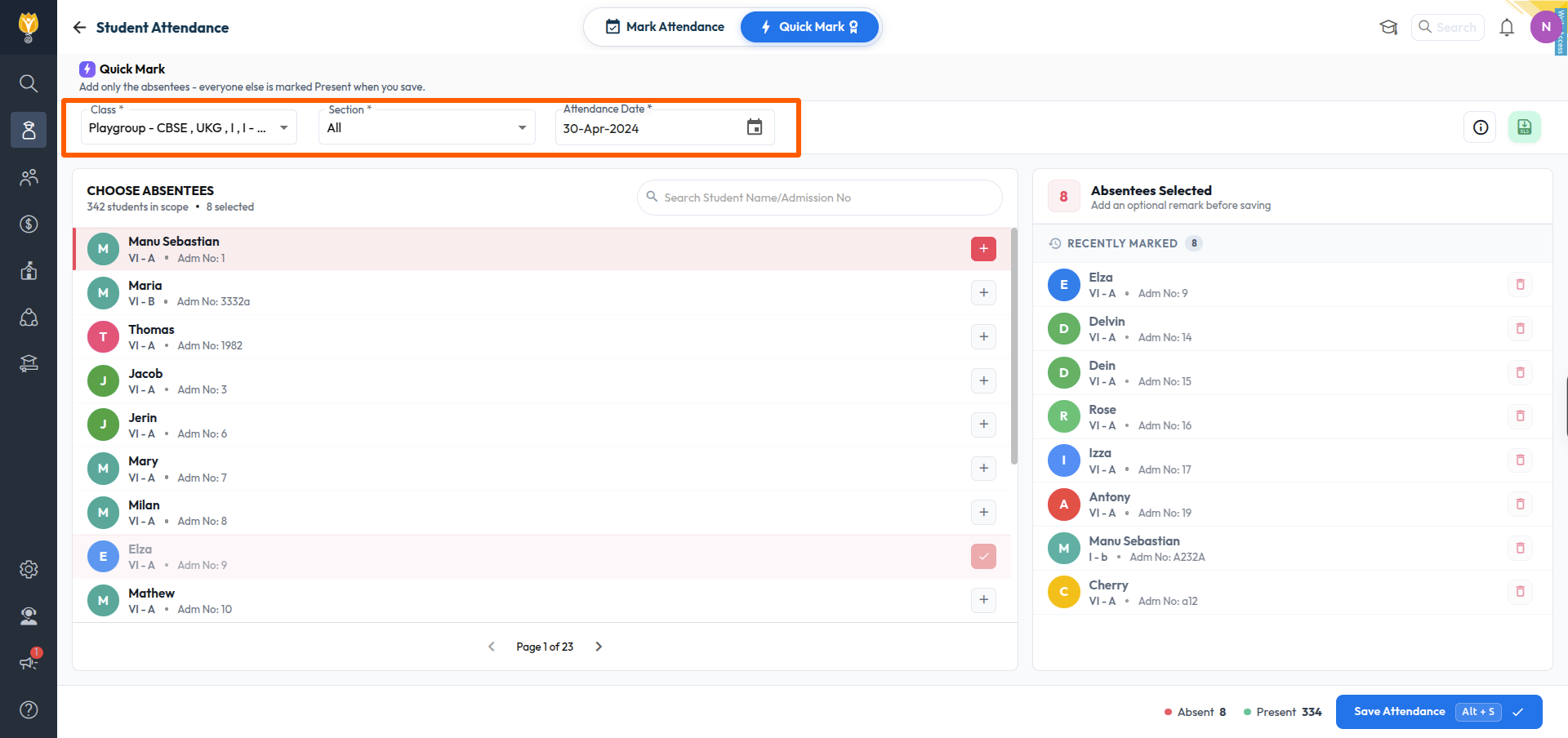
- In the CHOOSE ABSENTEES list, locate the students who are absent. The students can be located by scrolling through the pages, or by entering the name or the admission number in the search box.
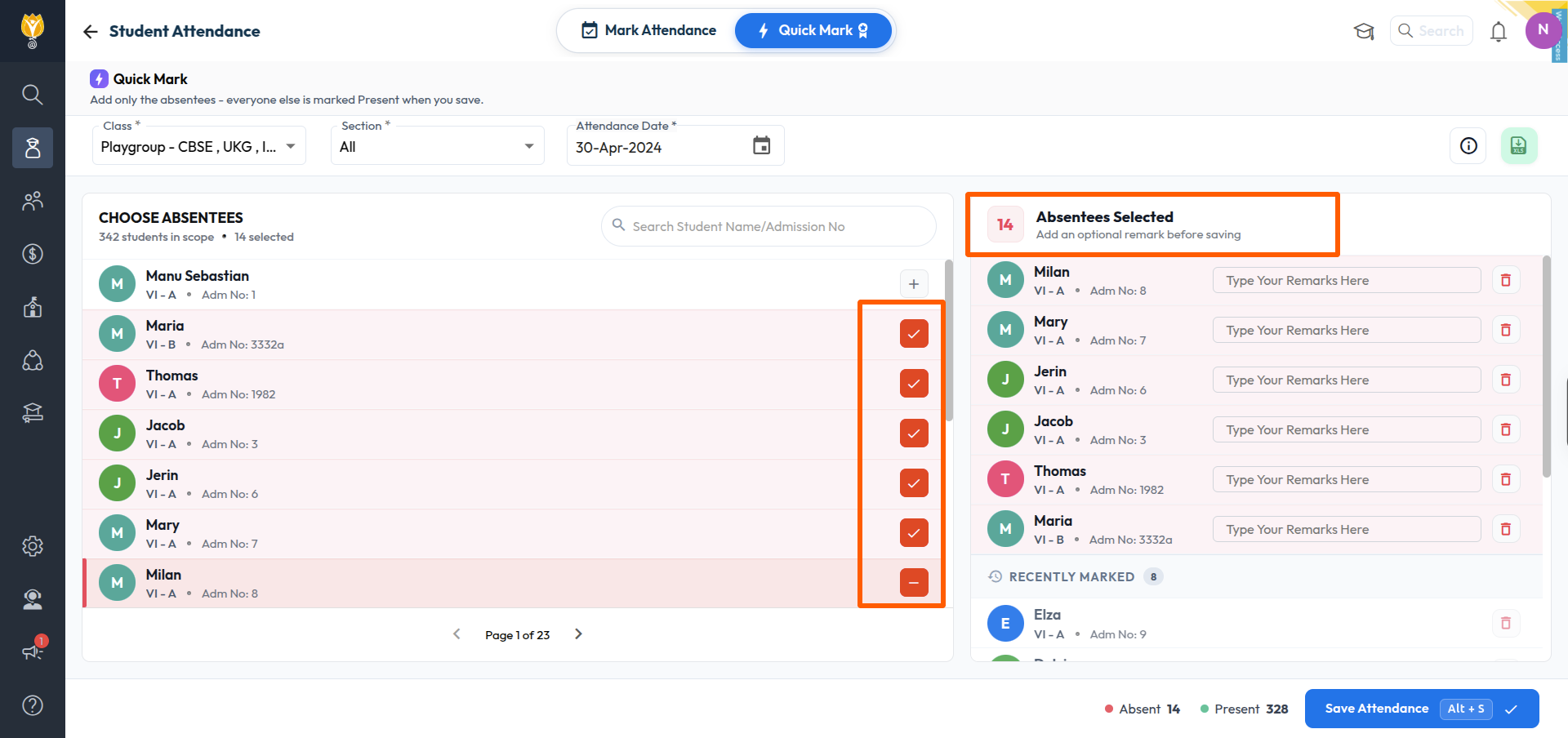
- Select the + icon against each absent student. The student is moved to the Absentees Selected panel on the right.
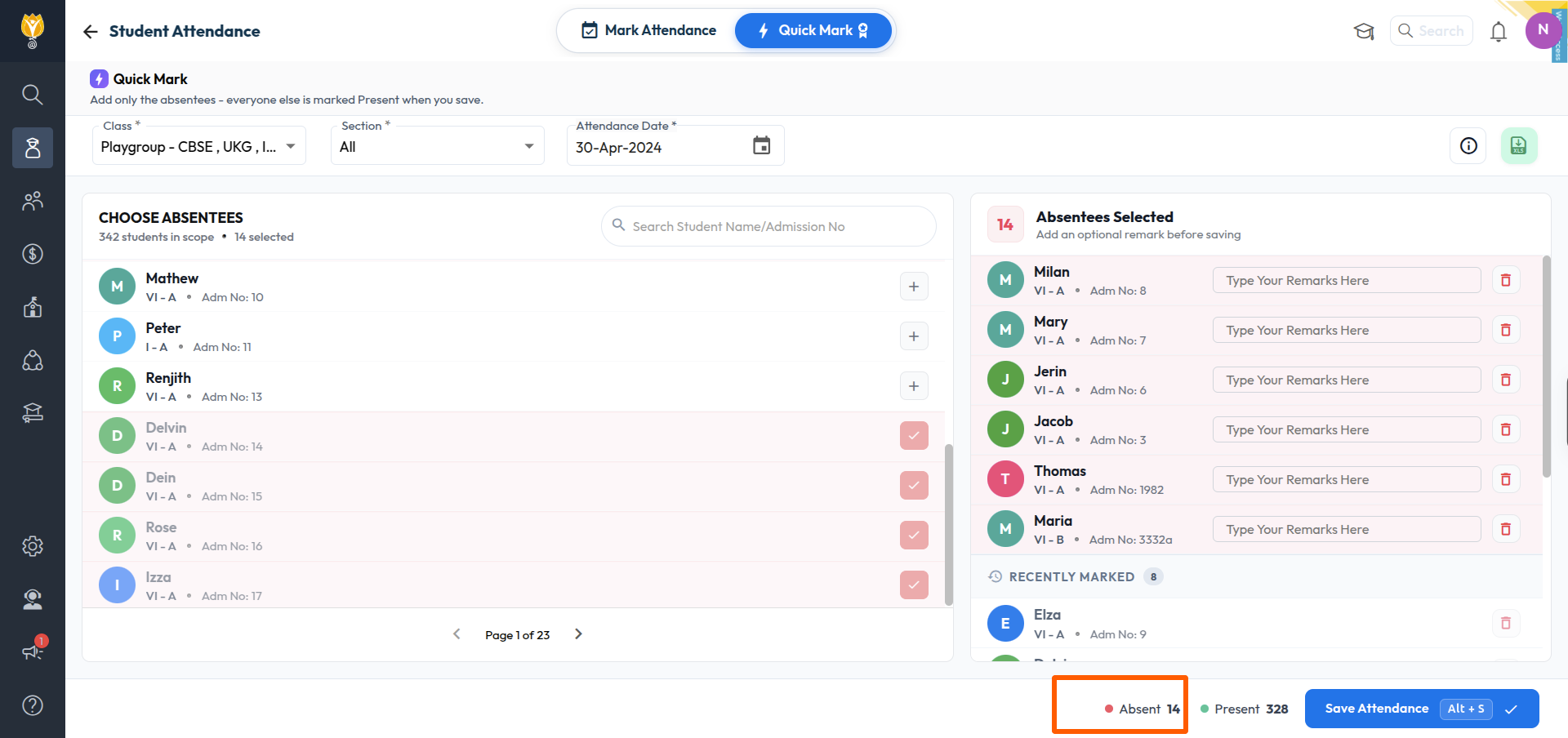
- Verify the Absent and Present counts displayed at the bottom of the page.
- Click Save Attendance, or press Alt + S.
NOTE:
- Every student who is not added to the Absentees Selected panel is marked Present when the attendance is saved.
- A student added by mistake can be removed from the Absentees Selected panel before saving.
- Attendance for the past days can be marked, but it cannot be marked for future days.
- To mark half day, leave, remarks, homework or uniform details, use the Mark Attendance mode instead.
Was this article helpful to you?
Yes13
No18