

1. Access the Bulk Upload Section

- Go to: Finance > Fee > Collect Fee
- Click the Bulk Upload icon in the top-right corner.
- Click on the Download button next to Template A.
Tip : This template is best for uploading multiple installments under a single receipt. (Comes as a blank template-cells)

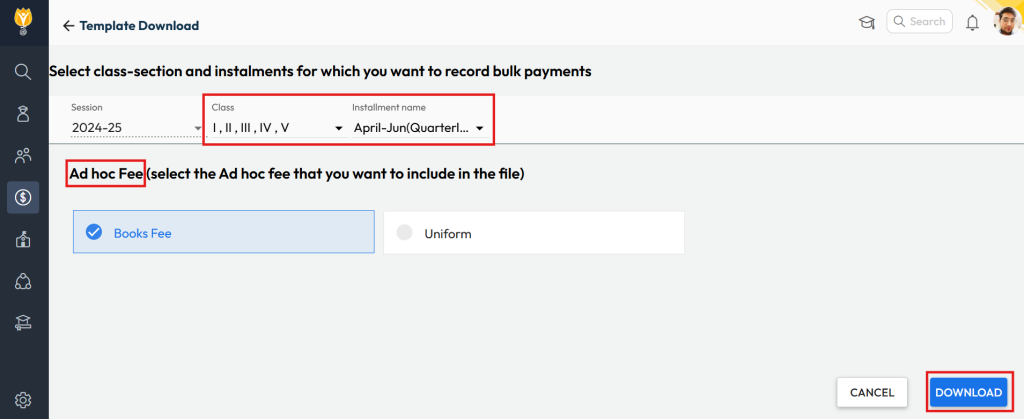
2. Select Filters & Download File:
- Session: Defaults to the currently active session.
- Class: Select one or more classes as needed.
Tip: Select all classes if you want to upload collection in the sequential order based on the already generate receipt ids. - Installments: Choose one or more as needed. (For Template A, you can select multiple to include in one receipt.)
- Adhoc Fee: Choose one or more as needed. (For Template A, you can select multiple to include in one receipt.)
- Click Download to get the Excel template.
3. Prepare the Excel File
- Fill in all required fields for the relevant month’s collections.
Tip: Use the date format DD-MM-YYYY for both Payment and Collection dates.
4. Upload & Validate the Excel File
- Upload the filled Excel file from the same page.
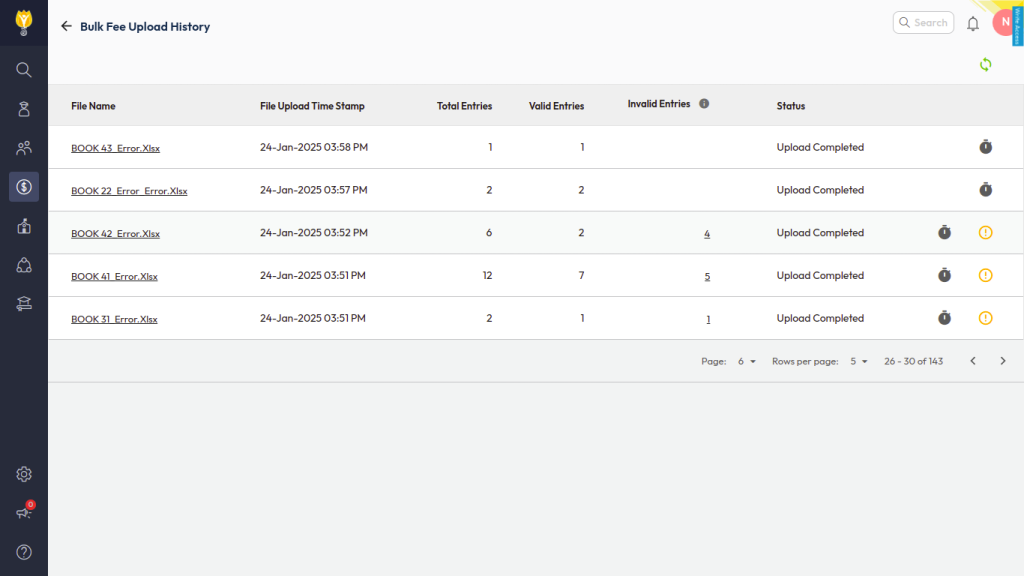
- The system will validate the file and display:
- Valid entries – Auto-uploaded into the system.
- Invalid entries – Download the error file, fix the issues, and re-upload.
This completes the bulk fee collection.
Was this article helpful to you?
Yes0
No0