

Follow the steps below to configure the complete Exam Hierarchy for a Quarterly or Monthly test:
Steps to configure exam structure:
- Log in to your NextOS account using School Admin or Exam Coordinator credentials.
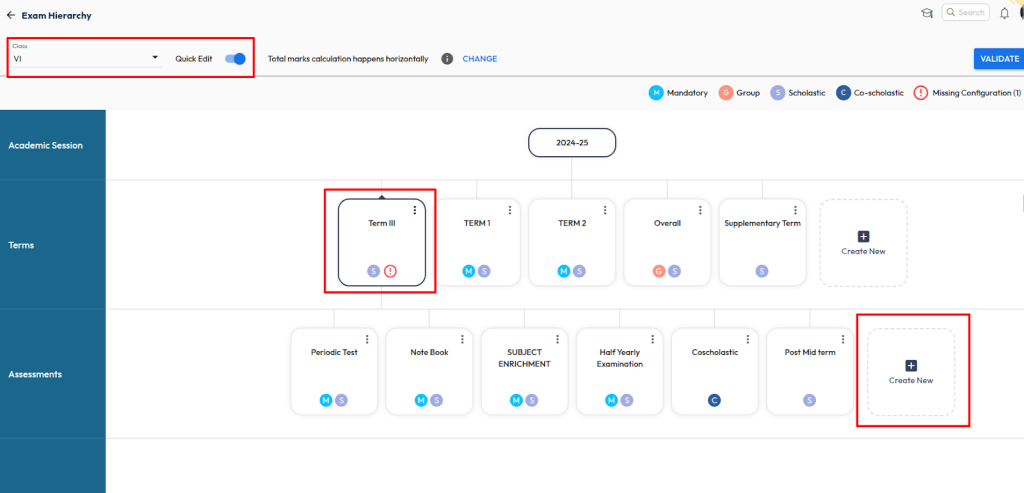
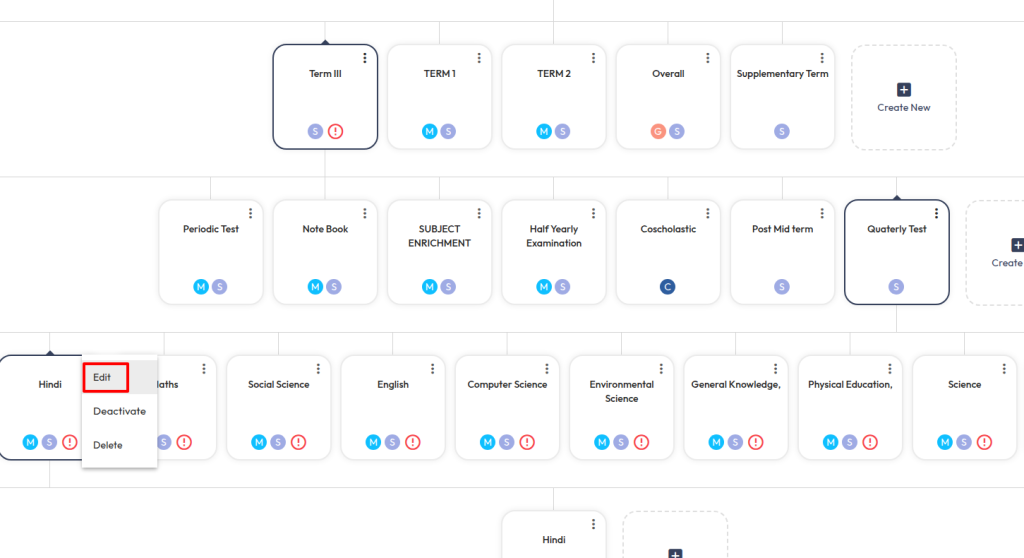
- Navigate to Settings > Student > Examination, open Exam Hierarchy.
- Select the Class, then click the “+” button under Assessment.
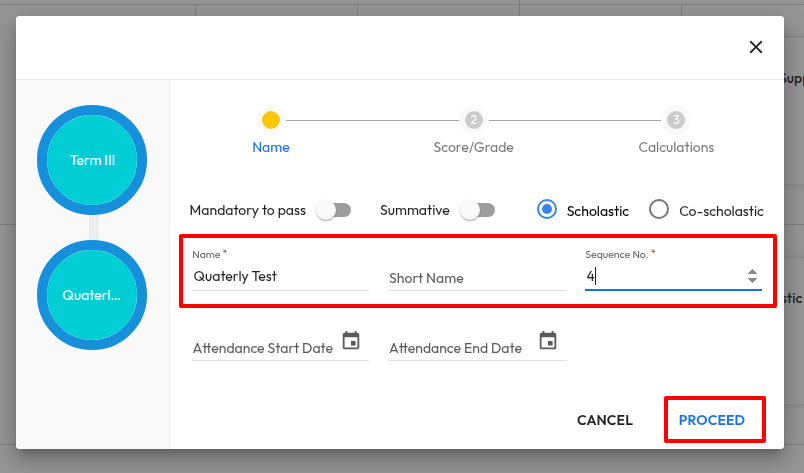
- Enter the Assessment Name (e.g., Quarterly or Monthly).
- Set the Sequence.
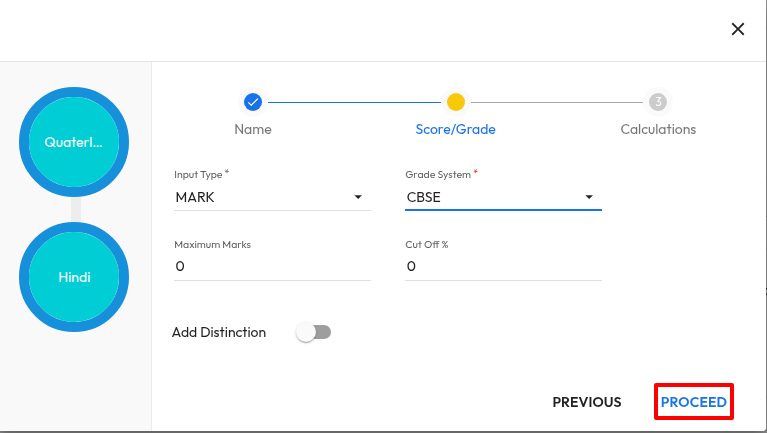
- Choose the appropriate Grading Scale.
- Click Proceed, then Finish.
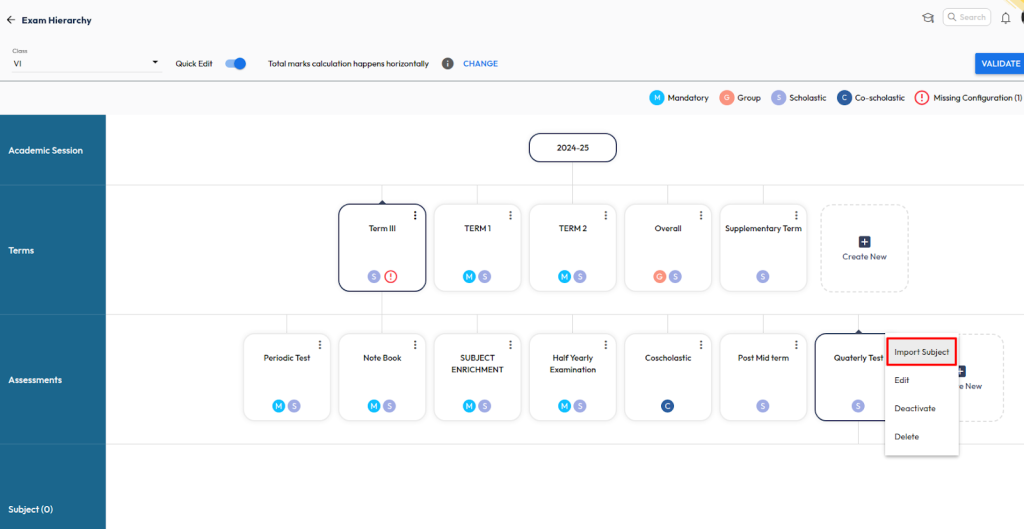
- Importing the subjects to an assessment
- Click the three dots (︙) and select Import Subject.
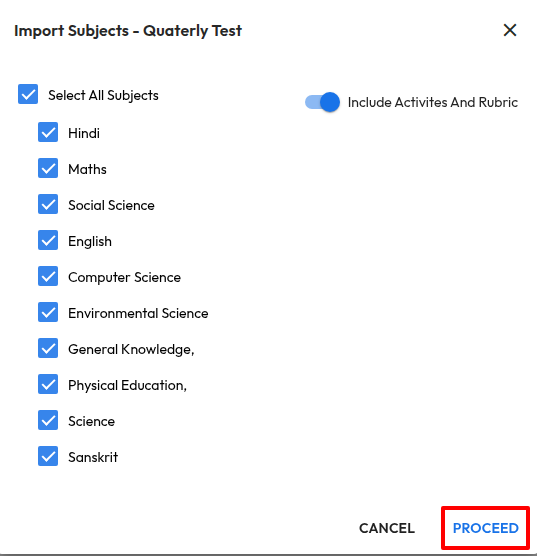
- Select the subjects you want to include.
- Untick any subjects you want to exclude from the report card.
- Click Proceed to complete the import.
Tip : You need to define the subject activities to open the marks/grade entry for students.
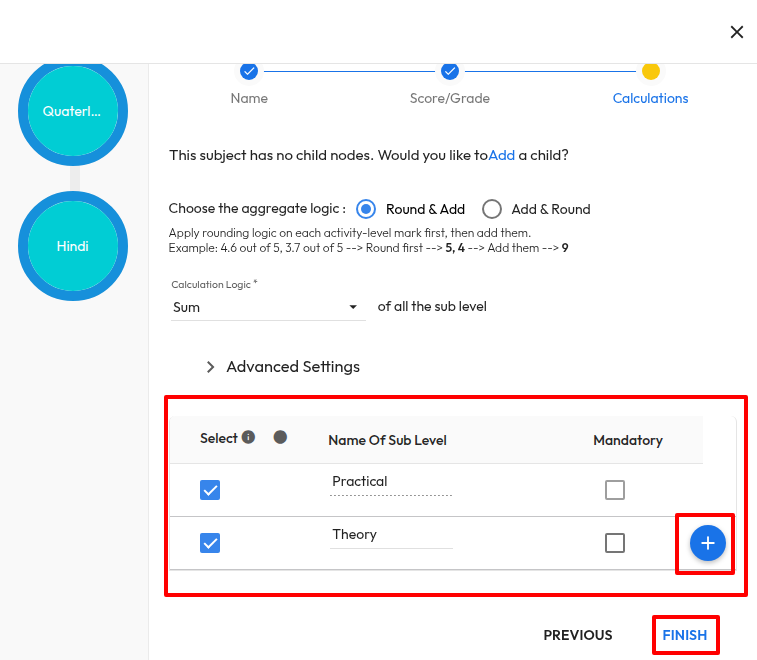
- Configure subjects sctivities
- Select a Subject, Click on Add Activity.
- Set the Input Type to Mark or Grade.
- Select the appropriate Grading Scale.
- Enter the Activity Name, Give the Sequence.
- Enter the Maximum Marks, Save the configuration.
Repeat this process for each subject individually.
Tip : Sequence should always start from 1 for the first activity, and should be unique for each activity.
These steps complete the setup of assessments, subjects, and activity-level configurations for the Quarterly.
Contact Live Support
If the above steps do not solve your purpose, feel free to contact our support team:
📧 Email: support@nexteducation.in
📞 Toll-free: 1800 200 5566
💬 WhatsApp: 7337554528
Was this article helpful to you?
Yes0
No0