

⚠️ Important:
Editing a Report Card Template should only be done if you are familiar with the Visual/HTML Editor. Incorrect modifications may break the layout or disrupt data mapping.
- Login to NextOS with appropriate admin privileges.
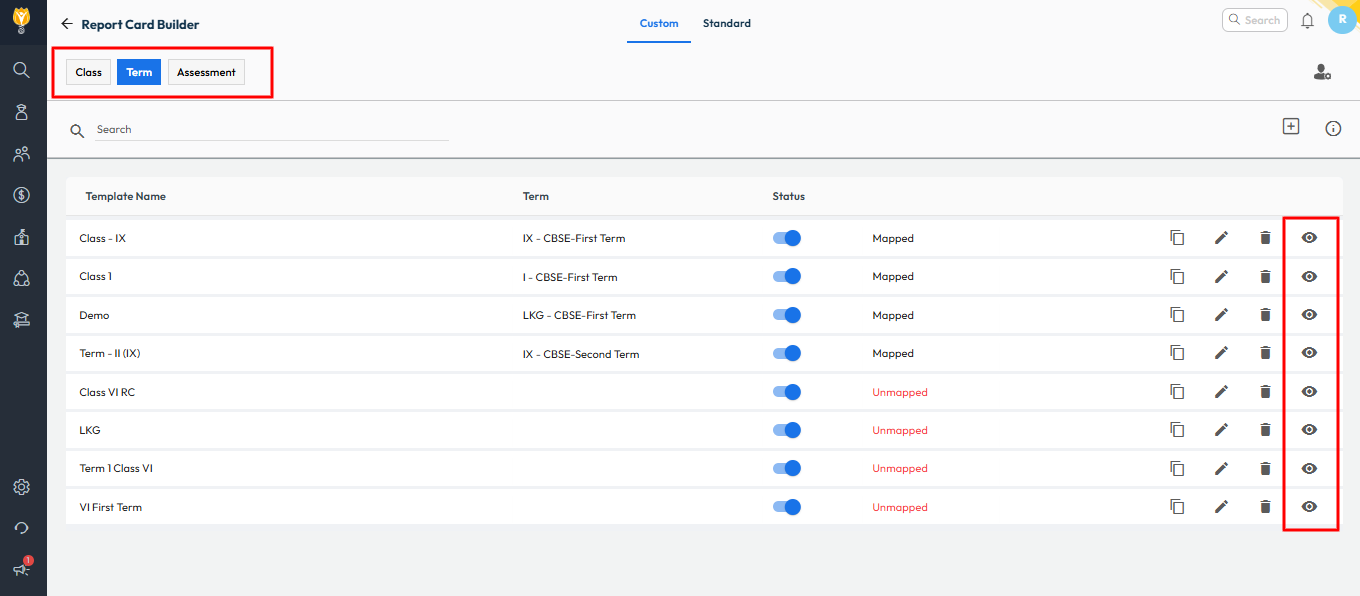
- Navigate to Settings > Student > Examination > Report Card Builder.
- Open the specific report card template you want to edit.
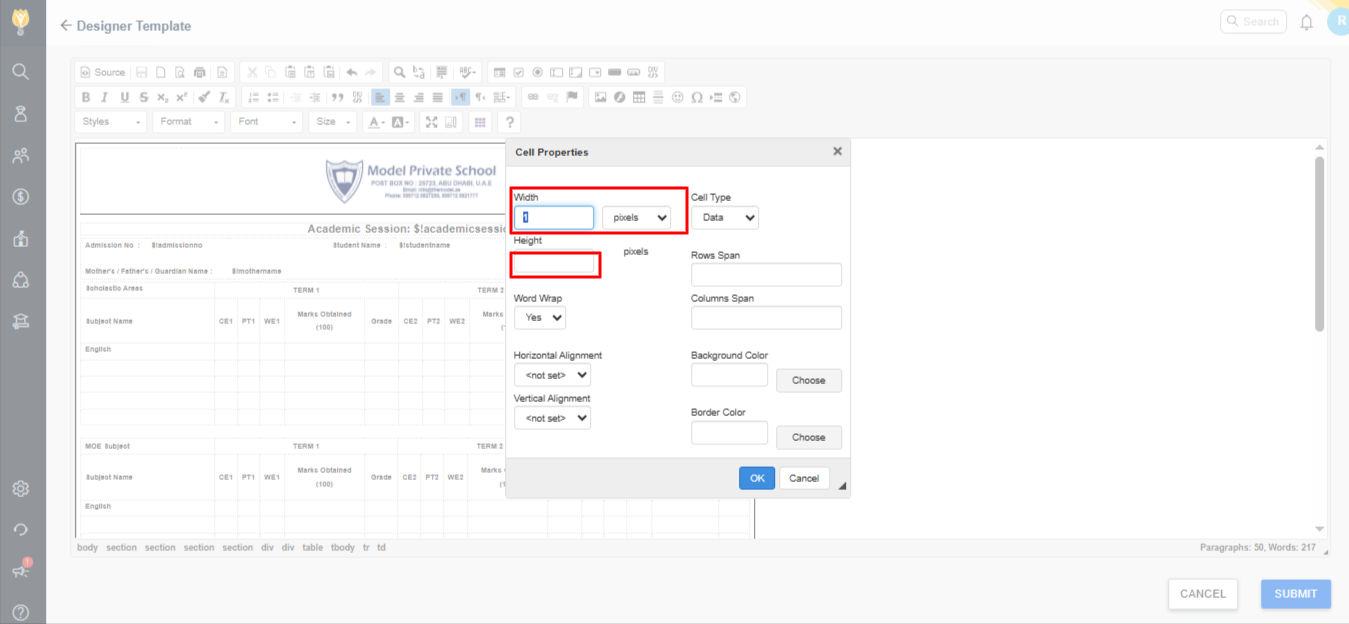
- Inside the template, you will see a table-like structure. Hover over the column or row you want to resize or we give give percentage and height by selecting
- Right click on the column then cell > cell properties > give width and height as required.
- After making changes, click on “Save” or “Submit” to apply the updated layout.
Contact Support Team
If the above steps do not solve your purpose, feel free to contact our support team:
📧 Email: support@nexteducation.in
📞 Toll-free: 1800 200 5566
💬 WhatsApp: 7337554528
Video Tutorial:
Was this article helpful to you?
Yes0
No0