

Teachers can enter or update remarks in bulk using an Excel template. This process involves three simple steps: download the template, fill in the remarks, and upload the file.
Step 1: Dowload the Excel Template
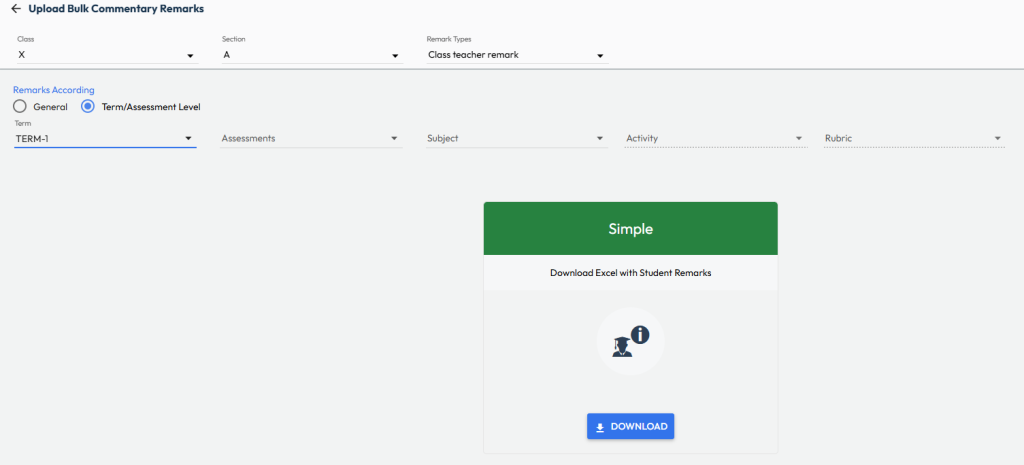
- Navigate to Student > Examination > Commentary Remarks / Student Record.
- Choose Download/Upload Excel
- Select the Class, Section, and Remarks Type.
- From Remarks According, choose where the remarks should apply:
- General – for overall year report card remarks
- Term / Assessment Level – for term or assessment wise remarks (e.g., Term 1, Term 2)
Tip: Select Assessment / Subject / Activity / Rubric level if you want remarks to be entered and displayed accordingly.- Select the Remarks Type from the dropdown.
- Click Download to get the Excel template based on your selection.
Step 2: Fill the Excel with Teacher Remarks
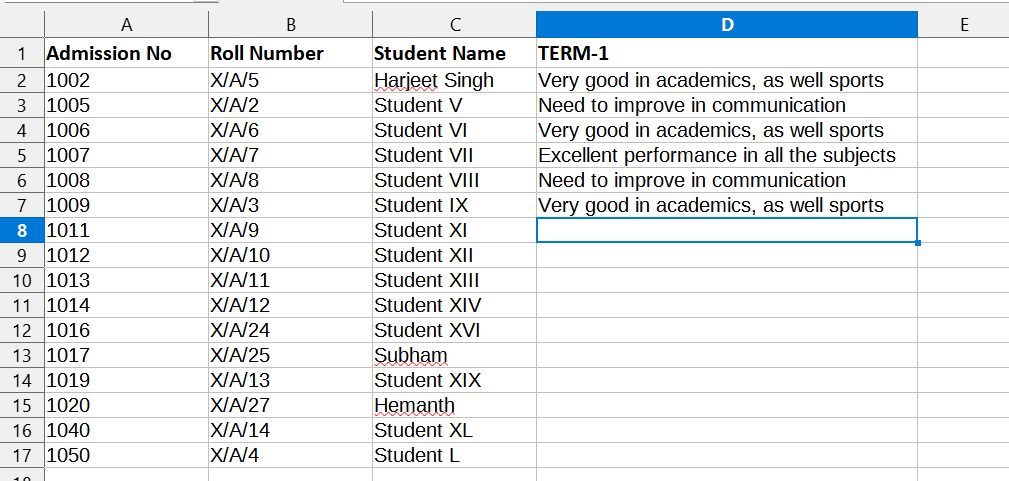
- Understand the Excel Template
The downloaded Excel template is designed for easy and accurate remarks entry.- It contains Admission Number, Roll Number, and Student Name for easy identification.
- It may include multiple sheets, depending on the selected remarks type during download.
- Enter Remarks in the Excel File
- Open the downloaded Excel file.
- Select the required remarks type sheet.
- Navigate to the Term / Assessment / Subject or Activity columns (these may appear as individual or merged columns based on your filter selection during the download).
- Enter the remarks in the provided field (e.g., teacher feedback, strengths, areas of improvement).
Tip: Save the file periodically if you are working offline. - Once all remarks are entered, save the Excel file and proceed to upload.
Step 3: Upload the Filled Excel File
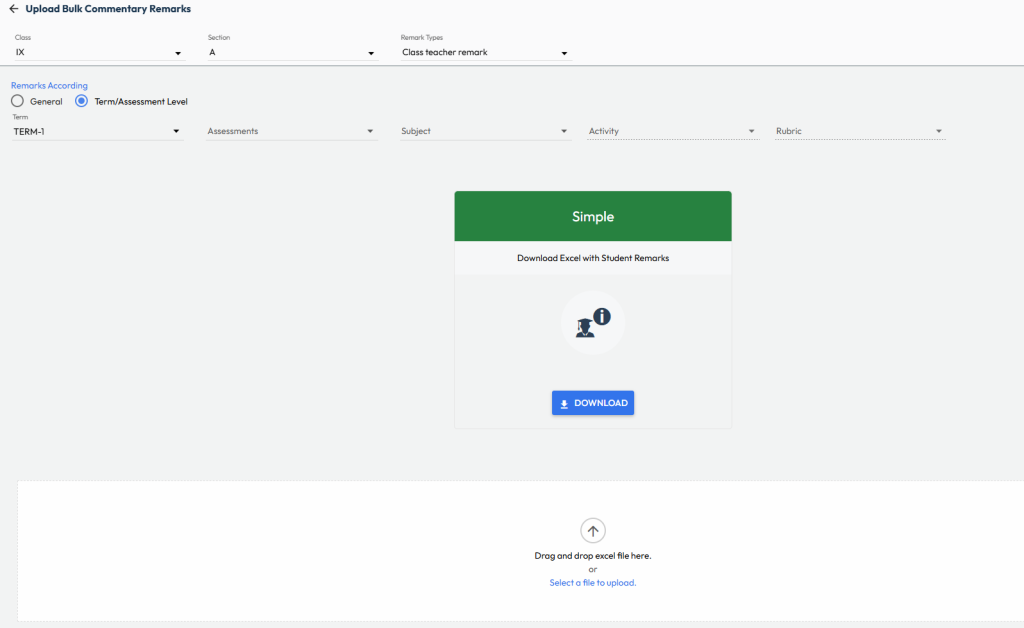
- Navigate again to Student > Examination > Commentary Remarks / Student Record.
- Choose Download/Upload Excel
- Select the same Class, Section, Remarks Type, and other filters (Term, Assessment, Subject, etc.) used during download.
- Go to the Upload section and browse or drag & drop the ready Excel file.
- The system validates the data:
- If valid – upload is allowed
- If invalid – errors are highlighted in red with cell references
Note: Invalid entries may occur if an incorrect class file is uploaded, if admission numbers are modified in the Excel file, if student names do not match the system records, or if special characters are used in the remarks or related fields.
- You either can correct the errors and re-upload the file, or click Confirm to proceed with uploading only valid entries
- Once uploaded successfully, remarks will appear:
- Against each student in the Commentary Remarks Entry page
- On the report card after publishing, and as per the template configuration
Was this article helpful to you?
Yes0
No0