

While generating the transfer certificate of any student if you are facing template error issues, please kindly follow these steps.
Configure Autonumbering
Step 1: Go to settings and click on student
Step 2: Click on Student
Step 3: Click on Auto numbering settings.
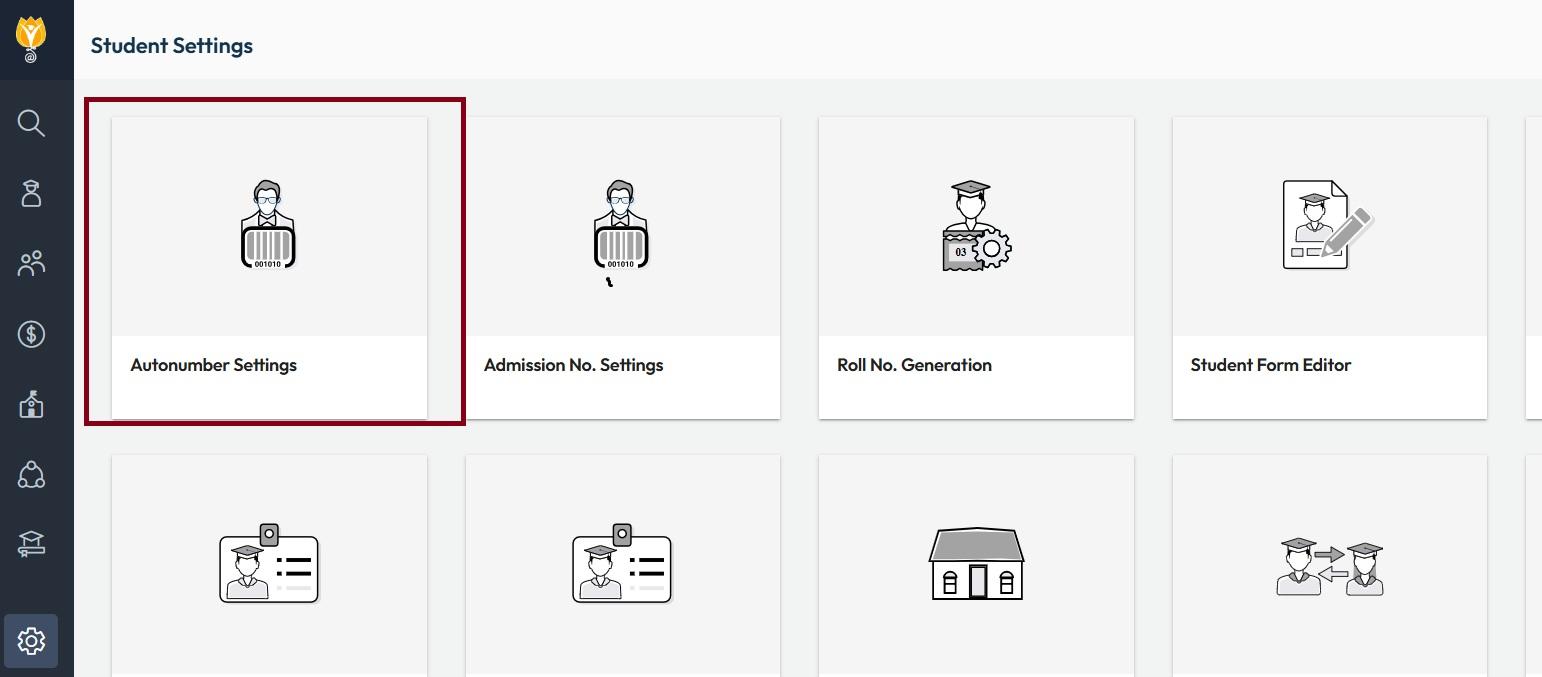
Step 4: Click on plus symbol which is visible on the right side.Provide Auto numbering to Transfer certificate like below mentioned Picture.
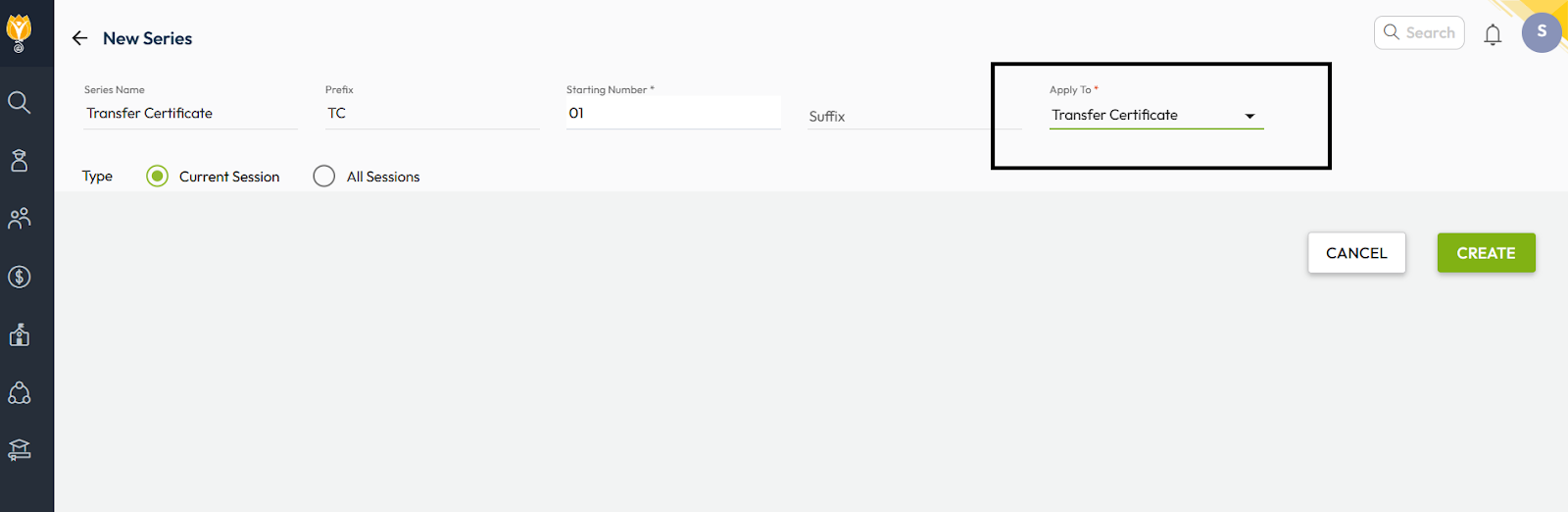
In the above picture the highlighted point , “Applied to” we need to select Transfer Certificate.
Step 5: After Creating Auto Numbering for Transfer Certificate
Map Transfer Certificate Template
Step 1: Go to settings>student>student
Step 2: Click on letter generation settings
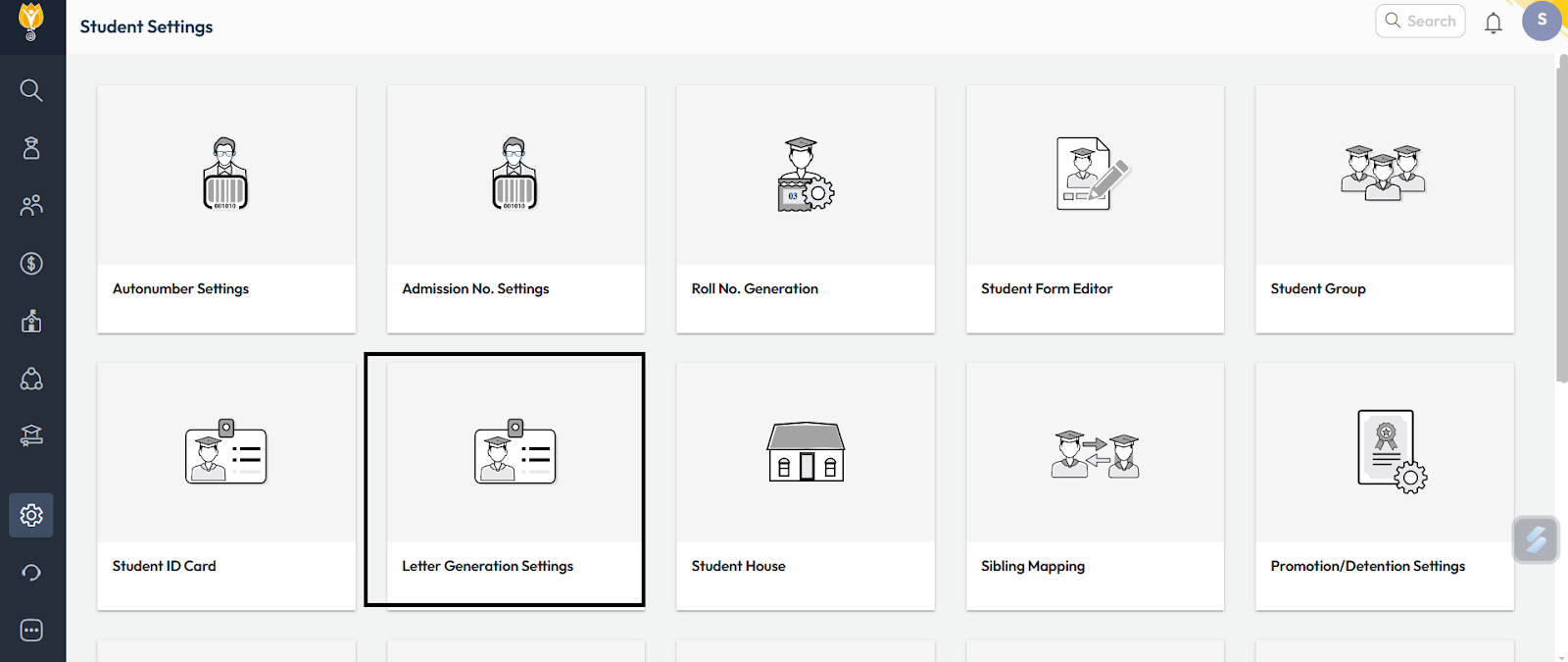
Step 3: Select the letter type as Transfer Certificate and click on Plus symbol on the right side.
The several templates will be visible , select any one of the template and click on next.
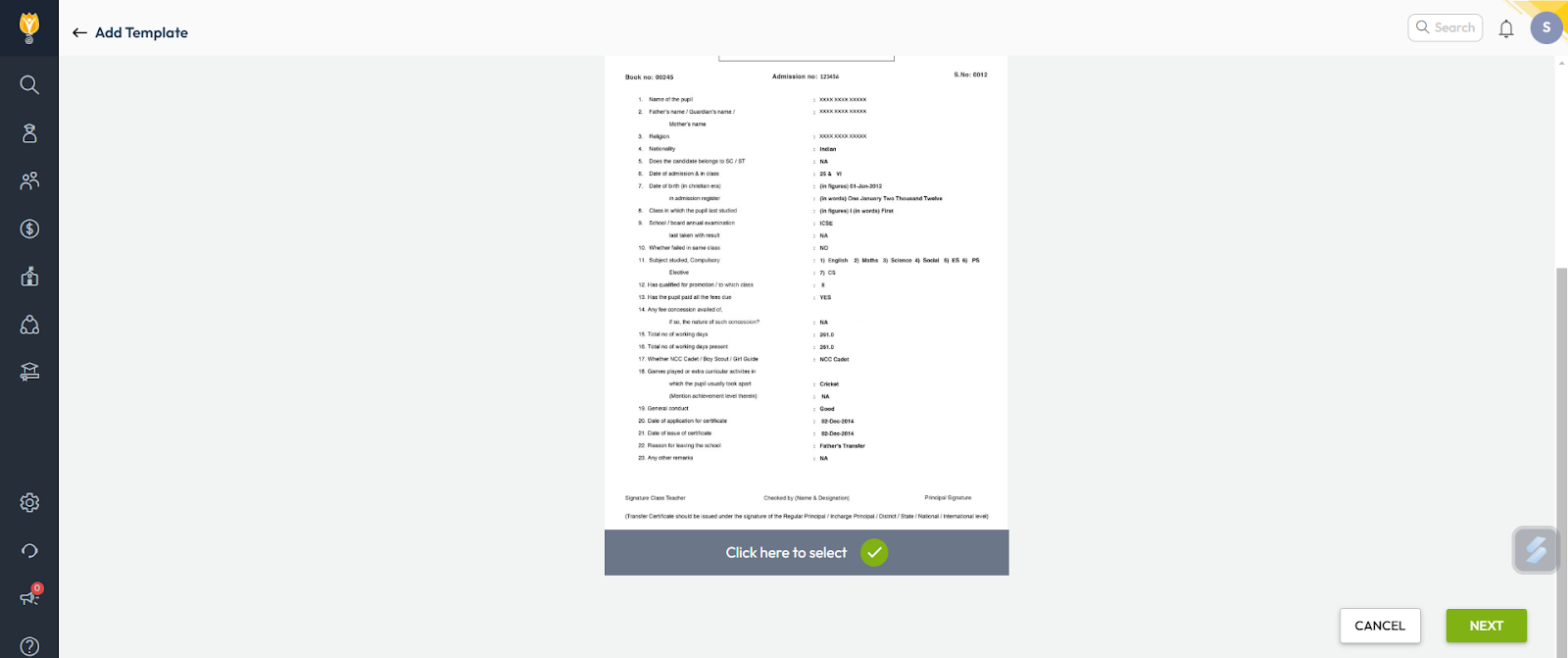
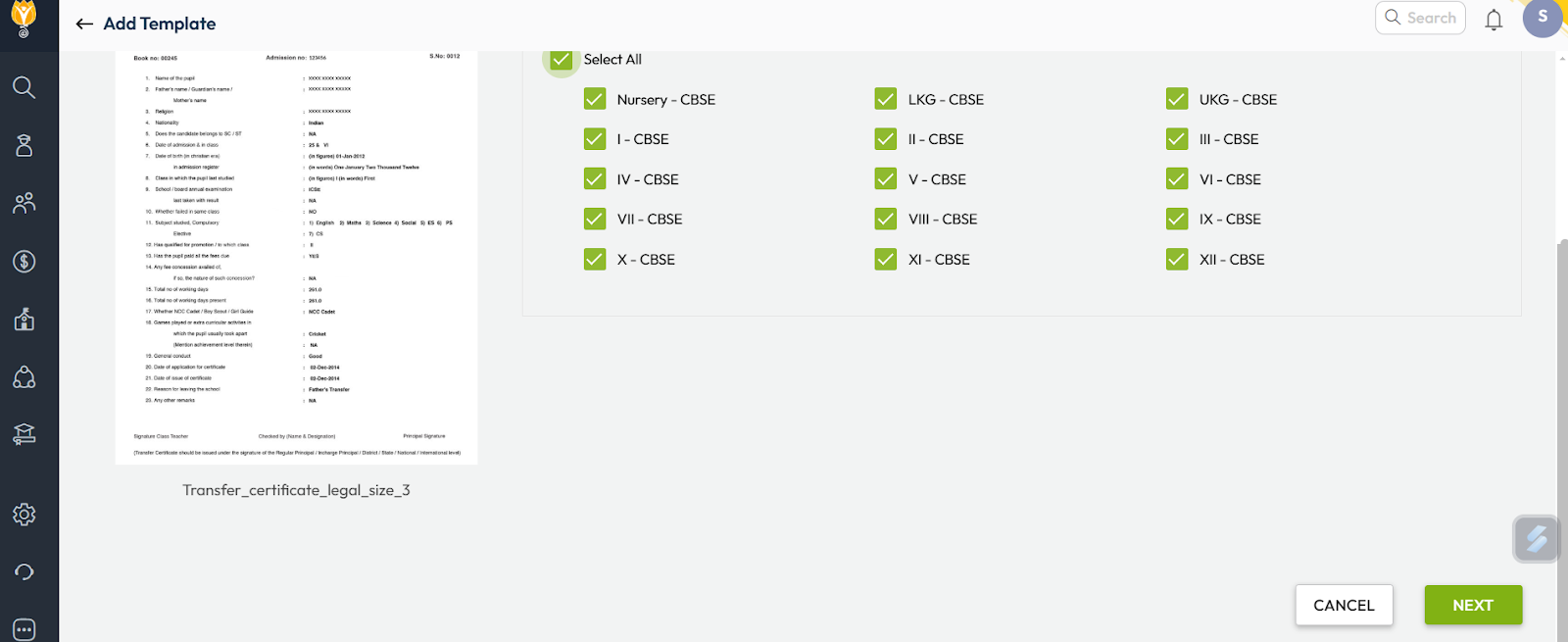
Step 4: Select the classes and click on next.
Step 5: Select the auto numbering sequence which was created earlier.
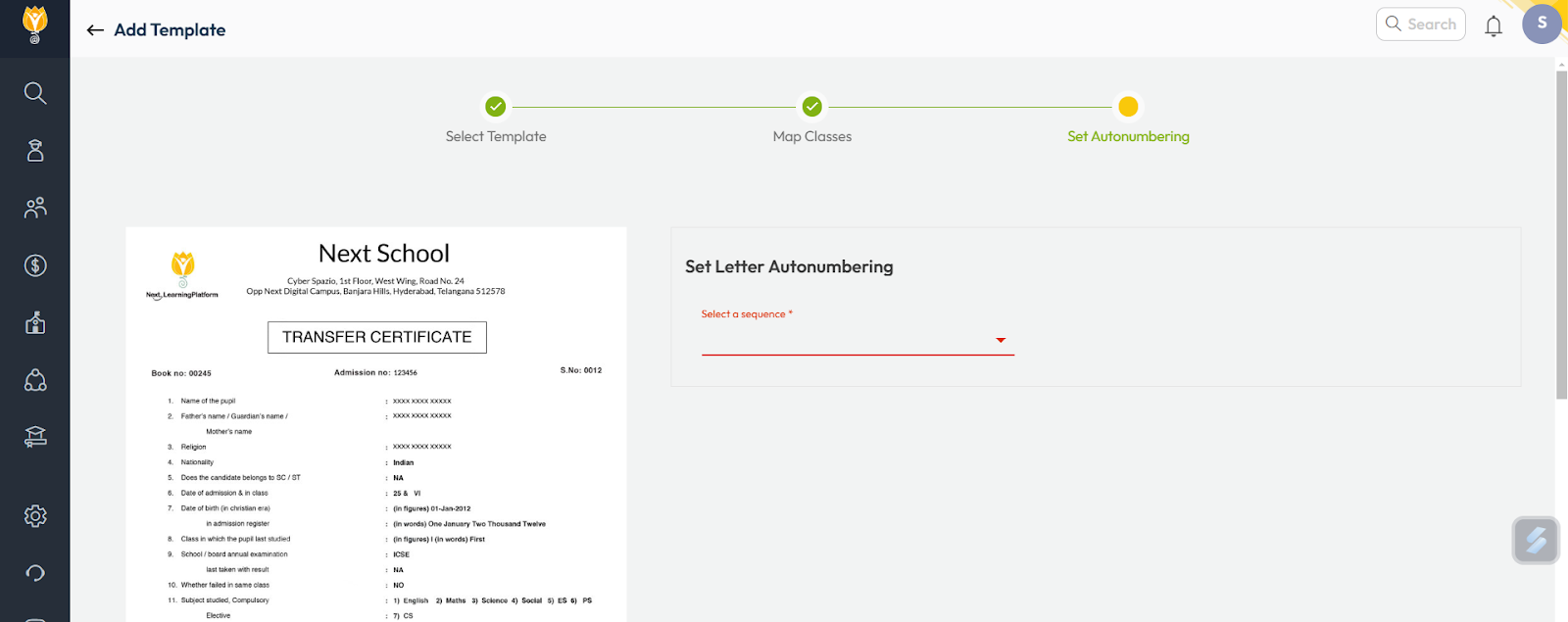
Step 6: And click on Done.