

Before generating report cards, ensure that all marks are entered and the correct report card template is mapped in the Report Card Builder.
Steps to Add the Result & Generate Report Card
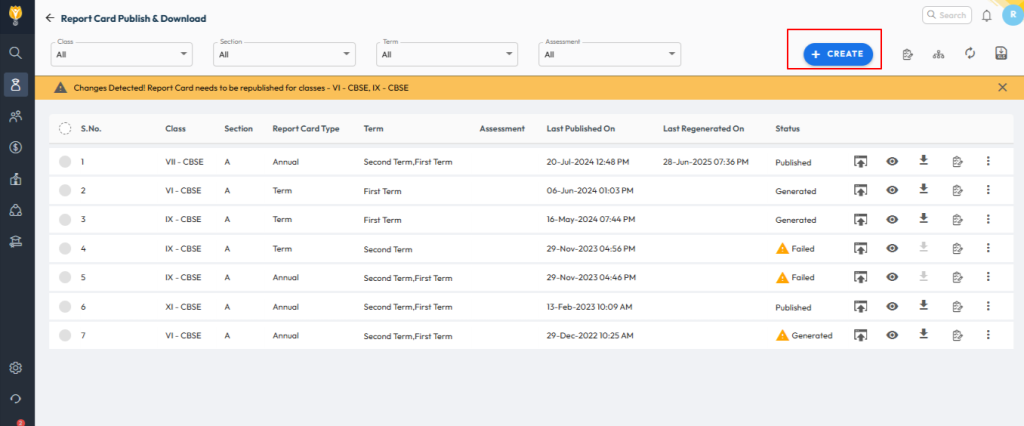
- Navigate to Student > Examination > Report Card Publish.
- Click the Create icon to add a new result (report card).
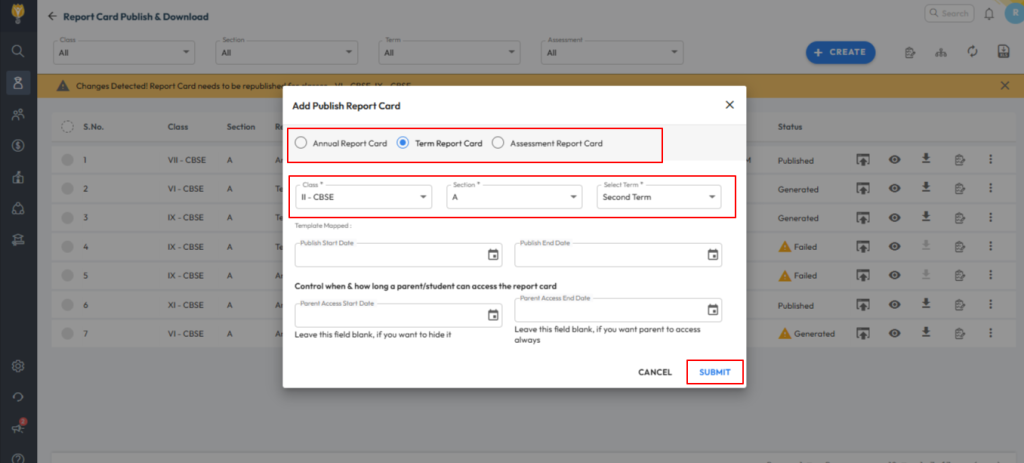
- Select the level for which you want to publish the report:
- Annual Report Card: Generates a full-year report.
- Term Report Card: Generates report cards for Term 1, Term 2, Term 3, etc.
- Assessment Report Card: Generates assessment-wise reports (e.g., PT1, PT2, SA1, SA2).
- Click Submit.
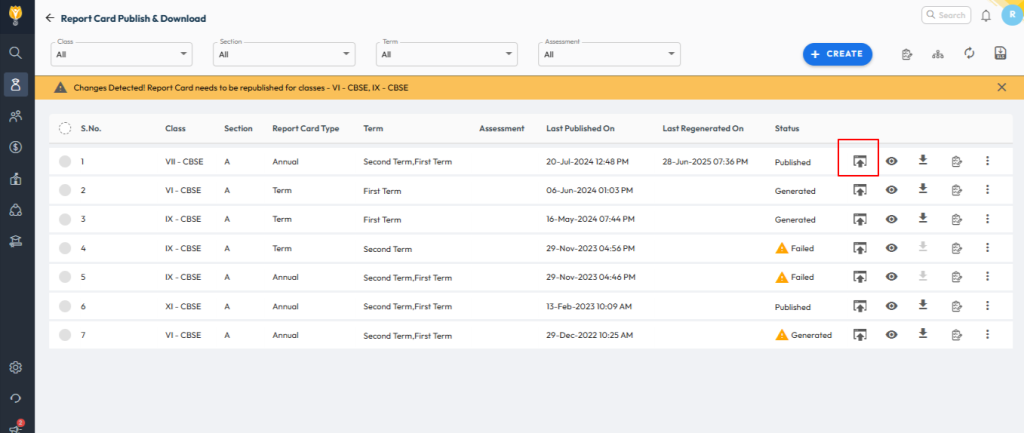
- Once the result appears in the list, click the Upward Arrow icon to publish it.
- When the status changes to Generated, you can Preview or Download the report card in PDF format.
Video Tutorial :
Was this article helpful to you?
Yes0
No0