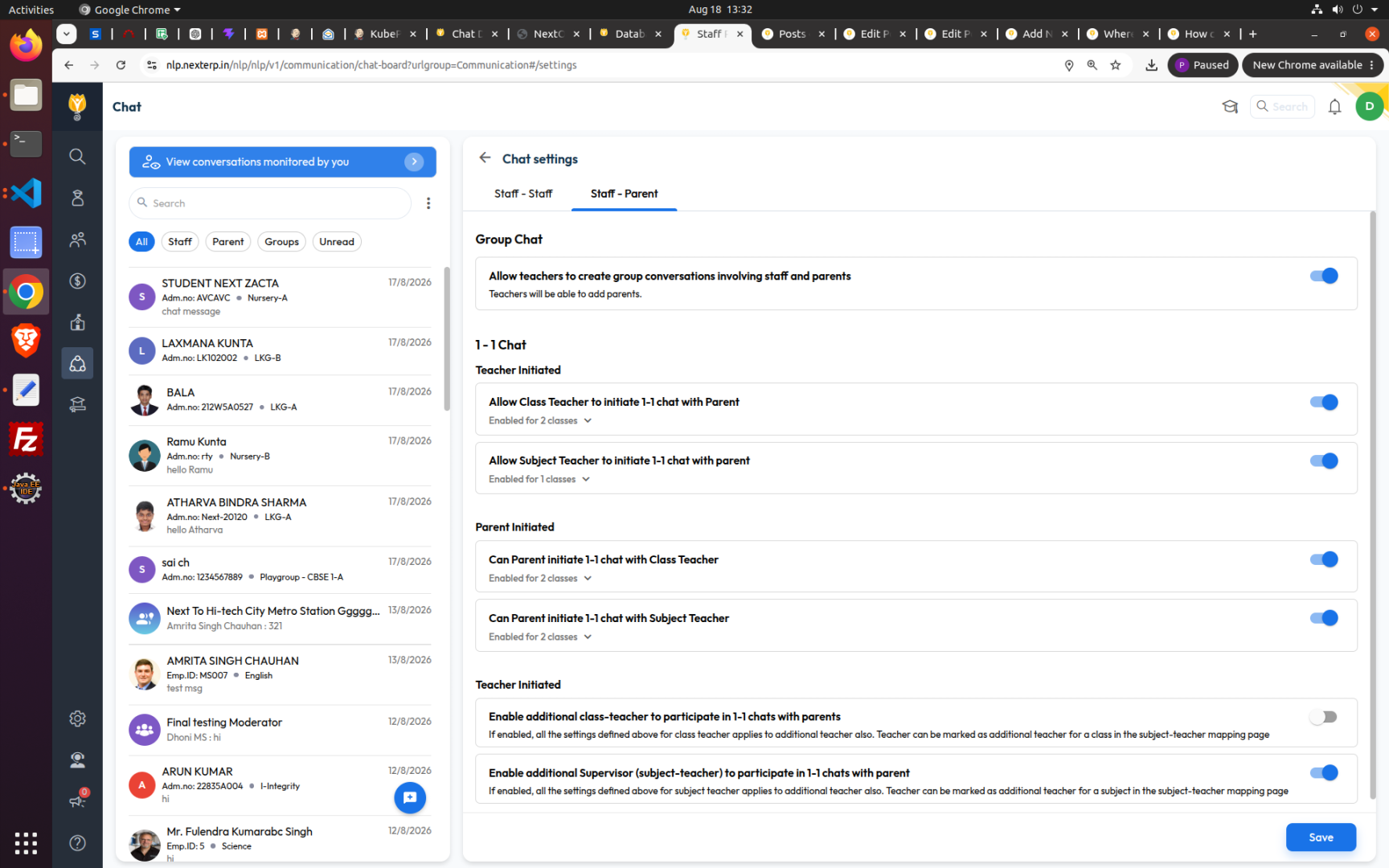
> Communication > Chat > options menu (⋮) > Chat Settings
Chat Settings is where you decide who can start a chat, and with whom.
Open Chat.
Click the ⋮ icon next to the search box.
Click Chat Settings.
Turn the toggles on or off, then click Save.
What can I control under Staff – Staff?
Path: Chat > ⋮ > Chat Settings > Staff – Staff
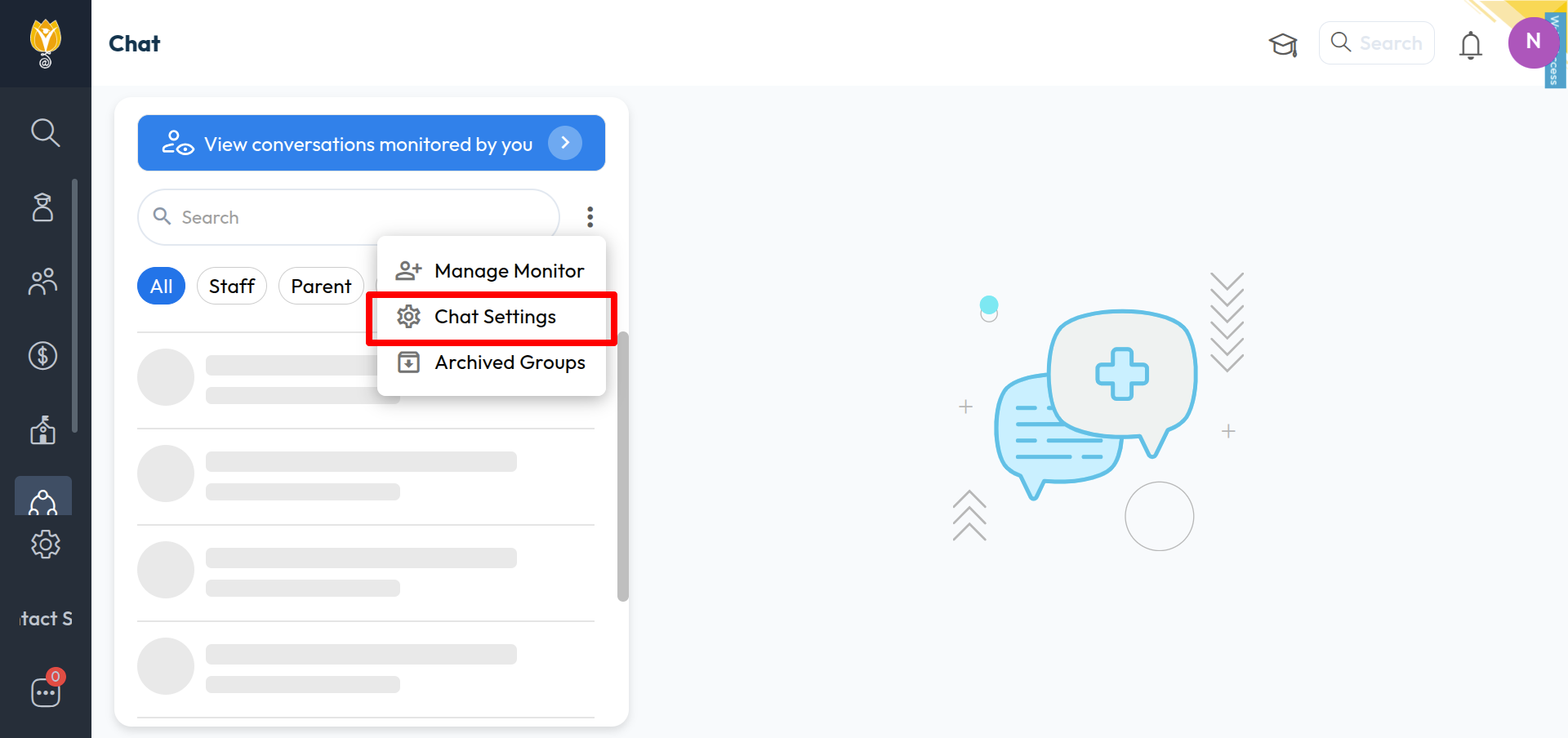
This tab is only about chats between staff. Parents are not affected.
Two settings:
Allow any staff to create group conversations for staffs — lets any staff member create a staff group. Admin and Principal can always create groups, even when this is off.
Enable 1-1 conversations among staffs — lets a staff member start a direct chat with another staff member.
Click Save to apply.
What can I control under Staff – Parent?
Path: Chat > ⋮ > Chat Settings > Staff – Parent
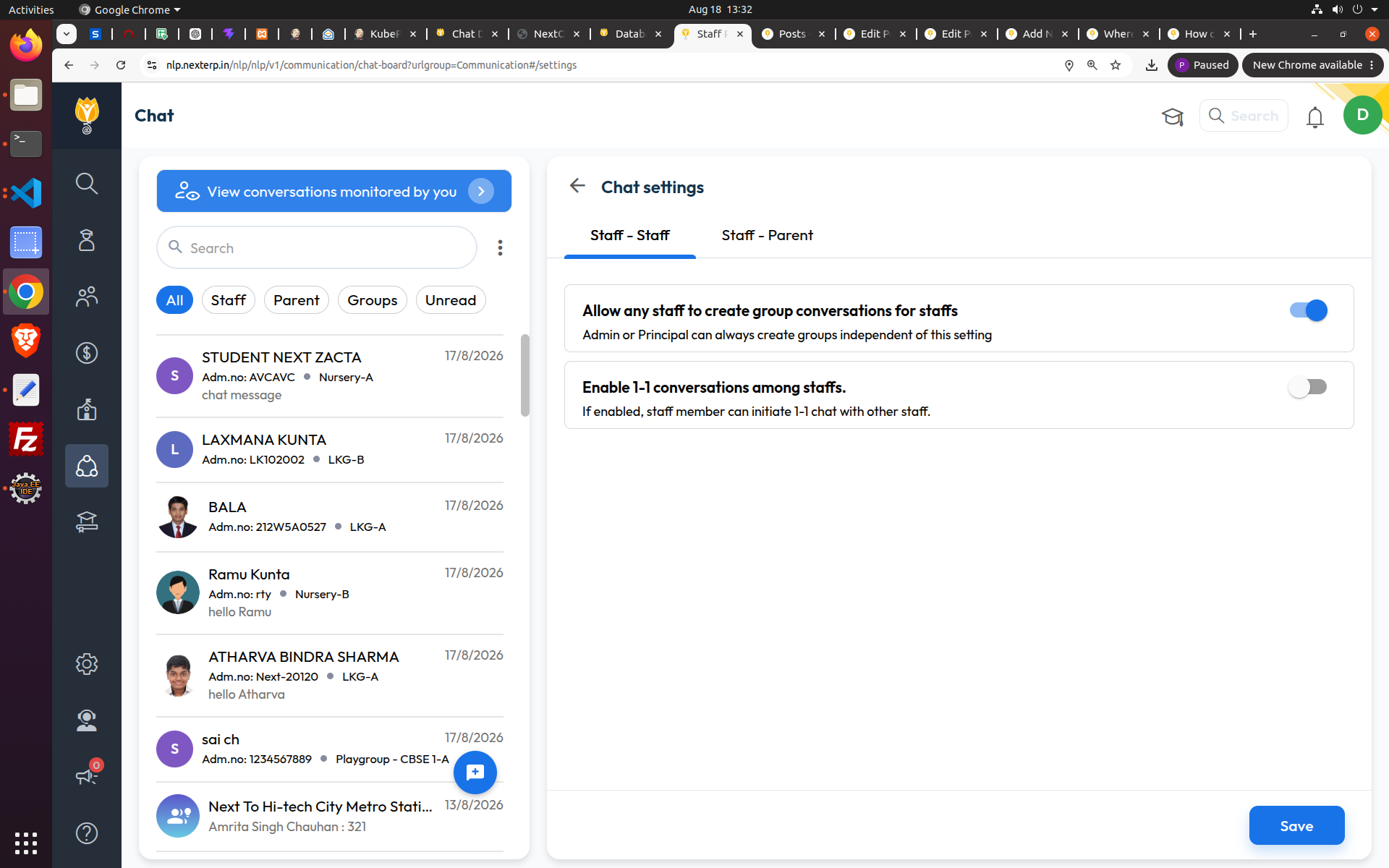
This tab is about chats between staff and parents.
Group Chat
Allow teachers to create group conversations involving staff and parents — lets teachers create groups with parents in them.
1-1 Chat — Teacher Initiated
Allow Class Teacher to initiate 1-1 chat with Parent
Allow Subject Teacher to initiate 1-1 chat with parent
1-1 Chat — Parent Initiated
Can Parent initiate 1-1 chat with Class Teacher
Can Parent initiate 1-1 chat with Subject Teacher
Additional teachers
Enable additional class-teacher to participate in 1-1 chats with parents
Enable additional Supervisor (subject-teacher) to participate in 1-1 chats with parent
These two give the same rights to additional teachers. Mark a teacher as additional on the subject-teacher mapping page.
Click Save to apply.
Can a parent start a chat with a teacher?
Path: Chat > ⋮ > Chat Settings > Staff – Parent
Yes, if your institution allows it. This is off by default.
Under 1-1 Chat > Parent Initiated, turn on:
Can Parent initiate 1-1 chat with Class Teacher
Can Parent initiate 1-1 chat with Subject Teacher
Click Save.